
Use the Find navigator ( ) to perform search and replace operations across your project.
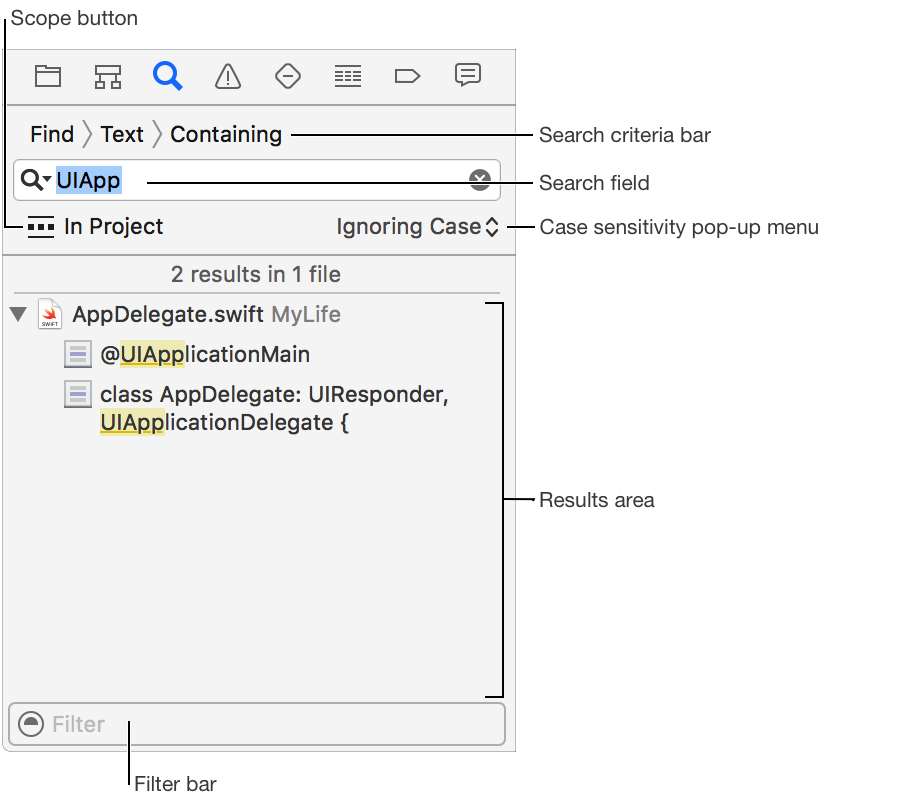
Click the search criteria bar, choose Find > Text, and choose a criteria: Containing, Matching, “Starting with”, or “Ending with.”
Enter text into the search field.
Select an option from the case sensitivity pop-up menu: Ignoring Case or Matching Case.
Press Return.
Select a result to show it in the editor area.
Click the search criteria bar, choose Find > References, and choose a criteria: Containing, Matching, “Starting with”, or “Ending with.”
Enter a symbol name into the search field.
Select an option from the case sensitivity pop-up menu: Ignoring Case or Matching Case.
Press Return.
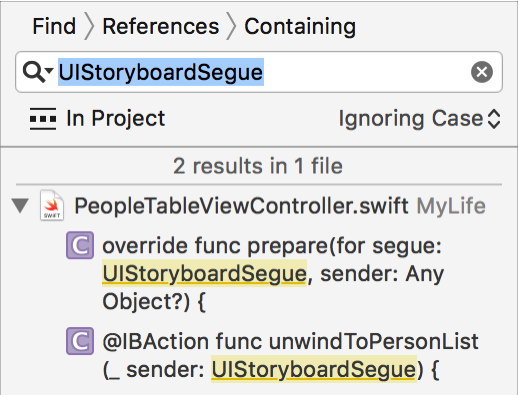
Select a result to show it in the editor area.
Click the search criteria bar, choose Find > Definitions, and choose a criteria: Containing, Matching, “Starting with”, or “Ending with.”
Enter a symbol name into the search field.
Select an option from the case sensitivity pop-up menu: Ignoring Case or Matching Case.
Press Return.
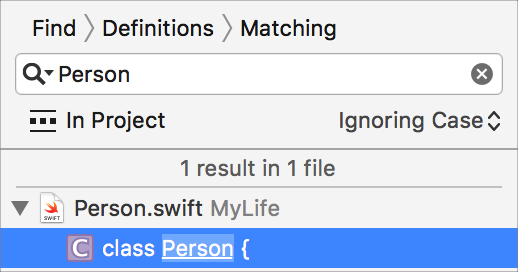
Select a result to show it in the editor area.
Click the search criteria bar, choose Find > Call Hierarchy.
Enter a method name into the search field.
Select an option from the case sensitivity pop-up menu: Ignoring Case or Matching Case.
Press Return.
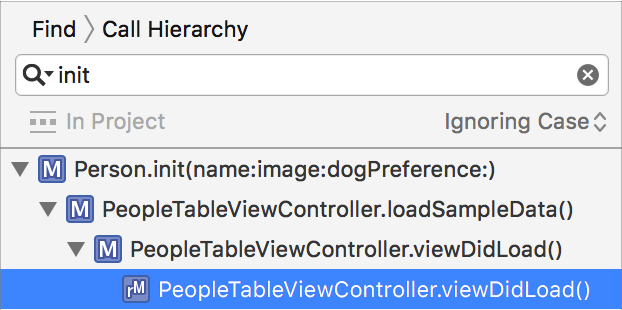
Select a result to show it in the editor area.
Click the search criteria bar, choose Replace > Text, and choose a criteria: Containing, Matching, “Starting with”, or “Ending with.”
Enter text into the search field.
Select an option from the case sensitivity pop-up menu: Ignoring Case or Matching Case.
Enter text into the replacement field.
Press Return.
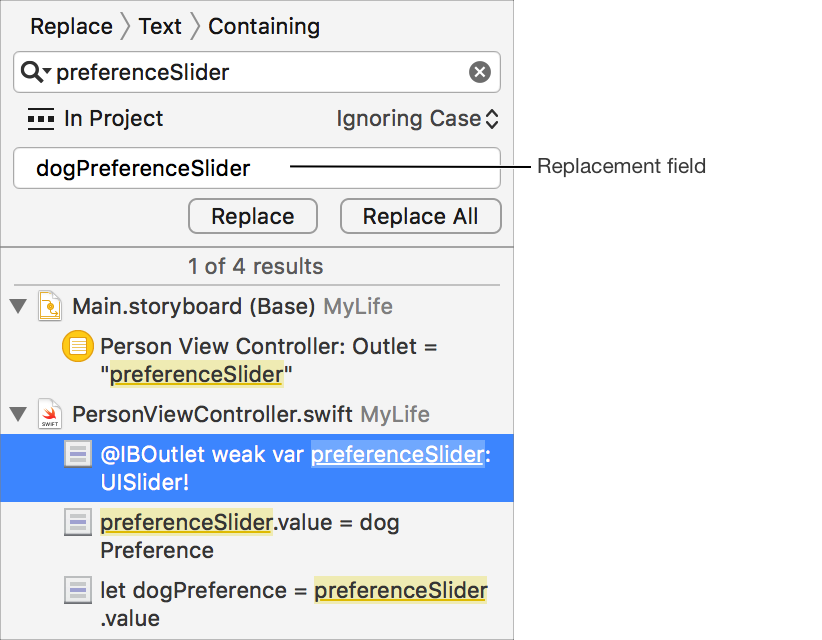
To replace a single found instance, select the found instance in the results area and click Replace. To replace all instances, click Replace All.
Enter text in the filter bar to narrow down the list of search results.
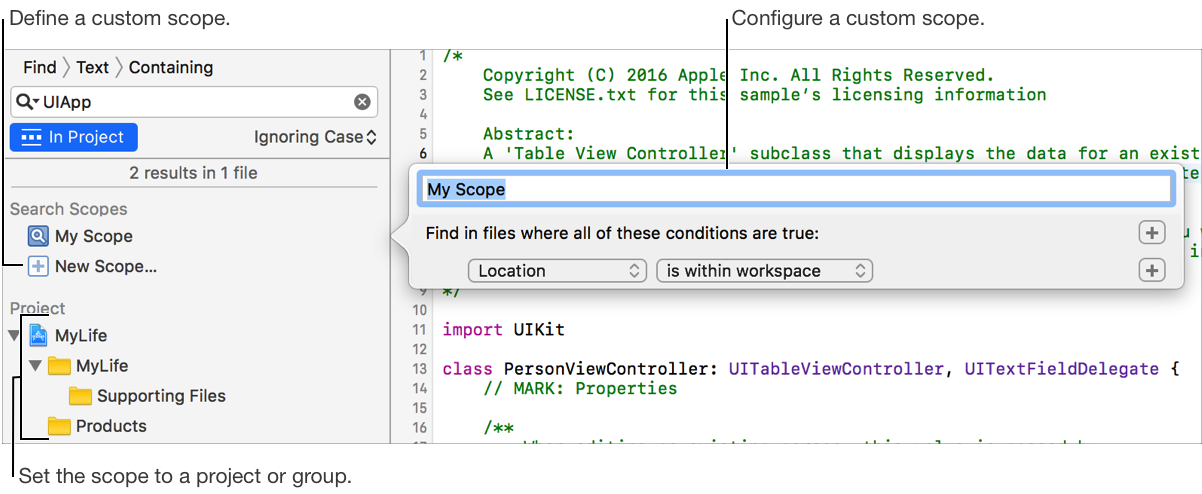
When performing a find or replace operation, click the Scope button.
Click a project or group to restrict searching to that project or group, or click New Scope to define a custom scope. A custom scope can restrict searching to files matching a specific location, name, path, extension, type, and source control status.
Use patterns to refine a search by adding placeholders for white space, URLs, hexadecimal digits and other characters into the search field.
When performing a find or replace operation, click the magnifying glass icon in the search field and choose Insert Pattern from the pop-up menu.
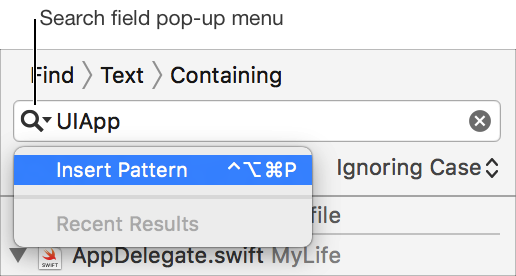
Select a pattern to insert it in the search field.
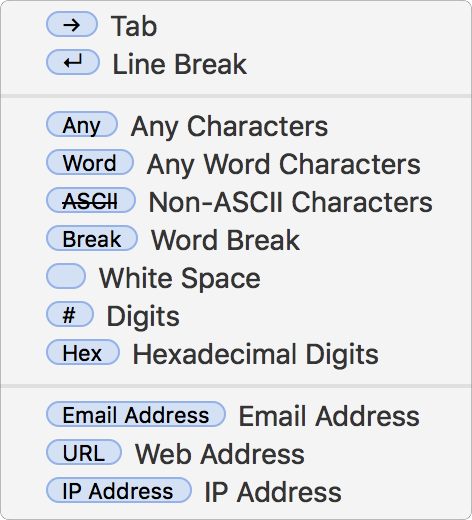
Click the search criteria bar, choose Find > Regular Expression or Replace > Regular Expression.
Enter a regular expression into the search field or replacement field.
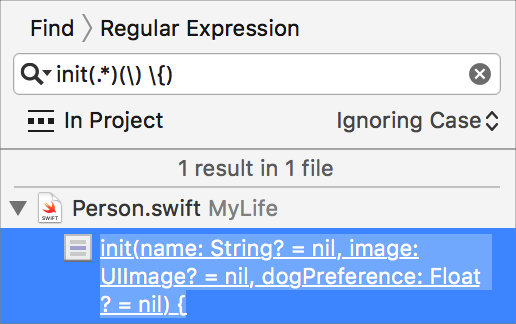
Proceed as you normally would with the find and replace operation.
Note: In General preferences, you can set the amount of detail that appears in the Find navigator. See Manage general environment settings.