
Use General preferences to manage general environment settings, such as the amount of detail displayed in the Find navigator and Issue navigator, whether runtime errors occur, and whether building continues when errors occur.
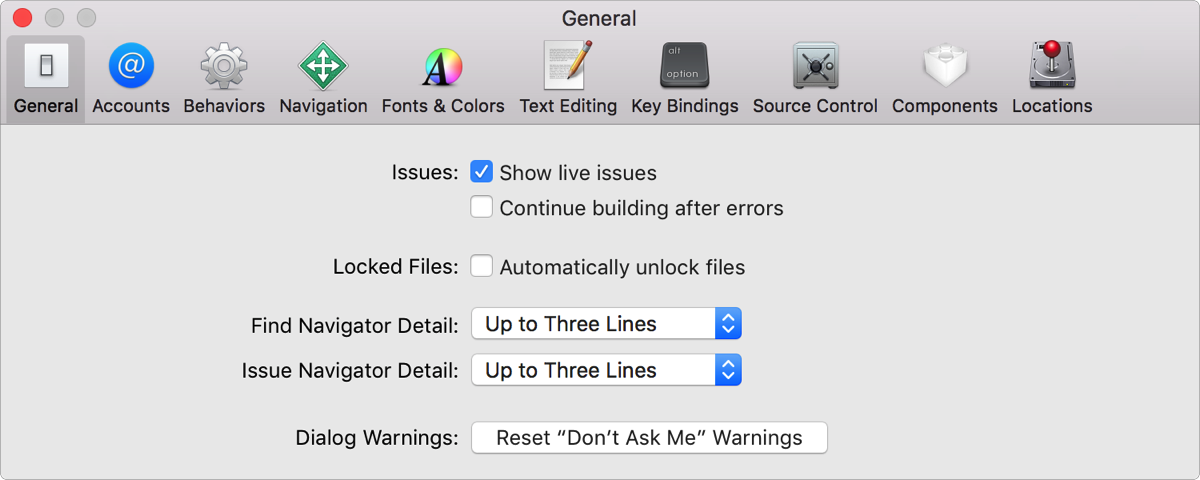
Enable runtime warnings and errors: Select the “Show live issues” checkbox. Xcode now displays runtime warnings and errors in the editor and Issue navigator.
Continue building a target when errors occur: Select the “Continue building after errors” checkbox.
Automatically unlock locked files: Select the “Automatically unlock files” checkbox. Xcode now automatically unlocks locked files when attempting to edit them.
Adjust the amount of detail displayed for multiline results in the Find navigator: Choose the desired amount of detail—from one to thirty lines—from the Find Navigator Detail pop-up menu.
Adjust the amount of detail displayed for multiline results in the Issue navigator: Choose the desired amount of detail—from one to thirty lines—from the Issue Navigator Detail pop-up menu.
Enable hidden warning dialogs: Click Reset “Don’t Ask Me” Warnings. Any warning dialogs you disabled by clicking a "Do not show this message again" checkbox are enabled again.