
After you create your project from a template, build and run your app to see what the app looks like on a device. For macOS apps, just click the Run button in the toolbar and the app launches on your Mac. For iOS, tvOS, and watchOS apps, you can run your app in the Simulator—a developer tool included with Xcode that simulates devices—or run your app on a real device connected to your Mac. You can also run your app on a device over WiFi after you pair it with Xcode.
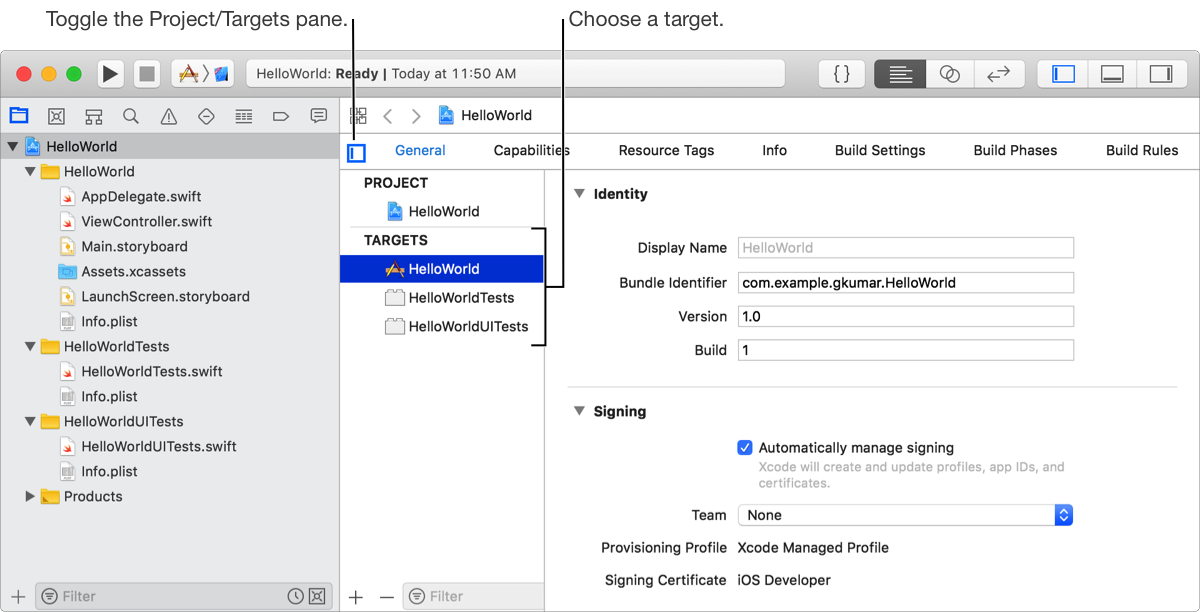
Projects can have multiple targets—multiple apps and multiple configurations of the same app. A target specifies a product to build, such as an iOS, macOS, tvOS, or watchOS app. Most projects you create from a template have one target for the main app and other targets for test apps. For watchOS apps, there’s a target for the iOS app, the WatchKit extension, and the WatchKit app. To view the targets, click the Project/Targets button in the project editor.
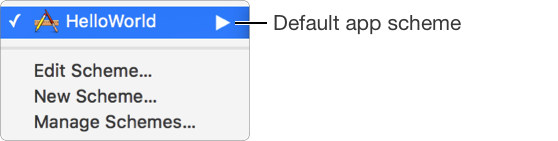
To run your app, choose a scheme from the Scheme pop-up menu in the toolbar. A scheme is a collection of settings that specify the targets to build, the build configuration, and the executable environment. Xcode creates a default scheme for each target in your project. Choose the scheme from the Scheme pop-up menu that matches your app’s name.
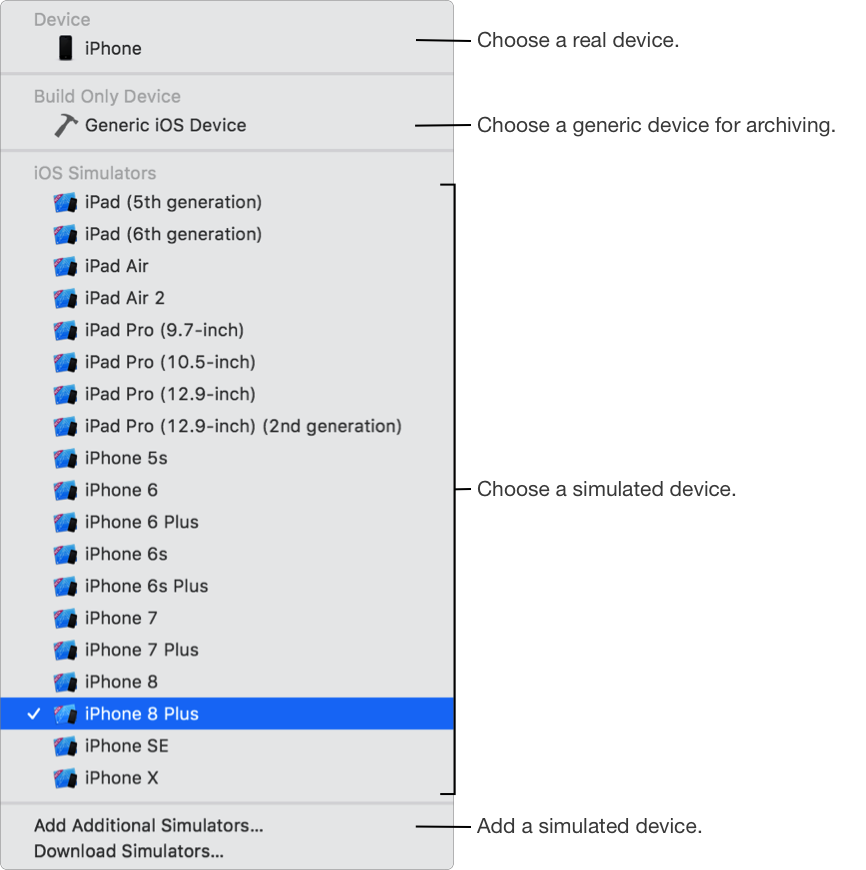
Next choose a run destination from the Scheme pop-up menu in the toolbar. The run destination determines where the app runs after it’s built. For macOS apps, the run destination is the Mac running Xcode. For other apps, you can choose a simulator of a product family running a version of the operating system, or a device connected to your Mac. To test your app without a device, choose a simulator from the Scheme pop-up menu.
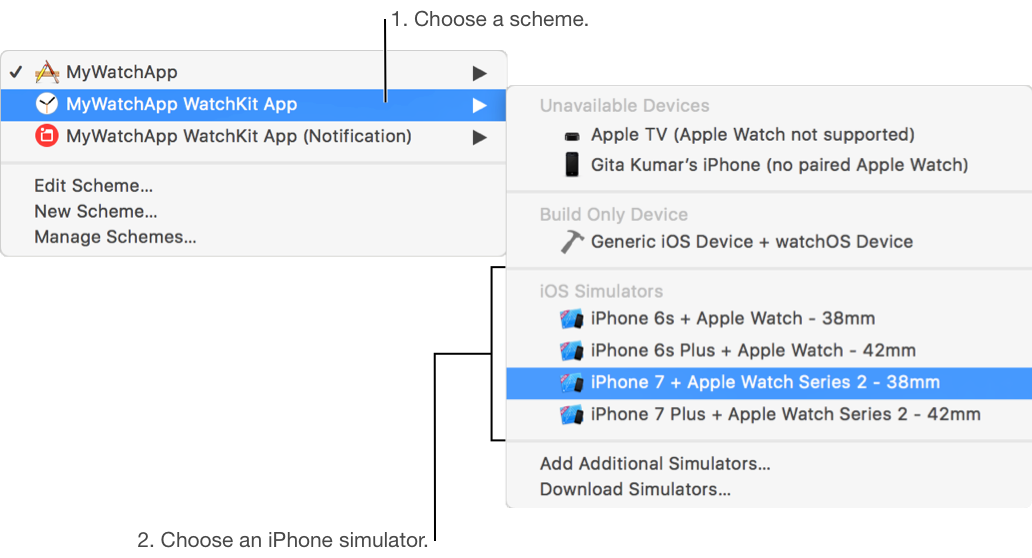
To test a WatchKit App target, choose the WatchKit App as the scheme, and choose an iPhone simulator paired to an Apple Watch as the run destination.
Now click the Run button in the toolbar to compile, link, and debug your app. The activity view in the toolbar shows the build progress and results. If an error or warning occurs, a corresponding yellow or red icon appears in the activity view, and you can click it to view details in the Issue navigator. Click the issue in the navigator, and Xcode displays the line of code where the compiler error occurred. (You can customize the behaviors of some alerts and actions using Behaviors preferences.)
If the build is successful, your macOS app launches on your Mac. For other apps, the app launches in Simulator or the device you selected. For iOS and tvOS apps created from a template, Simulator displays an empty view because you haven’t created the user interface yet. For watchOS apps, Simulator opens both an iPhone simulator displaying the Home screen, and an Apple Watch simulator displaying an empty view.
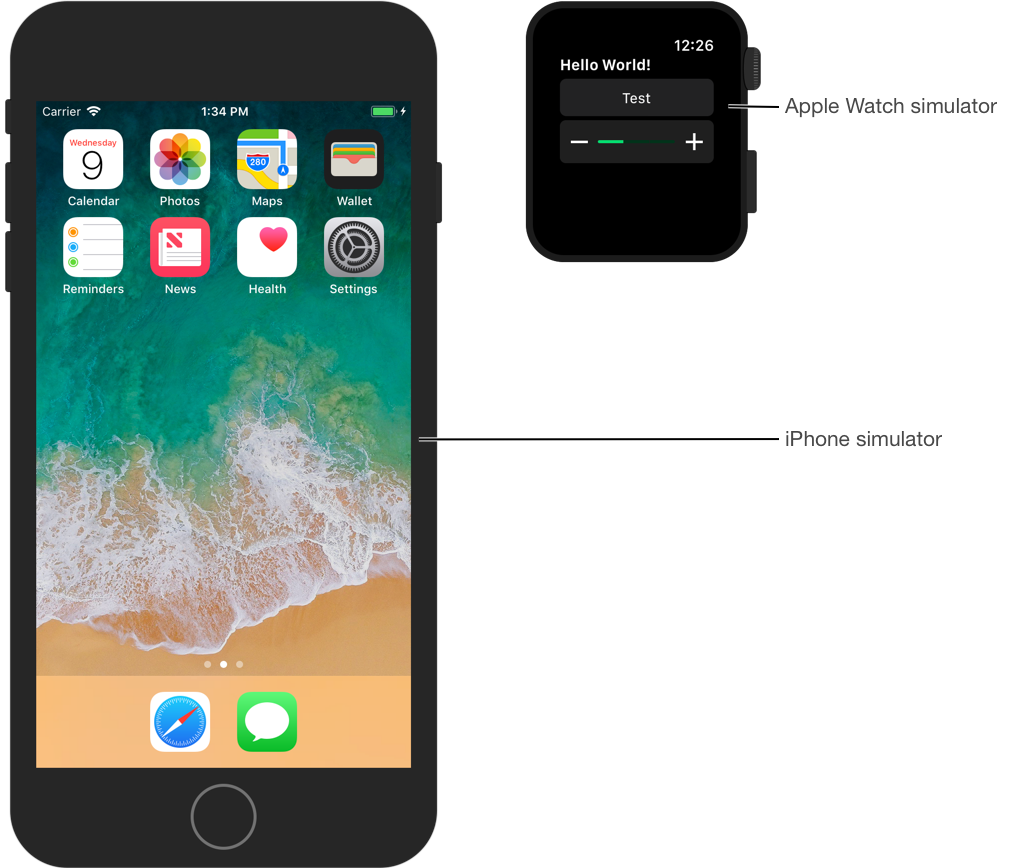
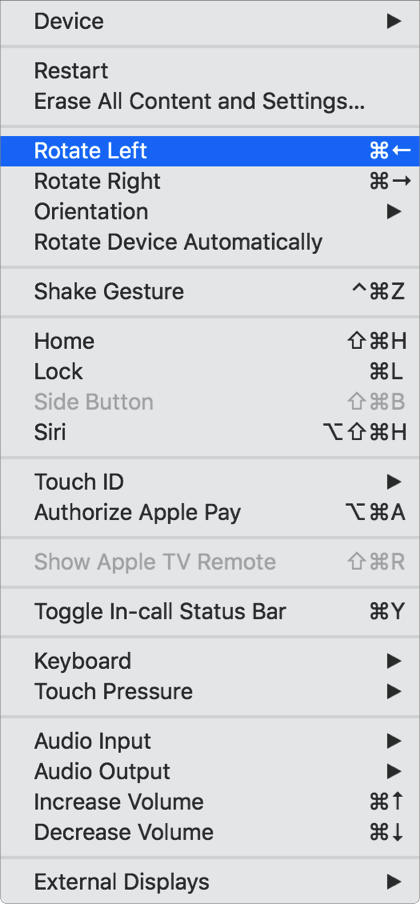
In Simulator, you can simulate a physical user action—such as rotating or shaking an iOS device—using the Hardware menu. You can also simulate touch gestures and simulate Apple Watch interactions using the Mac pointer.
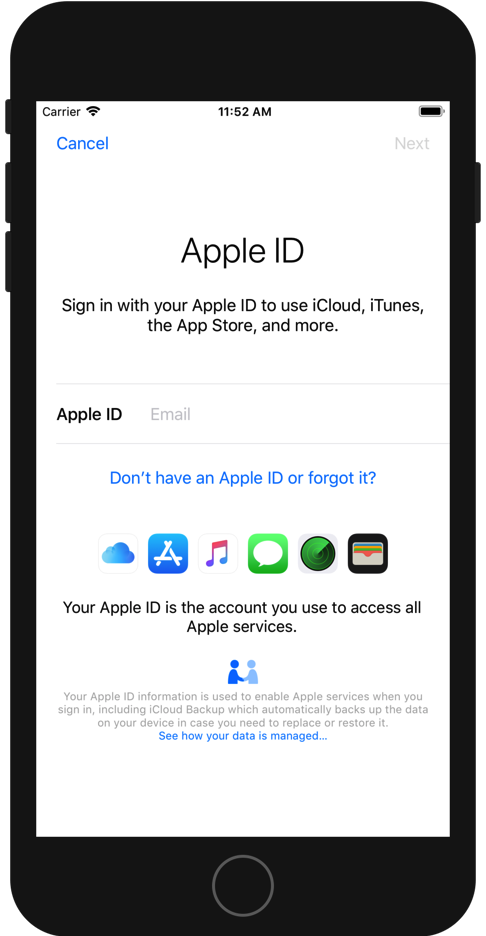
For iOS and tvOS apps, use the Settings app to configure the simulator. To open Settings, choose Hardware > Home and in the simulated device, click Settings. For example, if your app uses iCloud services, sign in with a test Apple ID and configure iCloud.
If the target launches successfully, Xcode starts a debug session in the debug area ( ) below the editor. To quit the app and the debug session, click the Stop button next to the Run button in the toolbar.
To run your app on a real device (iOS, tvOS, and watchOS apps), add your Apple ID account and assign the target to a team. Then connect the device to your Mac, choose it from the Scheme pop-up menu, then click Run. If you use the default automatic signing setting, Xcode registers the device in your developer account, and launches the app. If you want to run your app on an untethered device, pair the device with Xcode (iOS, tvOS) first. Both the connected and paired devices will appear in the Scheme pop-up menu.
Next Step: Create the user interface.