
Build and run your code to compile, link, and debug it. For products that can be run directly, if the product builds successfully, Xcode runs the product and starts a debugging session.

Optionally, select an active scheme and destination from the scheme menu in the toolbar.
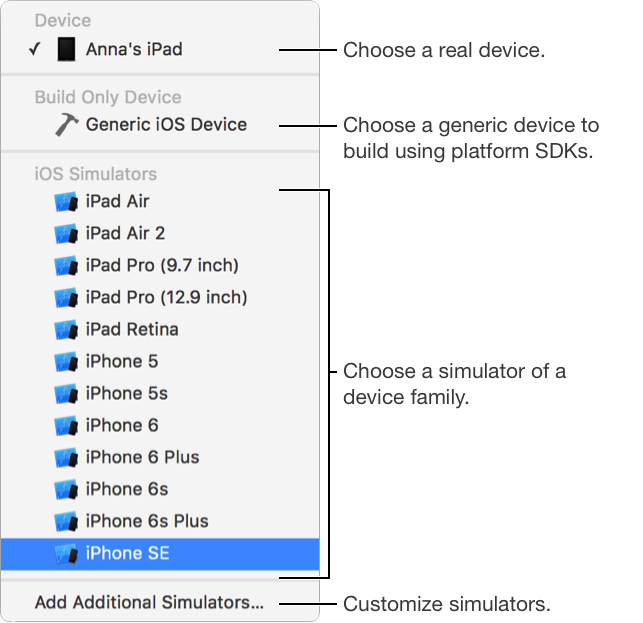
For iOS, watchOS, and tvOS apps, choose a run destination from the Scheme menu.
[Device]: To launch the app on a device, connect the device to your Mac and choose it under Device. The device must be unlocked and paired before it appears in the menu. To learn more, go to Run an app on a connected device.
Generic [Platform] Device: If you want to build the app using the platform SDKs, choose a generic device under Build Only Device. For example, if you want to create an archive, you need to build with platform SDKs.
[Simulator]: If you want to run your app in Simulator, choose a device family under [Platform] Simulators or click Add Additional Simulators to configure your own. For tvOS apps, choose Apple TV 1080p. For watchOS, choose the WatchKit App as the scheme, and choose an iPhone simulator paired to an Apple Watch as the run destination.
Click the Run button to build and run your code with the active scheme.
The activity view shows the build progress and results.
Use the Stop button to stop an in-progress build or end the current debugging session.
Xcode displays any errors or warnings it encounters in the Issue navigator. If there are errors during the compilation or link phase, Xcode does not run your code.
For other toolbar actions and shortcuts, go to About the toolbar.