
Use playgrounds to learn and explore Swift, prototype parts of your app, and create learning environments for others. The interactive Swift environment lets you experiment with code, explore system APIs, and even create custom views. You can also add notes and guidance using rich comments, group related concepts into pages, then add navigation. In playgrounds, you can run code from the insertion point supporting an incremental development style. When you’ve perfected your code in the playground, simply move that code into your project.
Choose File > New > Playground.
In the sheet that appears, select the platform you want the playground to run on.
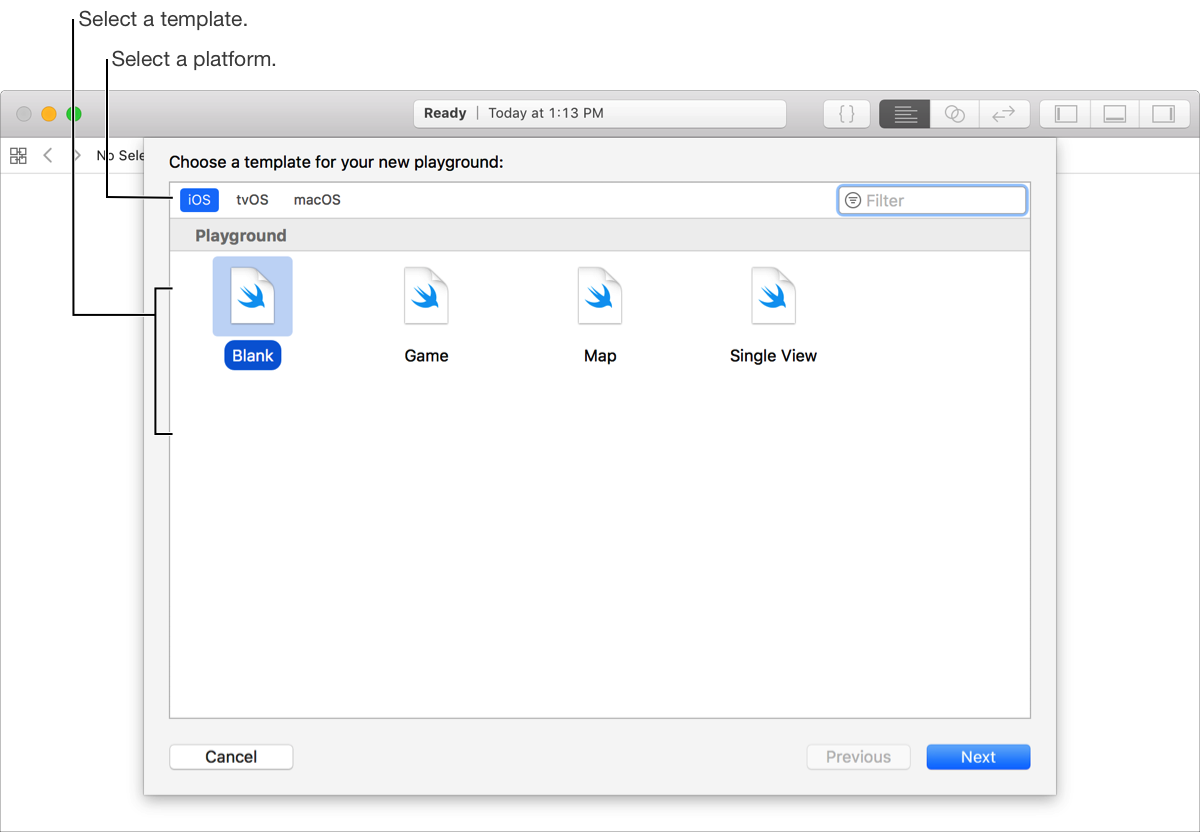
Under Playground, select a template, then click Next.
The templates are:
Blank: A generic playground.
Game: A playground based on SpriteKit.
Map: A playground that uses MapKit.
Single View: A playground with a single view.
In the next sheet, enter the name of the file, select a location, then click Create.
Note: The source editor in a playground has the same features as the source editor in the project editor.
Enter Swift code into the playground source editor.
As you type, Xcode parses your code. If a syntax error is detected, a message appears next to the corresponding line of code. To read the full message that describes the issue and suggests fixes, click the error or warning icon. Then click on the Fix button next to a suggestion to update your code.
To avoid syntax errors, use code completion.
Xcode offers inline suggestions for completing the name of a symbol. Click an item in the suggestion list or use the Up Arrow or Down Arrow keys to select it. Then press Return to accept the suggestion.
For a method or function containing parameters, code completion inserts a placeholder for each parameter. To move to the next placeholder, press Tab; to move to the previous placeholder, press Shift-Tab.
To find or replace text, choose Find followed by an option.
For example, choose Find > Find and Replace, then enter text in the Replace and With fields and press Return.
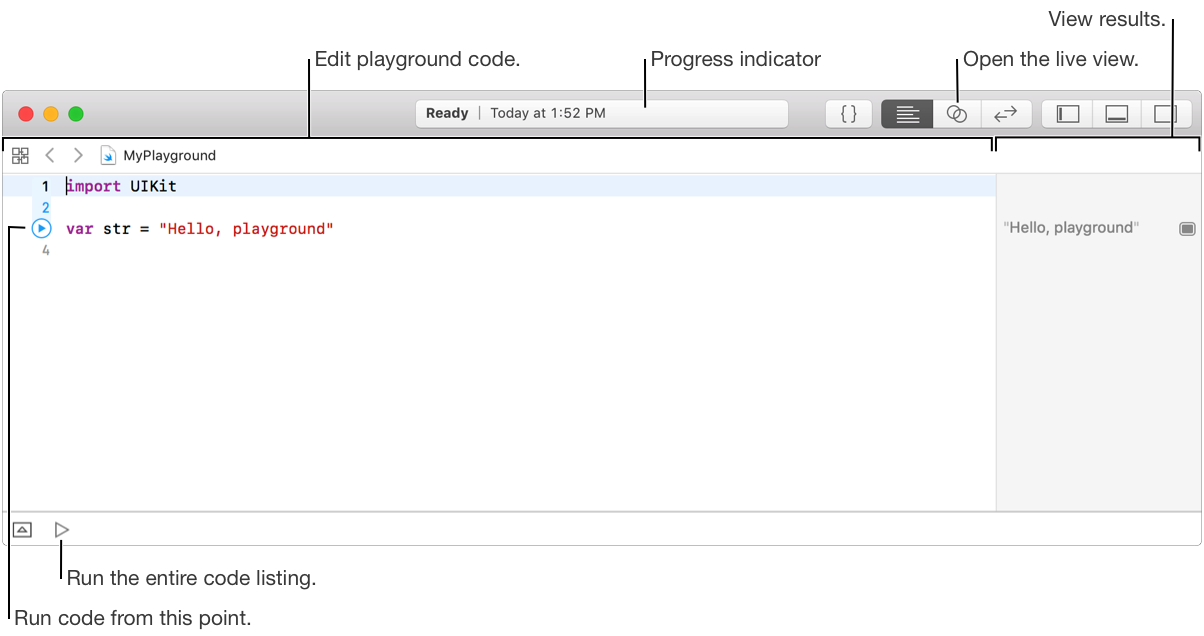
You can run code automatically when you stop typing code or manually when you are ready. While the code executes, a progress indicator in the toolbar displays on the right, and when the code finishes, the results appear in the same location.
To see the playground live view while running the code, open the assistant editor.
To switch between run modes, click and hold the Run button, then choose:
Automatically Run: Run the code each time you enter a statement or pause typing.
Manually Run: Run the code only when you click a Run button.
Note: In most of the templates, the default mode is manual.
To run code from the insertion point in manual mode, hover the pointer over the line number in the gutter, then click the Run button that appears.
To run the entire code listing in manual mode, click the Run button at the bottom of the window.