
You can create literals in your playground code when the value of a color, file, or image does not need to change. You can use the same literal in multiple places in your playground. The types of literals are:
Literal | Description | ||||||||||
|---|---|---|---|---|---|---|---|---|---|---|---|
Color | A | ||||||||||
File | An | ||||||||||
Image | A | ||||||||||
Place the insertion point in the code where you want to add the color literal.
Choose Editor > Insert Color Literal.
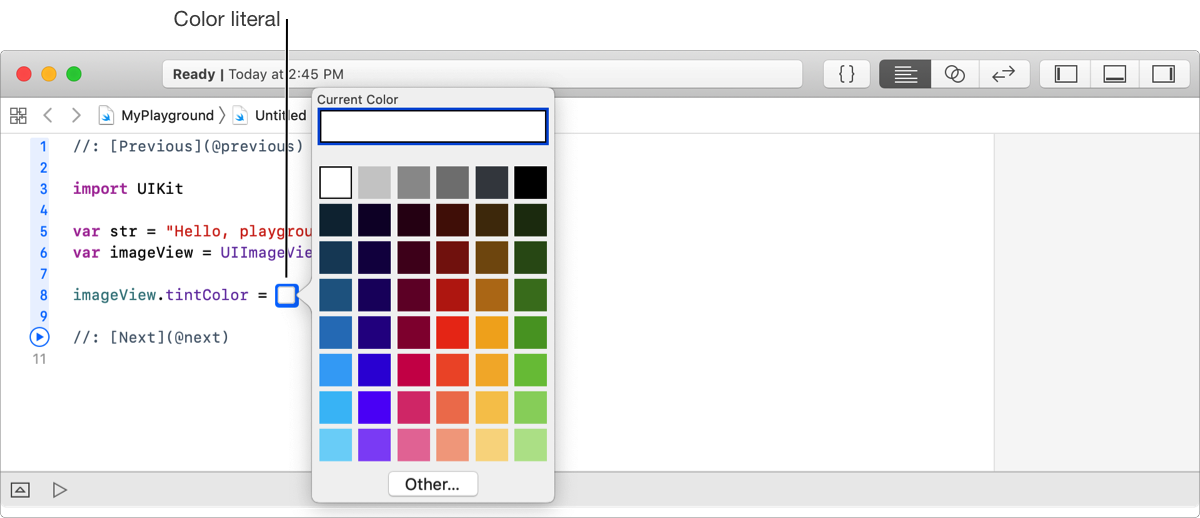
Double-click the color well that appears, then choose a color from the color picker.
Place the insertion point in the code where you want to add the file literal.
Choose Editor > Insert File Literal.
In the sheet that appears, select a file, then click Open.
Adding a file literal to a playground page adds it to the page’s Resources folder; otherwise, it is added to the playground Resources folder.
Place the insertion point in the code where you want to add the image literal.
Choose Editor > Insert Image Literal.
In the sheet that appears, select a file, then click Open.
Adding an image literal to a playground page adds it to the page’s Resources folder; otherwise, it is added to the playground Resources folder.
Alternatively, you can drag an image file to the source editor.
Use the Edit menu to cut, copy, and paste literals.