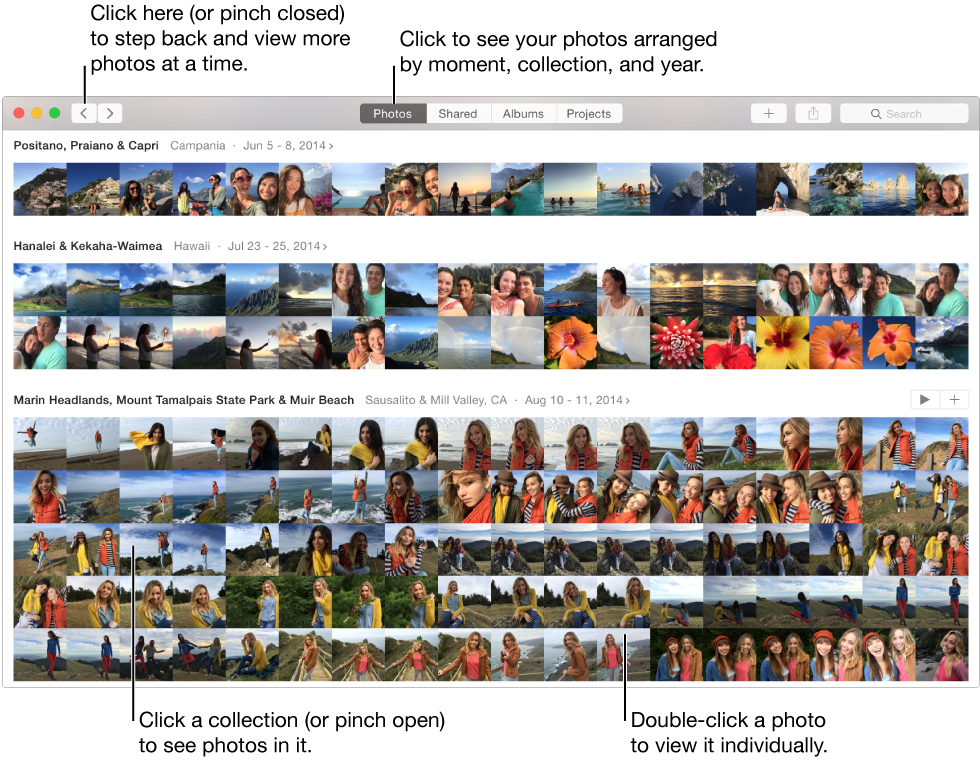

Photos uses Moments, Collections, and Years views to automatically organize your photos and videos by time and location and make it easy to find just the photos you’re looking for. A moment is a group of photos and videos taken around the same time and in the same place—for example, an afternoon at the beach. A collection is a group of related moments—for example, your entire beach vacation. The Years view groups all of your photos taken in the same year together, so you can quickly view your entire library at a glance. You can also view your photos individually to see more detail and make edits.
See photos organized by moment, collection, and year: Click Photos in the toolbar, then click a moment, collection, or year to see the photos in it. On a trackpad, pinch open on the moment, collection, or year.
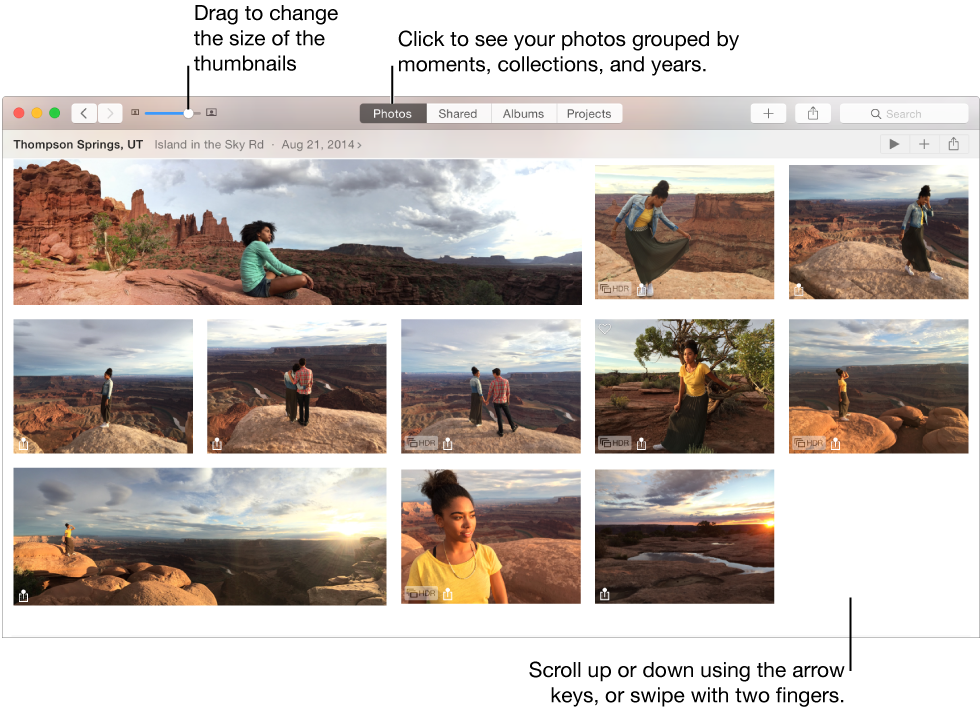
Go back to the previous view: Click the Back button  . On a trackpad, pinch closed on a moment or collection.
Scroll up or down in any view: Press the Up or Down Arrow key. On a trackpad, swipe up or down with two fingers.
View a photo: Double-click a photo thumbnail.
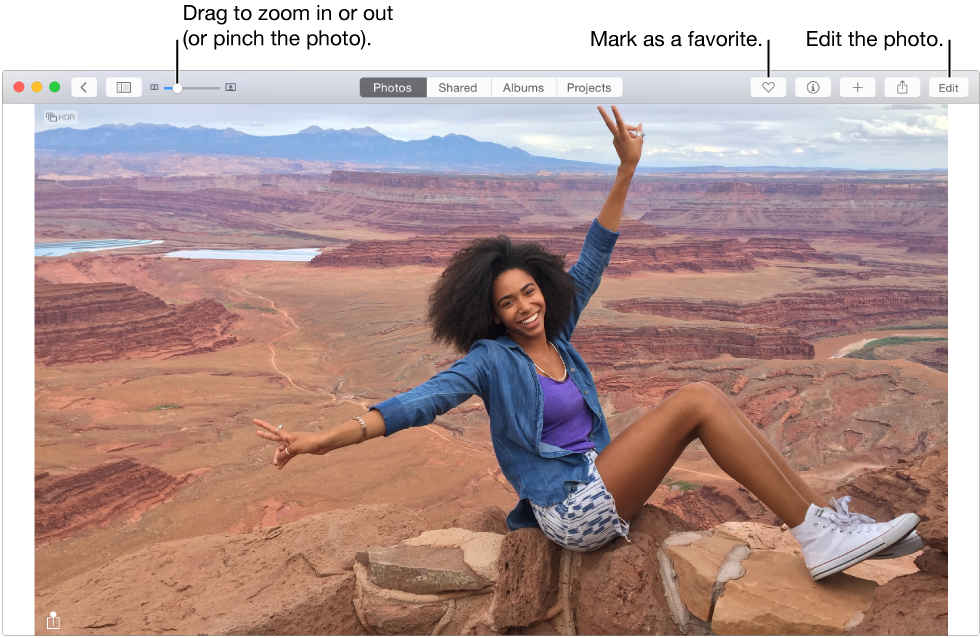
Zoom in or out on a photo: Drag the Zoom slider or pinch open or closed on the trackpad. You can drag the zoomed image to reposition it.

Make a photo a favorite: Click the Favorite button  in the toolbar. The photo appears in the Favorites album.
View information associated with a photo: Click the Info button  in the toolbar.
For more information about using the Info window, see View and add information about photos.
Add a photo to a new or existing album, book, card, calendar, or print order: Click  in the toolbar and choose the item you want.
Share a photo using iCloud Photo Sharing, Messages, Facebook, and more: Click the Share button  in the toolbar.
Display the editing tools: Click the Edit button, or choose Image > Show Edit Tools.
For more information about editing your photos, see Editing basics.
You can quickly play a slideshow of the photos in a collection or a moment. You can select a theme and music for the slideshow, but you can’t customize the slideshow further.
To create a customized slideshow that you can save or export, create a slideshow project. For more information about creating a slideshow project, see Create and work with slideshows.
Select some photos in a moment or position the pointer over the heading of a collection or moment, then click the Play button  when it appears on the right.
Click Themes, then select a theme.
A preview of the theme appears in the pane.
To play music for the slideshow, click Music and click the song you want. To turn off music, click the song again to deselect it.
Click Play Slideshow.
To stop playing the slideshow, press the Escape key. You can also press the arrow keys to skip forward or back through the slides and press the Space bar to pause the slideshow.
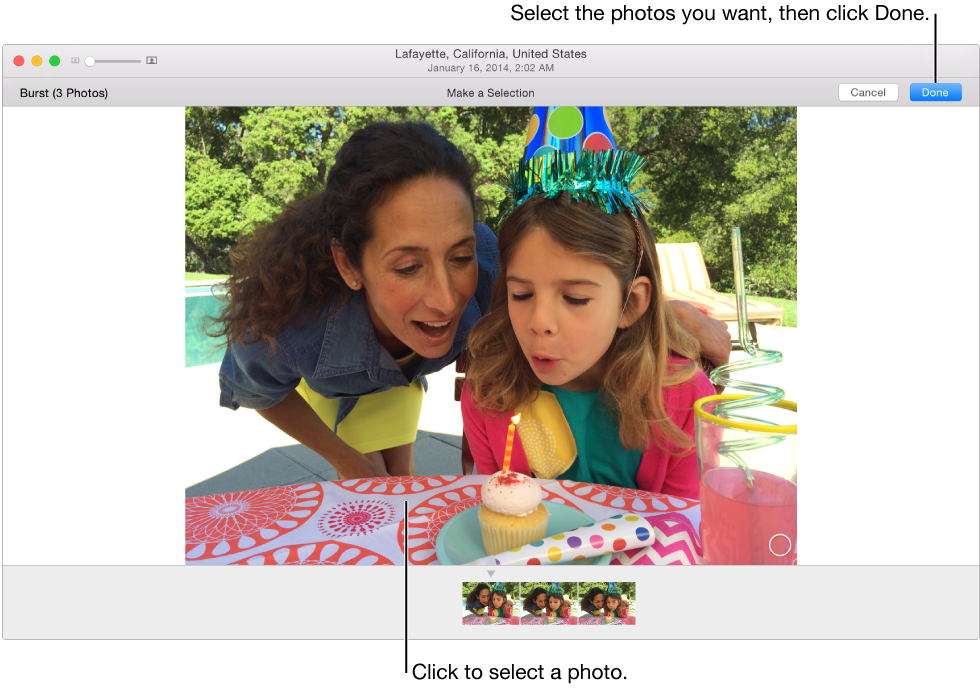
With some models of iPhone, iPad, and iPod touch, you can shoot a burst of photos in rapid succession, enabling you to get a good shot of fast-moving subjects. When you import a photo burst into Photos, it appears in the imported moment and in the Bursts album. When you open a burst, you can view all the shots in the burst and select your favorites to work with individually.
Double-click the burst in the moment or in the Bursts album.
To select photos from the burst, click the Make a Selection button in the upper-left corner of the photo.

Click the photos that you’d like to have as individual photos, then click the Done button.
Do one of the following:
Keep the selected photos and delete the others in the burst: Click Keep Only Selection.
The selected photos appear individually in the moment and unselected photos are placed in the Recently Deleted album. The burst no longer appears in the moment or in the Burst album.
Make the selected photos appear individually and keep all of the photos in the burst: Click Keep Everything.
The selected photos appear individually and the photo burst remains unchanged.
You can hide selected photos and show them only when you want to see them. Hiding a photo can be useful if you don’t want to use it, but you’re not sure you want to delete it.
Hide photos: Select the photo or photos, choose Image > Hide [number] Photos, then click Hide Photos.
The selected photos disappear from your moments, but are not deleted.
Show hidden photos: Click Albums in the toolbar, then choose View > Show Hidden Photo Album.
The Hidden Photos album appears among your other albums. To unhide photos in it, select them, then choose Image > Show Photo.
Tip: You can use keyboard shortcuts to quickly do many common tasks in Photos. Here are some of the most common shortcuts for viewing and editing photos. To see all the shortcuts you can use, see Keyboard shortcuts.
Action | Shortcut |
|---|---|
View photos grouped by year, collection, and moment | Command-1 |
View shared photos | Command-2 |
View albums | Command-3 |
View projects | Command-4 |
Select another photo in a moment | Arrow keys |
Edit a selected photo | Return |
Zoom between the current zoom level and 100 percent | Z |