View and add information about photos
To view or change information for a photo, you open the photo’s Info window.
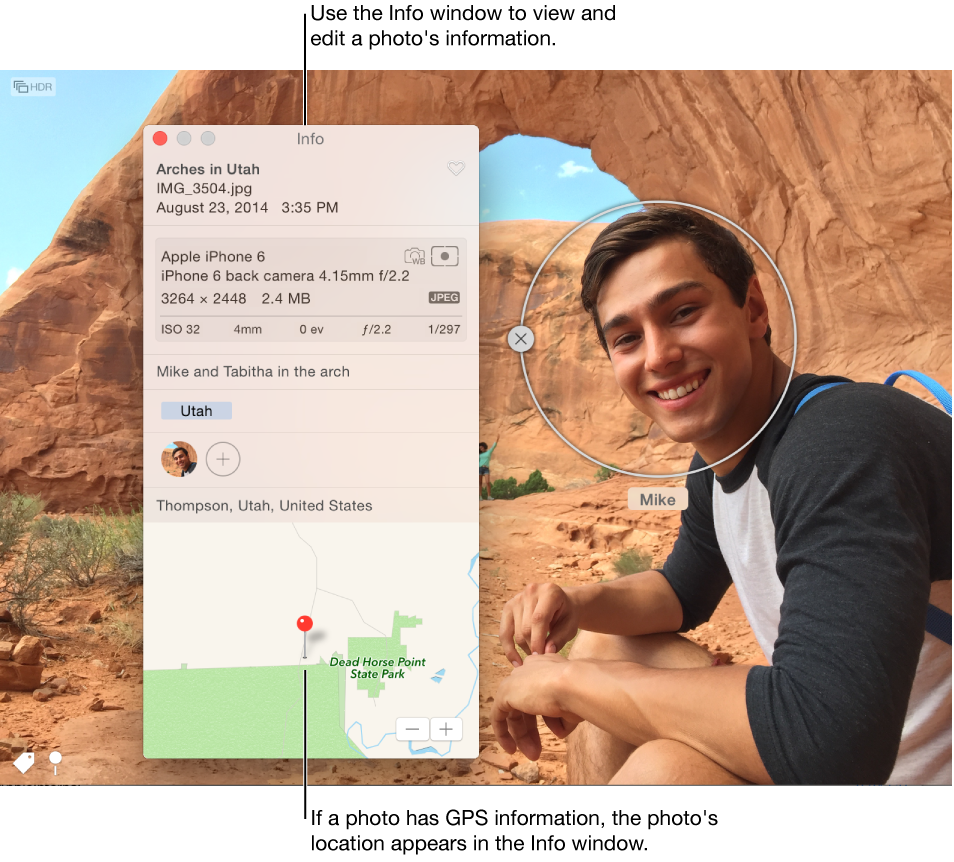
Open the Info window: Double-click a photo to view it, then click the Info button
 in the toolbar or press Command-I.
Add or change information: Edit any of the following.
Title: Enter a name in the Title field.
Description: Enter a caption in the Description field.
Favorite: Click the Favorite button
 to mark the photo as a favorite. Click the button again to unmark it.
 Keywords: Enter keywords in the Keywords field. As you type, Photos suggests keywords that you’ve used before. Press Enter when you’ve finished a keyword.
To remove a keyword, select it and press Delete.
Faces: Click
 in the toolbar and type a name to identify a face.
 Click
multiple times and drag the face identifier over different faces to identify multiple faces in a photo.