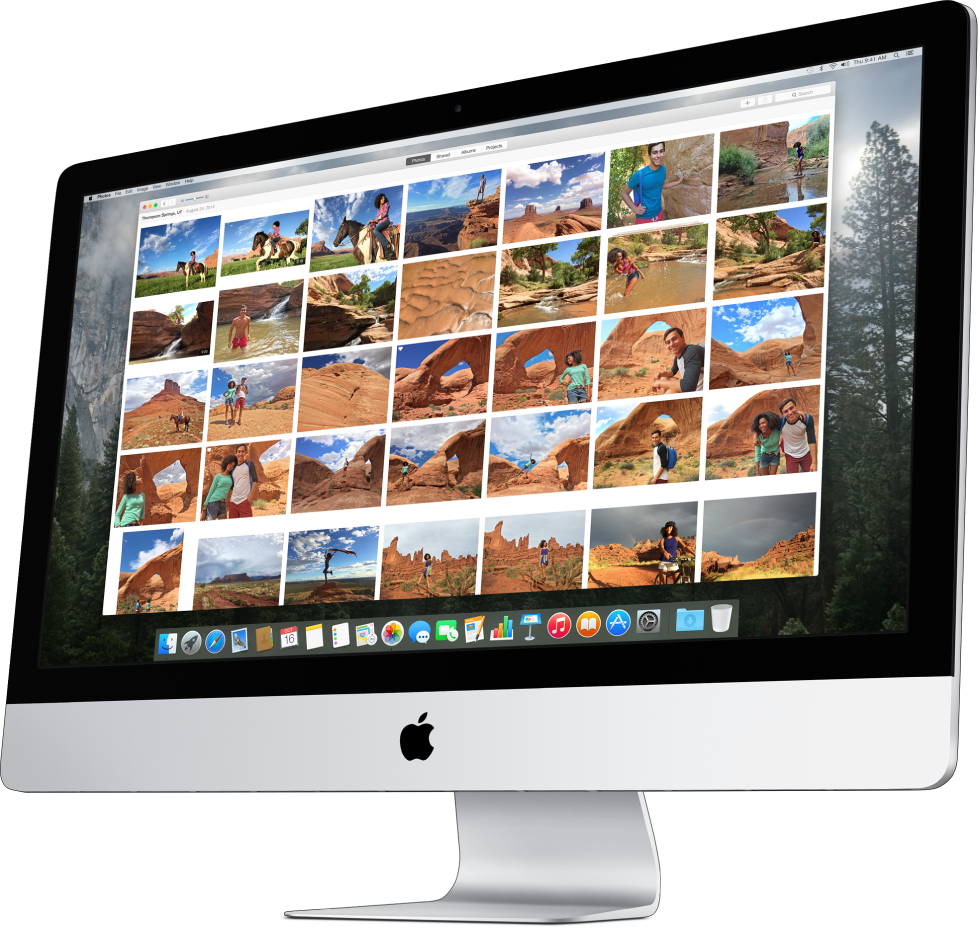

All new for OS X, Photos is built for the way you take, organize, and enjoy your photos today. Find out what you can do here.
Get your photos and videos into Photos
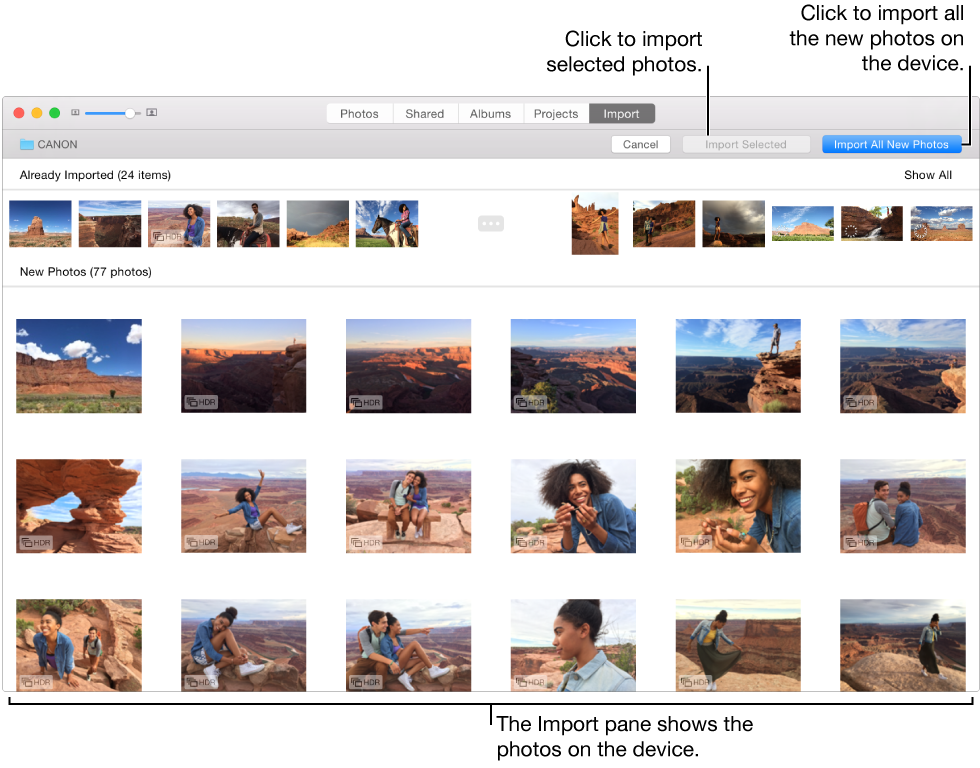
To get started, connect a camera or iOS device, then click Import in the toolbar to see and select the photos and video you want to import.
Once you’ve set up your Photos library, you can also turn on iCloud Photo Library to automatically upload your photos and videos to iCloud and keep them up to date across your Mac, iOS devices, and iCloud.com.
Browse your photos
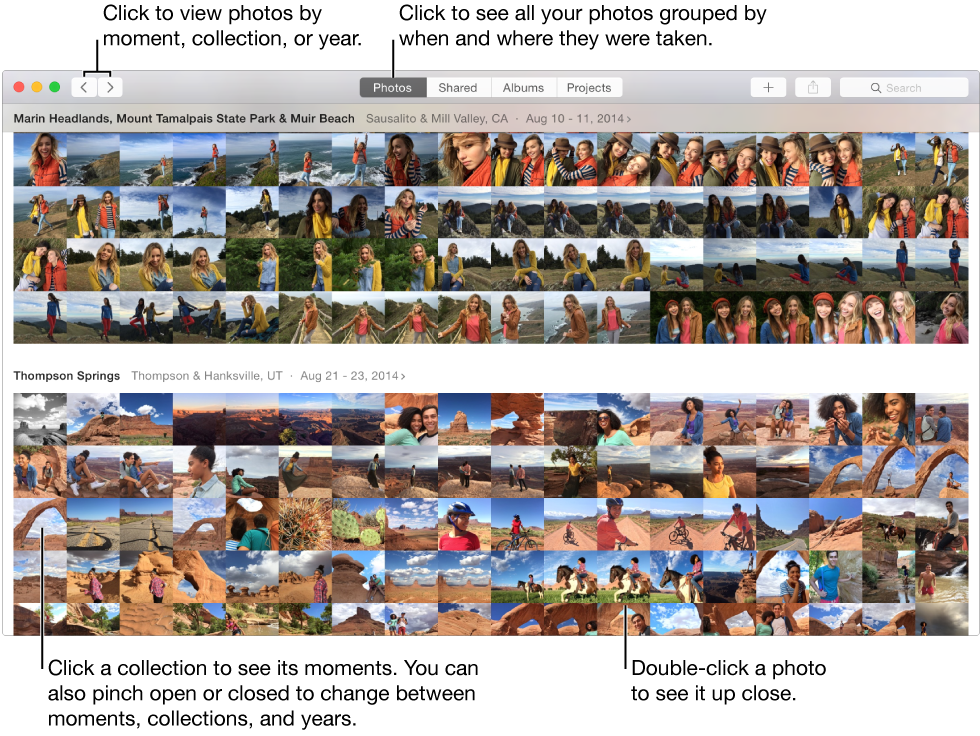
After you import your photos, you see them in Photos view, grouped by the time and location you took them.
Group photos into albums
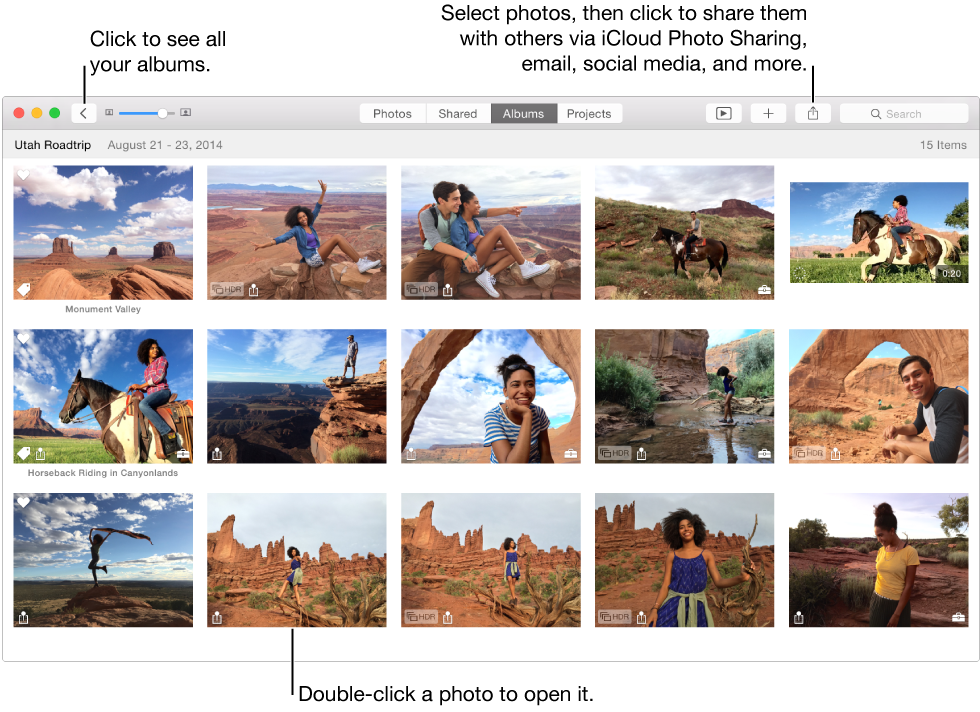
You can organize your photos into albums that you create. Photos also helps you stay organized with automatic albums that group your videos, panoramas, bursts, and more.
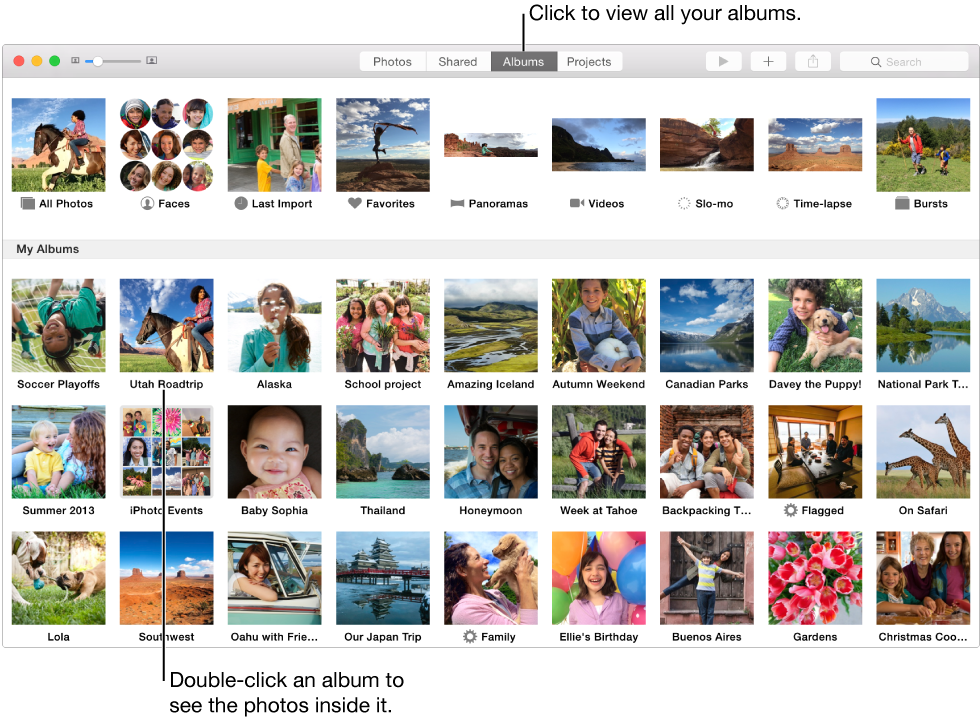
Double-click an album to open it.
Get a closer look
Double-click a photo to see it in detail or improve it.
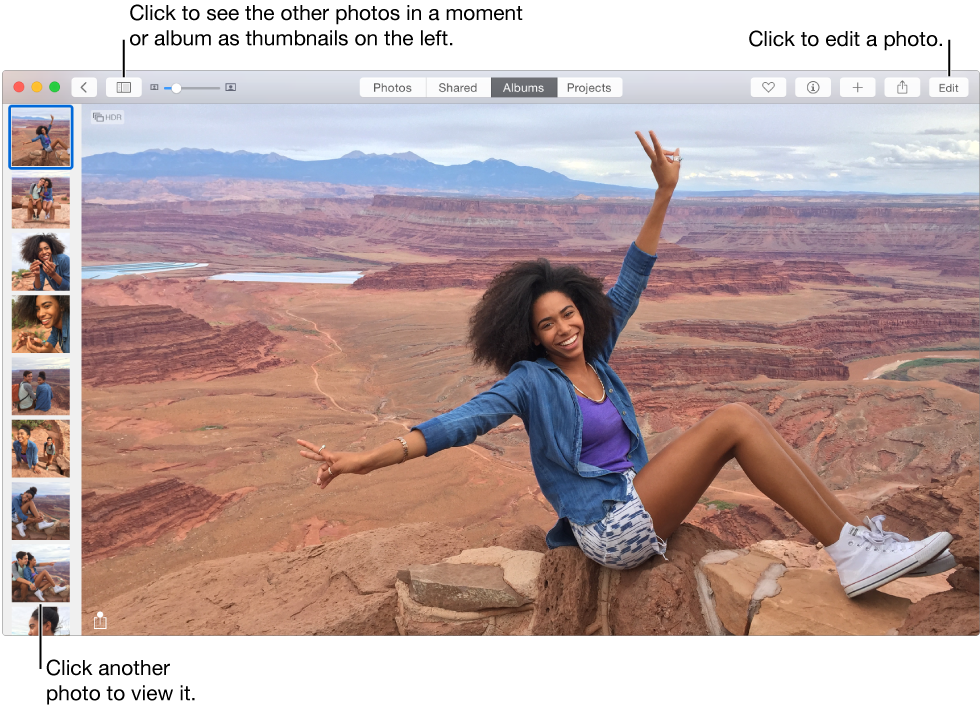
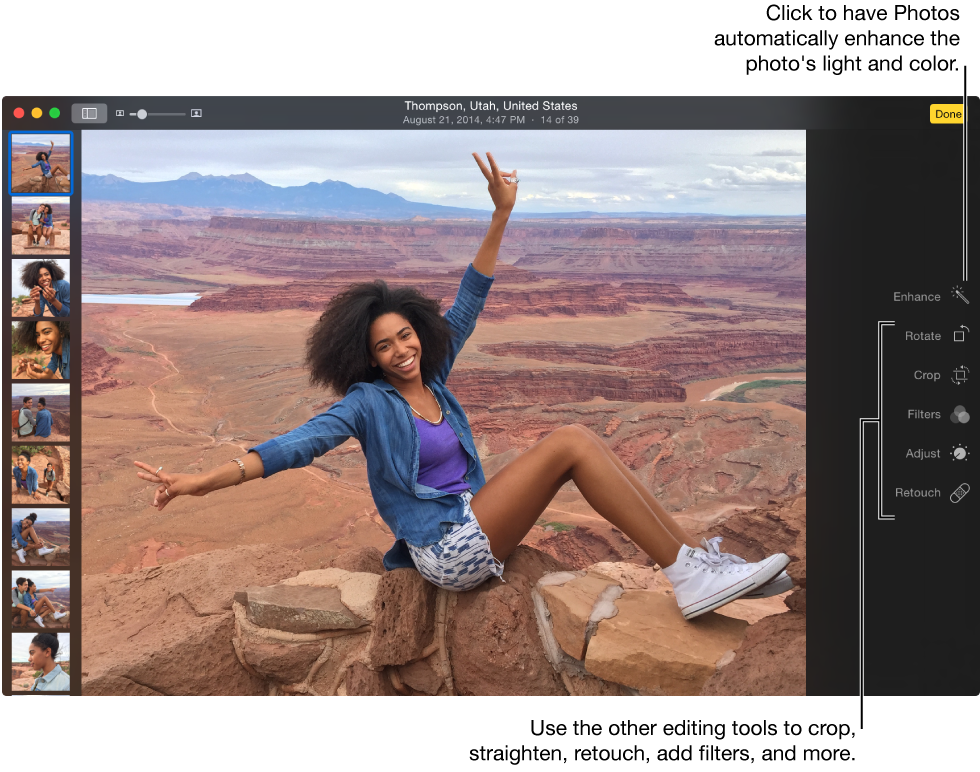
While viewing an individual photo, you can mark it as a favorite, get more information about it, add it to a project or album, share it, or edit it. When you click Edit, you can crop and straighten, remove red-eye or blemishes, improve light and color, and more.
Get creative
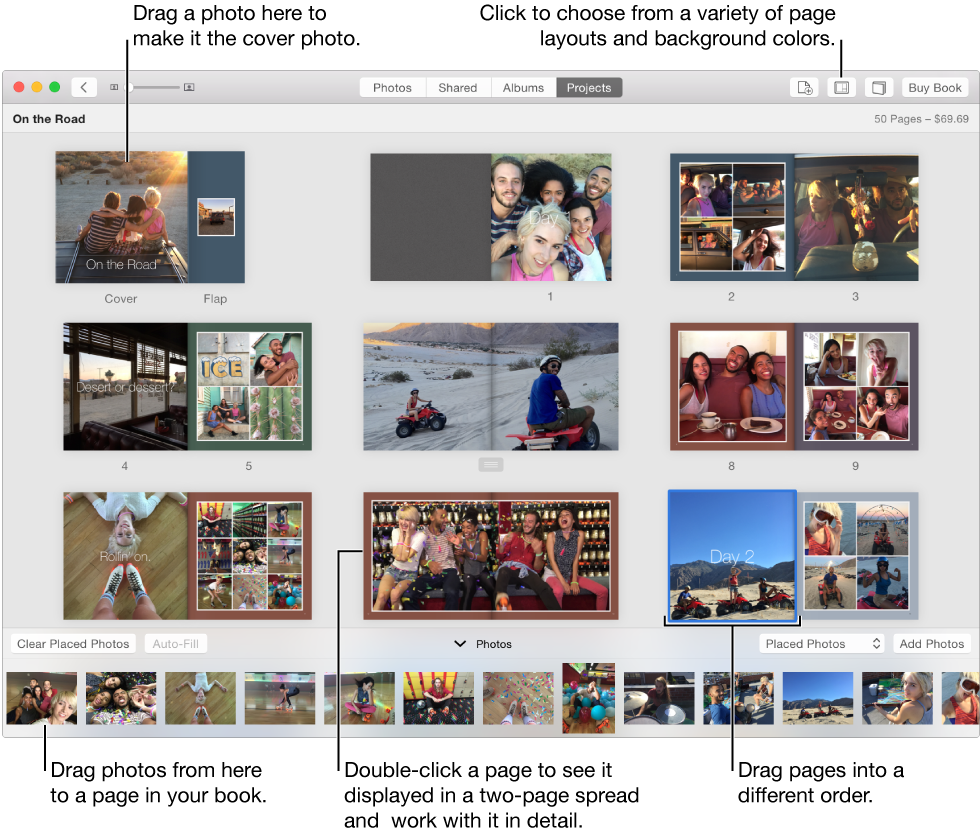
You can showcase your photos by making beautiful photo books, cards, and calendars, and also order prints in a variety of sizes.
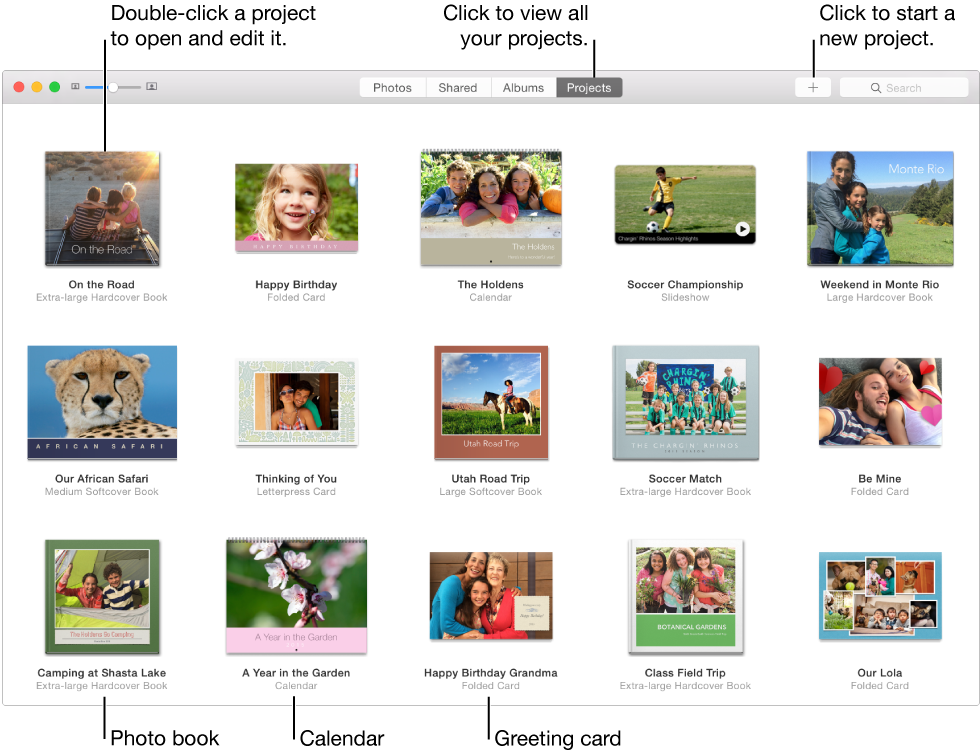
Double-click a book project to see the entire book in bird’s-eye view and edit it.
Show great slideshows
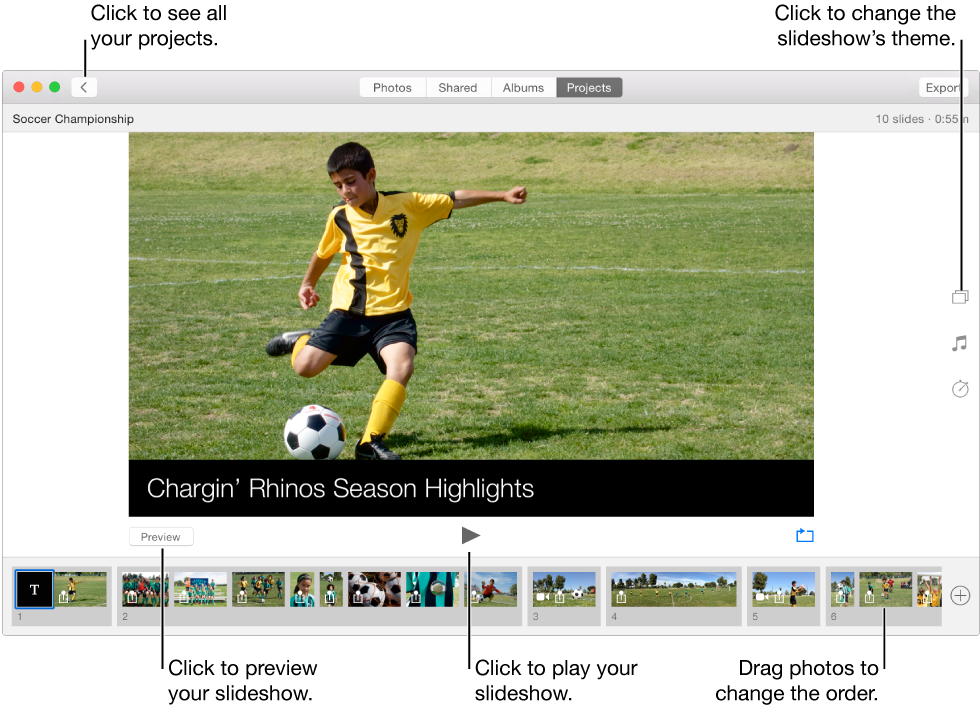
As a great way to share a memorable vacation or family event, create eye-catching slideshows you can display on your computer, send to friends and family, or post online.
To learn more about organizing and finding photos in your Photos library, see View photos.
To learn about creating books, cards, slideshows, and other projects, see Create and work with slideshows, Create a photo book, Create a calendar, and Create a card.