

You can use your photos to create professionally designed greeting cards and have them sent to family and friends.
After you select the type of card you want and the photos you want on it, Photos automatically lays out a great-looking card. You can easily change the card and add or remove different photos.
Select photos to use in your card.
Click  in the toolbar and choose Card.
Click the card size and type you want.
Choose a theme category (for example, Birthday, Father’s Day, or Thank You) from the Theme pop-up menu in the toolbar, click Landscape or Portrait to select an orientation, then click a card theme.
Click Create Card.
Photos creates a card using the photos and theme you selected.
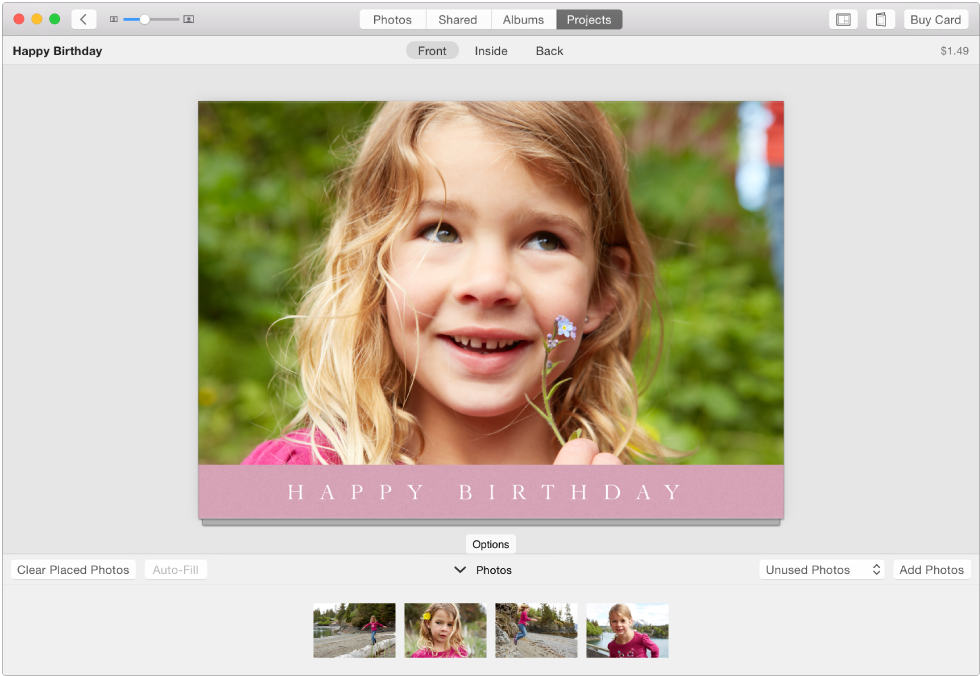
To change your card, do any of the following:
Tip: You can also create a card without selecting any photos first: just click and choose Card, then select a card type and theme. To add photos to the new calendar, click Add Photos.
When you select a theme and create a card, Photos automatically assigns a layout and places photos on the card’s cover and inside page. The card theme you use determines the layouts that are available.
You can change a card’s theme at any time.
Click Projects in the toolbar, then double-click the card.
Click the Card Settings button  in the toolbar, click Change Theme, then click Continue.
Select Landscape or Portrait orientation.
Select the theme, then click Choose Theme.
Choose a different theme category from the pop-up menu in the toolbar to see more themes.
When you create a card, Photos assigns it a name based on information associated with the photos, such as their album name. You can rename the card.
Click Projects in the toolbar, then click the name of your card to select it.
Type a new name.
Click the Card Settings button in the toolbar and deselect the “Include Apple logo” checkbox.