You can review and edit changes in the Comments & Changes sidebar on the left side of the Pages window.
To open the Comments & Changes sidebar, click  on the left side of the review toolbar. Click the button again to close the sidebar.
You can also click  in the toolbar, then choose Show Comments & Changes Pane.
To change what’s shown in the sidebar, click View Options at the top of the sidebar to sort by page or date, filter changes by author, and hide comments or hide changes.
To see a specific comment or change, move your pointer over it in the document; the sidebar scrolls to show the content, and a line is drawn connecting the change with its corresponding entry in the sidebar. If you don’t see a line, make sure no sidebar item is selected.
Here are some tips for working in the sidebar:
To scroll the sidebar or the document so you can see both the change and its corresponding text, click the sidebar entry or the change in the document.
If you choose Sort by Document from the View Options menu, the sidebar scrolls as you scroll the document.
If you filter changes by author so that your changes aren’t visible in the sidebar, then you make changes, your changes appear in the document but not in the sidebar. To make changes appear in the sidebar, change the filter to include your changes, or click Show All at the top of the sidebar.
Drag the right edge of the sidebar to widen or narrow it.
You can change the size of the text in the sidebar and in comments in Pages > Preferences > General (from the Pages menu at the top of your screen). Click the Text Size pop-up menu and choose a size.

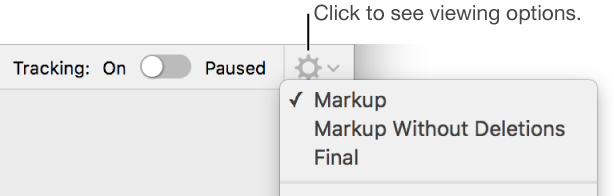
 , then choose Turn Off Tracking.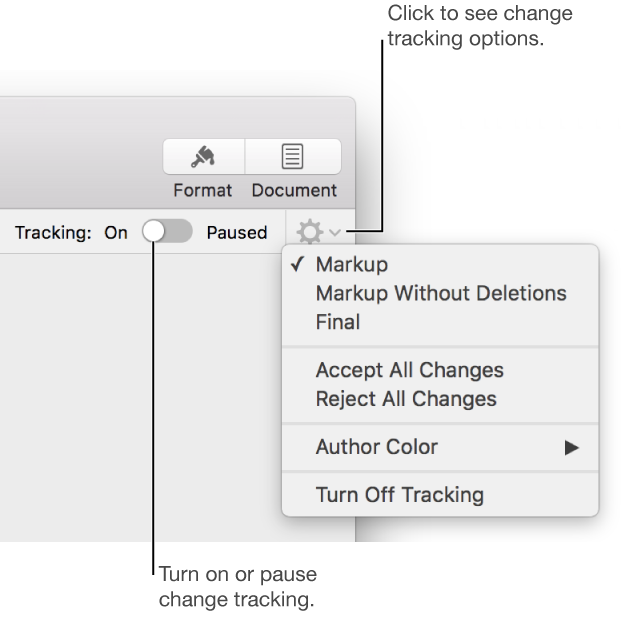
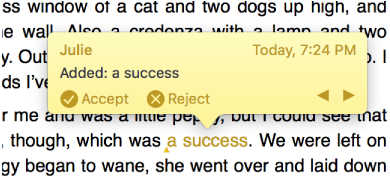
 to approve a change or
  to reject a change.