You can use tab stops to align text. When you press the Tab key (or Option-Tab when you’re working in a table cell), the insertion point and any text to the right of it move to the next tab stop, and text you enter starts at that point.
You can set the alignment of tab stops, change the symbol used for decimal-aligned tab stops, and add a leader line (such as a dotted line) between items separated by tab stops.
Set tab stops on the ruler
Click or select the paragraphs you want to format.
On the ruler, click where you want to place a tab stop.
If you don’t see the ruler at the top of the document, click in the toolbar, then choose Show Ruler.
To change the tab stop alignment, double-click the tab stop icon. Keep double-clicking until you see the alignment you want.
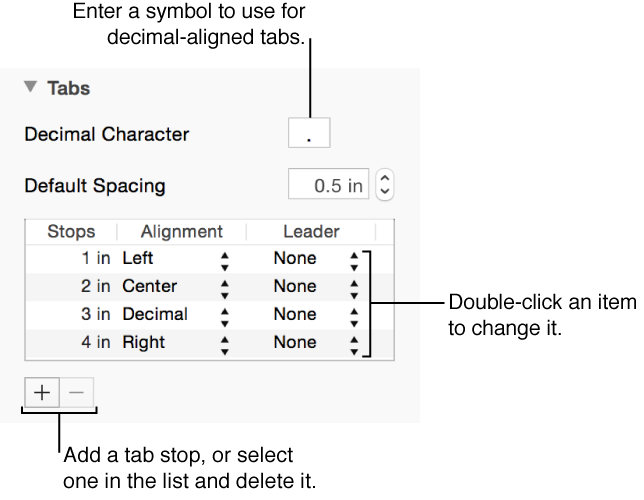
You can also set tab stops, add leader lines, and change the symbol used for decimal-aligned tab stops using the controls in the sidebar on the right.
Add, delete, and format tab stops
Click or select the paragraphs where you want to set tab stops.
Click the Layout button near the top of the sidebar on the right.
If you don’t see the sidebar, click in the toolbar. If the text is in a text box, table, or shape, first click the Text tab at the top of the sidebar, then click the Layout button.
Click the disclosure triangle next to Tabs, then tap the Add Tab Stop button (+) at the bottom of the tab stops table.
A left-aligned tab is added to the table.
Do any of the following:
Change the alignment: Click the arrows in the Alignment column and choose Left, Center, Right, or Decimal.
Add a leader line: Click the arrows in the Leader column to connect items separated by tabs. You can choose a solid line, dots, dashes, or arrows, or none.
Set the default tab spacing: Click the arrows next to the Default Spacing box. If you don’t want to use the default spacing for a tab, double-click its number in the Stops column and enter a different value.
Set the symbol for decimal-aligned tabs: Enter the symbol in the Decimal Character box. You can find currency and other symbols in the Characters window. To open it, choose Edit > Special Characters (from the Edit menu at the top of your screen).
To remove a tab, select it in the tab stops table, then click the Delete Selected Tab button (–) at the bottom of the list.

 in the toolbar, then choose Show Ruler.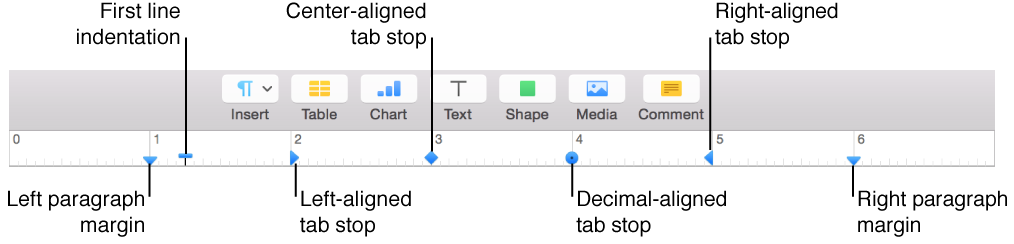
 in the