
A word-processing document can have multiple sections, each of which can use different page numbering, headers, footers, or background objects (such as a watermark).
To see a document’s sections, show page thumbnail view, then touch and hold a page thumbnail. A background color appears behind all of the page thumbnails that belong to the section.
Tap to place the insertion point where you want the new section to start.
Tap again, tap Insert, then tap Section Break.
If you don’t see Section Break, your document is a page layout document and doesn’t use sections.
If the document uses facing pages, you can choose where a section starts.
In page thumbnail view, tap any page in the section whose starting page you want to change, then tap  .
.
Tap Document Setup, then tap  in the top-right corner.
Tap the Section tab, then tap an option:
Next Page: Starts the section on either a left or right page, whichever comes next in the document. If you don’t want your document to include blank pages, choose Next Page.
Right Page: Starts the section on the first right page. If the next page in your document would be a left-side page, a blank page is inserted before the start of the section on the right.
Left Page: Starts the section on the first left page. If the next page in your document would be a right-side page, a blank page is inserted before the start of the section on the left.
Tap  to close the controls, then tap Done in the top-left corner to return to the document.
If you want to keep the content that’s in the section, copy and paste it someplace else in the document before you delete the section.
Tap the page number at the bottom of the screen to show page thumbnails.
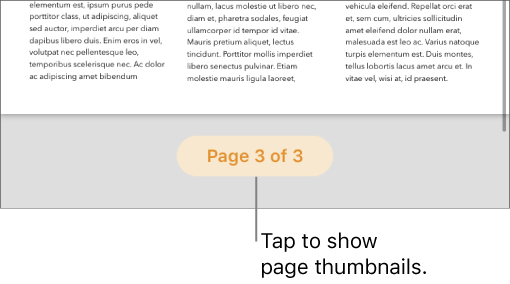
If you don’t see a page number, tap and turn Navigator on.
Touch and hold any page thumbnail in the section you want to delete.
All of the page thumbnails in that section are indicated by a background color in the thumbnail view.
Tap Delete, then tap Delete again in the dialog that appears.
Swipe down, or tap a page thumbnail, to return to the document.