Turn on page thumbnail view: Tap
 at the top of the screen, turn on Navigator, then tap Done. If the keyboard is open, tap Done in the top-left corner to close it.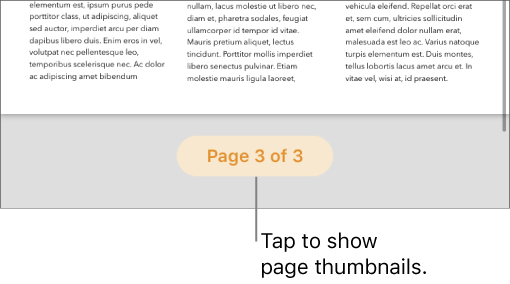
Show or hide page thumbnail view: Tap the page number at the bottom of the screen to show thumbnails. To close page thumbnail view, tap the handle above the thumbnails.