
Before you begin, determine whether you’re working in a word-processing or page layout document. Documents are either one or the other, and you add and manage pages differently for each.
In word-processing documents, pages are added automatically as your typing reaches the end of a page, but you can also add page breaks to create new pages. In page layout documents, you add pages manually as you need them.
By adding two page breaks in succession, you can create a blank page.
Tap in text to place the insertion point where you want to add the new page, then tap again.
Tap  , tap Insert, then tap Page Break.
The insertion point moves to the top of the next page.
Add a second page break using the same steps.
The insertion point moves to the top of the next page, leaving a blank page between the two page breaks.
Tap the page number at the bottom of the screen to show page thumbnail view.
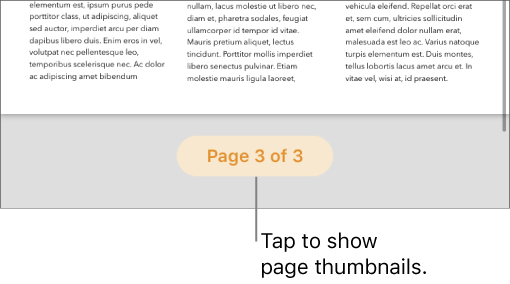
Touch and hold the thumbnail for the page you want the new page to follow, then tap Add Page at the bottom of the screen.
If there is more than one master page for the template, choose the one you want; otherwise, a blank page is automatically added.
To close page thumbnail view, swipe down.
You can duplicate a single page in page layout documents. In word-processing documents, you duplicate a section, then delete any pages you don’t want to keep.
Tap the page number at the bottom of the screen to show page thumbnail view.
In page thumbnail view, touch and hold the page you want to copy, then tap Duplicate.
The duplicate page or section is added below the original.
Do any of the following:
Remove unwanted pages in a section: Close page thumbnail view, then select and delete all the text and objects on the pages you want to remove. As a page is cleared, it’s removed. To remove a blank page, tap at the beginning of the next page (to place the insertion point before the first text or graphic), then tap  on the keyboard. Sometimes a blank page has formatting elements you can’t see, like paragraph breaks. If you delete these elements, the page is deleted.
Move a page or section: In thumbnail view, touch and hold the page or section you want to move, then tap Rearrange. Touch and hold the page or section, drag it to where you want it in the document, then tap Done.
To close page thumbnail view, swipe down.
In a page layout document: Tap the page number at the bottom of the screen to show page thumbnail view. Touch and hold the thumbnail for the page you want to remove, then tap Delete. To close page thumbnail view, swipe down.
In a word-processing document: Select all the text and objects on the page, then tap Delete. If the page you want to delete is blank, tap at the beginning of the next page (to place the insertion point before the first text or graphic), then tap on the keyboard. Sometimes a blank page has formatting elements you can’t see, like paragraph breaks. If you delete these elements, the page is deleted.
If you accidentally delete a page and want it back, tap Undo or  in the toolbar.
Tap the page number at the bottom of the screen to show page thumbnail view.
Touch and hold any page thumbnail, tap , then tap Rearrange.
Touch and hold the thumbnail of the page you want to move, then drag it to where you want it.
Tap Done, then swipe down to close page thumbnail view.
Because text flows from one page to another in word-processing documents, you can’t rearrange the pages in a section. You can, however, cut content from one page and paste it to another.
Here is an example of one way to cut text and objects and paste them to a different location in the document:
Tap where you want your content to appear, then tap again.
Tap , tap Insert, then tap Page Break; repeat the steps a second time.
Select the text and objects you want to move, then tap Cut.
The content is removed from your document, and a copy of it is saved to your device’s clipboard. If you made a mistake, tap at the top of the screen to undo the action.
Tap in the blank page, tap again, then tap Paste.
If you didn’t move everything at once, keep cutting and pasting until all the content is where you want it.
To remove the first page break, place the insertion point before the text you moved, then tap on your keyboard.
If this causes your text to run into the preceding text, tap Return on your keyboard to move it down to the next line.
To remove the second page break, place the insertion point immediately before the text that follows the content you moved, then tap Delete on your keyboard.