
You can resize an object proportionally, to make it larger or smaller without changing its essential shape, or freely, to modify its proportions any way you like. You can rotate or flip any object except a table, chart, or image gallery.
Tap to select an object or group of objects.
If you don’t see blue dots around the object, the object is locked; you must unlock it before you can resize it.
To choose whether the object resizes freely or proportionally, tap  , tap Arrange, then turn Constrain Proportions off or on.
Note: Groups containing certain objects can only be resized proportionally. These objects include images and movies that have been rotated, and shapes that have a green dot when selected.
Tap the page to close the controls, then do one of the following:
Resize proportionally: Drag a corner selection handle diagonally.
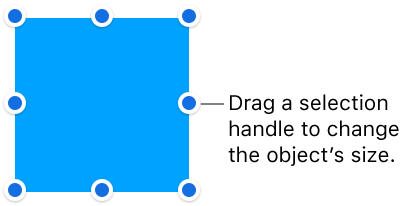
Resize freely: Drag a blue dot on the top, bottom, or sides (not a corner) of the object.
This action is possible only if Constrain Proportions is turned off (see step 2, above).
Resize from the center: Touch and hold a blue dot, touch and hold the middle of the object, then drag the blue dot.
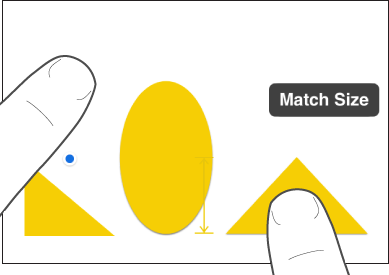
You can quickly match the sizes of two objects on a page.
Tap the object you want to resize, then drag a blue dot to begin resizing.
As you drag, touch and hold another object whose size you want to match.
When the words Match Size appear, lift both your fingers at the same time.
Note: You can’t rotate a table, chart, or image gallery.
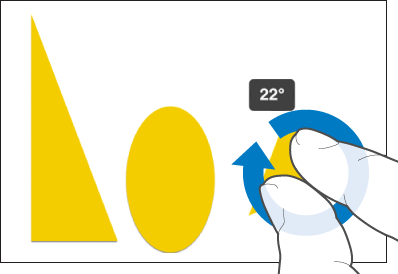
Tap the object, place two fingers on it, then turn your hand in the direction you want to rotate the object.
After you start the rotation, you can continue by dragging with a single finger. A guide appears to indicate the angle of rotation.
Note: You can’t flip a table, chart, or image gallery.
Tap an object, then tap .
Tap Arrange, then tap Flip Vertically or Flip Horizontally.
If you don’t see these options, swipe up from the bottom of the controls.