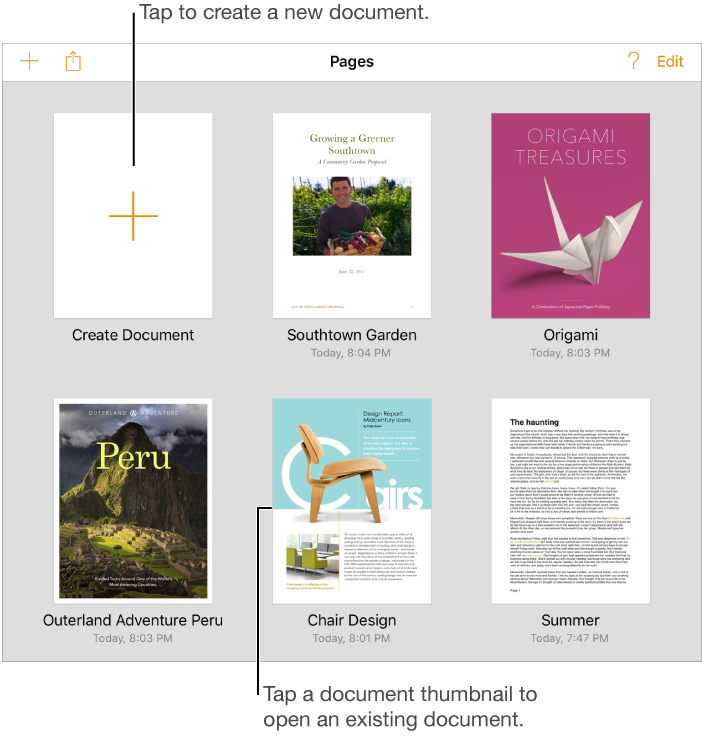

You create new documents and open existing documents from the document manager, the default screen for Pages. Your existing documents appear as thumbnail views of their content. To return to the document manager from an open document, tap Documents in the top-left corner of the screen.
A Pages document always starts with a template that you can modify however you like:
If you want to just start typing on a page, choose a Blank template.
If you want to create a brochure or something with a more complex layout, choose one of the templates with placeholder text and graphics.
Placeholders give you an idea of what a document created with the template might look like when you use its text and object styles. You can replace the placeholder elements with your own content, delete the placeholders you don’t want, and otherwise modify the document however you like.
Blank templates don’t have placeholders, but they do have default formatting and fonts that you can change.
In the document manager, tap Create Document.
Tap a document template.
To view templates organized by document type, tap Show Categories. To return to the full list, tap Show All next to the category title.
If you chose a blank template, just start typing when the new document opens.
If you chose a template with text and image placeholders, do the following:
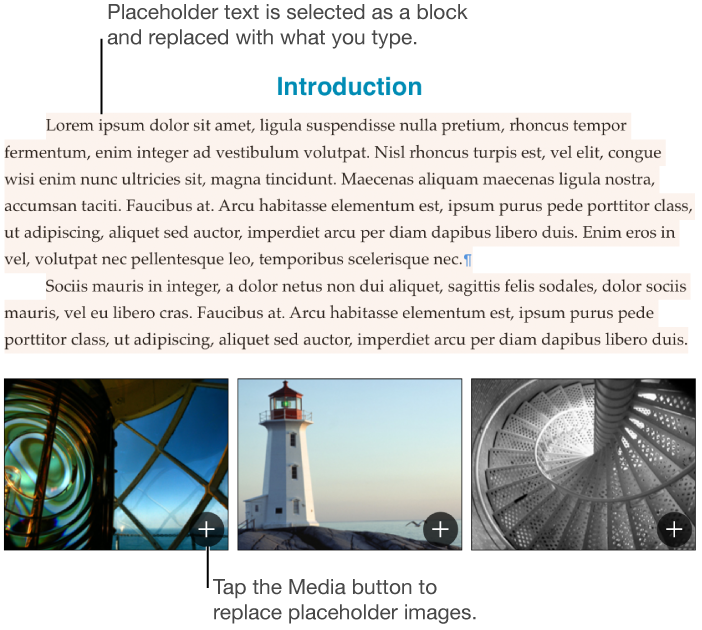
Tap placeholder text, then type your own.
Tap  in the lower-right corner of a placeholder image to replace it with your own.
Tap  to add tables, charts, text boxes, shapes, lines, and media to your document.
Tip: To undo your recent changes, tap Undo in the toolbar. If you change your mind, tap Undo then tap Redo.
When you’re finished, tap Documents to close the document and return to the document manager (your document is saved automatically as you work).
Your document is saved automatically as you work. You can change the name of the document or change where it's saved at any time.