
You can change the look of a table by changing the table outline, showing or hiding gridlines, and using alternating row colors.
Click the table, then click the Table tab at the top of the sidebar on the right.
If you don’t see a sidebar, or the sidebar doesn’t have a Table tab, click  in the toolbar.
Do any of the following:
Change the outline: In the Table Outline section of the sidebar, use the controls to change the line type, thickness, and color.
Change the gridlines: In the Gridlines section of the sidebar, click the buttons to add or remove gridlines from the table body, from the header rows and columns, and from footer rows.
You can change the border and background of any selection of table cells.
Select the cells you want to change.
To change all the cells in a table, select the table.
Click the Cell tab at the top of the sidebar on the right.
If you don’t see a sidebar, or the sidebar doesn’t have a Table tab, click in the toolbar.
Do any of the following:
Change the cell borders: In the Border section of the sidebar, click a border layout button below Border to choose which borders you want to format. Click the Border Styles pop-up menu, then choose a border style. Or, use the controls below the menu to define your own style.
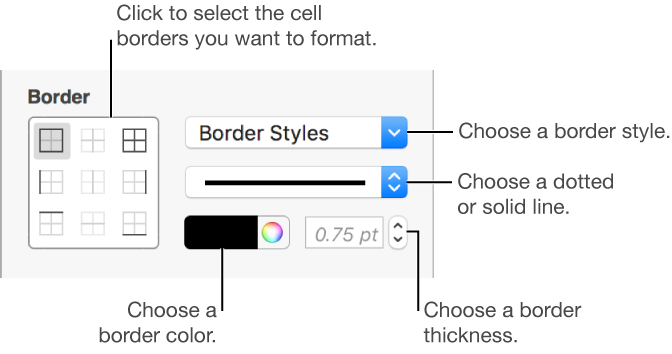
You can change the outline of a table in the Table section of the sidebar.
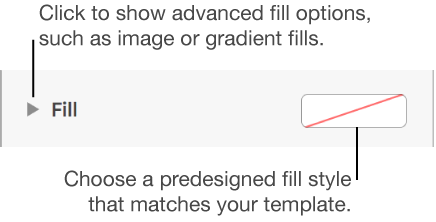
Change the background: In the Fill section of the sidebar, click the color well, then select a color option. To customize the background, click the disclosure triangle next to Fill, then use the controls to make further changes.
You can also create rules to automatically change a cell’s look when the value in the cell meets certain conditions. For more information, go to Highlight cells conditionally.
Select the table, then click Table tab at the top of the sidebar to the right.
If you don’t see a sidebar, or the sidebar doesn’t have a Table tab, click in the toolbar.
In the sidebar, select the Alternating Row Color checkbox, then click the color well to select a color.
Row colors don’t alternate for header columns. Header columns have their own look based on the table style you choose.