You can change the look of text for the entire table or just for specific table cells.
To change all the text in the table, select the table; to change the text in specific cells, select the cells.
Click the Text tab at the top of the sidebar on the right.
If you don’t see a sidebar, or the sidebar doesn’t have a Text tab, click  in the toolbar.
Click the Style button, then use the text controls in the Font section to change the font, size, color, or character style (such as bold or italic).
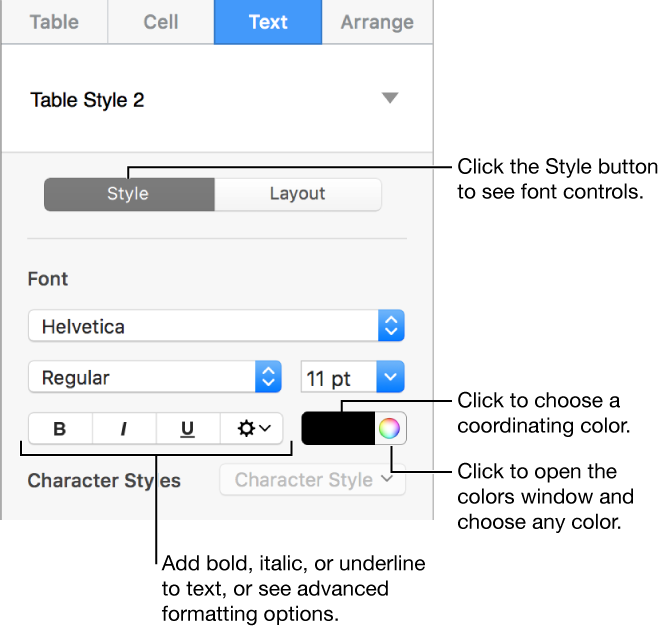
Note: To apply a character style from the Character Style pop-up menu, select just the text you want to change. You can’t choose a style from this menu if a cell, row, column, or the entire table is selected.
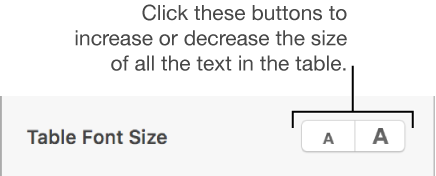
You can increase or decrease the font size proportionally for all text in the table
Click the table, then click the Table tab at the top of the sidebar on the right.
If you don’t see a sidebar, or the sidebar doesn’t have a Table tab, click in the toolbar.
Click the buttons in the Table Font Size section of the sidebar.