You can change the appearance of the text for the entire table or just for specific table cells.
You can set the font style for the entire table.
Select the table.
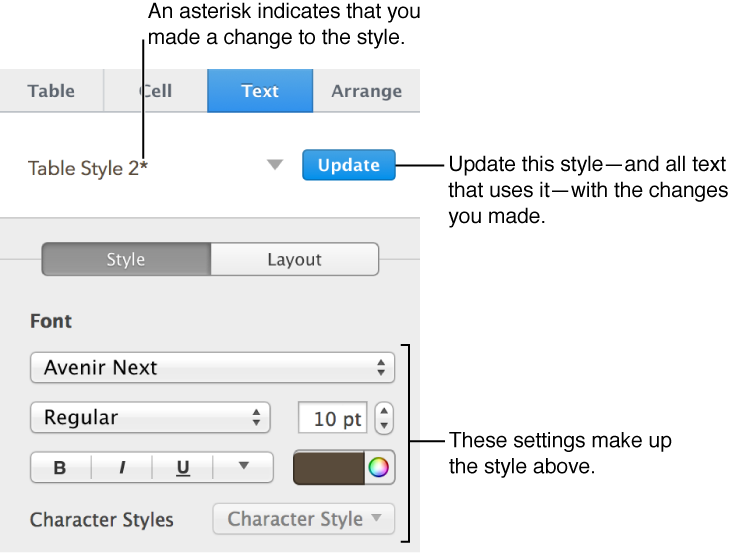
In the Text pane of the Format inspector, choose a style from the pop-up menu at the top of the pane.
For more information about using text styles, see Use paragraph styles.
You can increase or decrease the font size proportionally for all text in the table. If you make the text larger or smaller, all text increases or decreases by the same percentage.
Click the table.
In the Table pane of the Format inspector, click the Table Font Size buttons.
Text resizes immediately, so you can see which size works best.
You can change the font, color, size, and other attributes of text in table cells.
Select the cells with the text you want to change.
In the Text pane of the Format inspector, choose a style from the pop-up menu at the top of the pane or use the controls in the Font section to make changes.
For more information about text styles, go to Use paragraph styles.
Note: To apply a character style, select the text you want to change. The character style controls aren’t enabled if the entire table is selected.