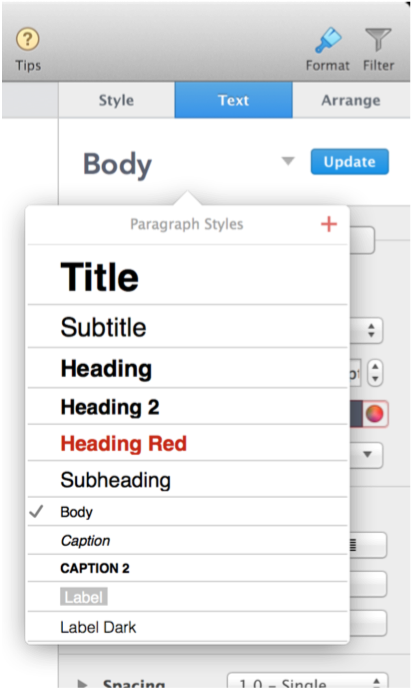

Numbers includes built-in paragraph styles that specify a font and size, color, and other attributes for text. These paragraph styles are designed to match your spreadsheet theme. Applying paragraph styles to text ensures a consistent look for the text in your spreadsheet.
If you make changes to text that uses a paragraph style, you can create a new paragraph style based on the changes. For example, if you change a paragraph that uses the “Subtitle” style so the text is blue and bold instead of regular black text, you can create a new paragraph style (Subtitle 2) that incorporates the changes. You can then easily apply the new style to other text in your spreadsheet.
Select the text box or shape with the text you want to change.
In the Text pane of the Format inspector, click  at the top of the pane, then choose a style from the Paragraph Styles menu.
Click the paragraph you want to base the new style on.
In the Text pane of the Format inspector, click next to the paragraph style name at the top of the pane.
Click  at the top of the Paragraph Styles menu.
Enter a name for the new style, then click away from the menu to close it.
When you change the formatting of text that has a paragraph style applied to it, an asterisk appears next to the style name at the top of the Text pane. This asterisk indicates the selected text has been modified from its original style. If you don’t want to keep the changes (the overrides), you can revert to the original style.
Click the paragraph with the override.
In the Text pane of the Format inspector, click next to the paragraph style name at the top of the pane.
Click the style name (it has a gray checkmark to indicate an override).
The override is cleared and the text again matches the style.
If you select an entire paragraph and then change the font, size, color, or other attributes of text in the paragraph, an Update button appears next to the style’s name in the Text menu. Click the button to update the style to use your changes and create a new version of the style.
If you didn’t select the entire paragraph when you made changes, you may not see the Update button, but you can still update the style.
Click the paragraph that uses the style you want to update.
In the Text pane of the Format inspector, click next to the style name at the top of the pane.
Move the pointer over the style name in the Paragraph Styles menu (it has a checkmark), then click the arrow that appears.
Choose Update Style.
You can copy the style of selected text and apply that style to other text.
Select text, then choose Format > Copy Style (at the top of your computer screen).
Select other text to apply the style to, then choose Format > Paste Style.
If you copy text and want it to match the style of the text where you’re pasting it, choose Edit > Paste and Match Style (the Edit menu is at the top of your computer screen).
Click a paragraph that uses the style you want to rename.
In the Text pane of the Format inspector, click next to the style name at the top of the pane.
Move the pointer over the style name in the Paragraph Styles menu (it has a checkmark), then click the arrow button that appears.
Choose Rename Style, then enter a new name.
You can delete a style that isn’t being used in your spreadsheet. If the style is being used, you can designate a replacement style for it.
Click any text.
In the Text pane of the Format inspector, click next to the paragraph style name at the top of the pane.
Move the pointer over the name of the style you want to delete, then click the arrow button that appears.
Choose Delete Style.
If you try to delete a style that’s being used, you see a dialog asking you to choose a style to replace the one you’re deleting.