Change text appearance
Select the text box.
In the Text pane of the Format inspector, click the Style button.
Use the tools in the Text pane to make formatting changes.
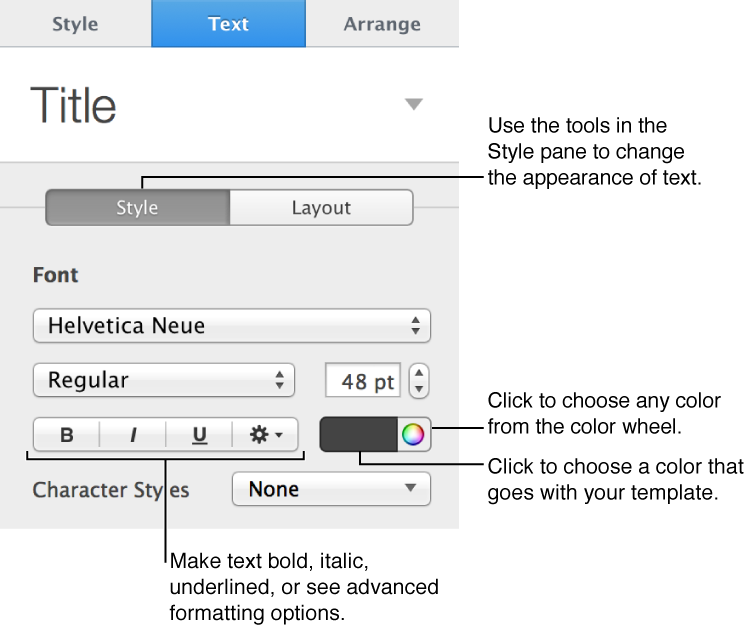

You can change how text looks by changing the font, typeface (bold or italic, for example) or size; by applying effects such as a shadow or outline; and more.
Select the text box.
In the Text pane of the Format inspector, click the Style button.
Use the tools in the Text pane to make formatting changes.
You can quickly make blocks of text all uppercase or lowercase, or format text as a title.
Select the text box.
In the Text pane of the Format inspector, click Style.
In the Font section, click  , then choose an item from the Capitalization menu:
None: The text you entered is left as you entered it, with no changes.
All Caps: All text is capitalized at the same height.
Small Caps: All text is capitalized with larger capitals for uppercase letters.
Title Case: The first letter of each word is capitalized.
You can add a color behind text to make it stand out.
Select the text you want to edit.
In the Text pane of the Format inspector, click Style.
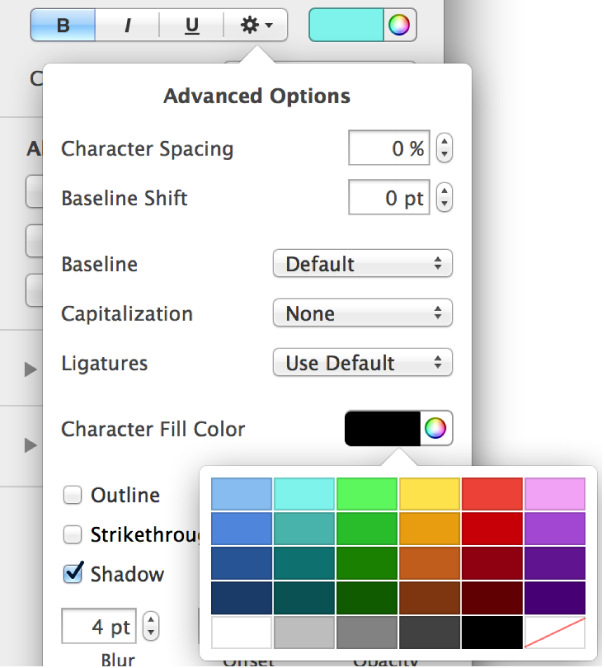
In the Font section, click .
In the Advanced Options pop-up window, click either the Character Fill Color well or the color wheel, then choose a color.
The left color well shows colors that match the template. The color wheel on the right opens the Colors window, where you can choose any color.
If your intention in adding color behind text is to call it to a reviewer’s attention, add a highlight from the Insert menu at the top of your computer screen (choose Insert > Highlight) instead.