
When you add media content, the resulting element is represented in your Motion project as a layer. Think of layers as a series of visual overlays stacked on top of each other. These image layers combine to create the composition displayed in the canvas. Motion provides a graphical representation of this layer hierarchy in the Layers list of the Project pane. In a 2D project, the stacking order of layers in the Layers list determines which layers appear in front of others in the canvas.
You can modify layers by applying effects objects to them. Effects objects also appear in the Layer’s list, under the group or layer to which they are applied.
The Layers list contains the following objects:
Layers: The basic image objects—movie clips, still images, shapes, text, particle systems, and so on—in your project that combine to create a composition.
Effects objects: Nonimage objects that modify image layers or groups. Effects objects include filters, behaviors, lights, cameras, and rigs. Effects objects appear in the Layers list indented under the layer or group that they modify.
Groups: Containers that enclose layers and effects objects. When you create a layer, it’s placed inside a group. All image layers and effects objects—except for cameras, lights, rigs, and the Project object—must reside in groups. Masks, behaviors, and effects can be applied to groups or to layers. A group can also contain other groups nested inside it. In this way, you can construct complex hierarchies of nested groups, with each nested group subordinate to the group that contains it.
360° environments: Containers that enclose 360° footage and filters. 360° environments cannot contain objects such as particles, replicators, or shapes. For more information, see 360° video overview.
Project object: An icon at the top of the Layers list that, when selected, makes the Project Inspector available. The Project Inspector displays parameters for publishing a template for use in Final Cut Pro X. For more information, see Publish parameter controls to Final Cut Pro and Add multiple display aspect ratios to a template.
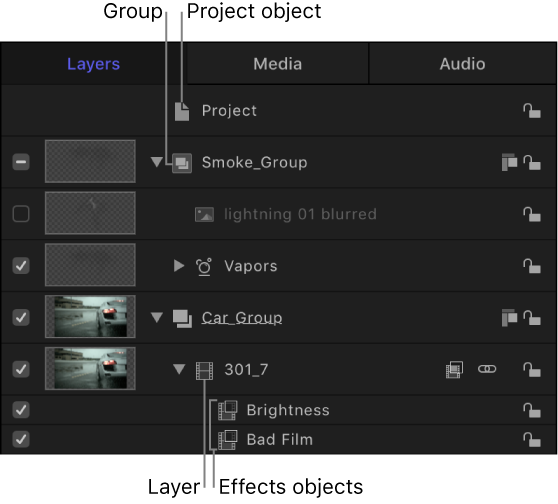
Additional icons and controls in each row of the Layers list provide information about the status of applied effects, allow you to lock layers, and let you turn applied effects on or off. For more information, see Layers list controls.
Note: In Motion, any element that appears stacked in the Layers list is considered an object. That includes image layers, which are a special class of object defined as any image-based element—a movie clip, a still image, a shape, text, a particle system, a replicator, and so on—that’s visible in the canvas. For example, a rotating a triangle shape is a layer, but the behavior object that animates it is not; a sepia-tone video clip is a layer, but the Sepia filter that makes it so warmly old-timey is not. In Motion help, the term object is often used to describe the superset of all elements (layers, groups, and effects objects) that form a composition. Layer, however, always refers to an image-based element.