View Audio files

The Audio list, located in the Project pane, displays audio tracks in your project, as well as the Master track, which controls your project’s overall audio mix. You can adjust the settings for each track using controls in the Audio list (see Adjust audio tracks).

You can view additional information about your audio files in the Audio Timeline, in the Keyframe Editor, in the Media list, and in the Audio Track Inspector.

Show the Audio list

Do one of the following:

For information about adjusting audio tracks in the Audio list, see Adjust audio tracks.

Sort the Audio list

Open the Audio Track Inspector

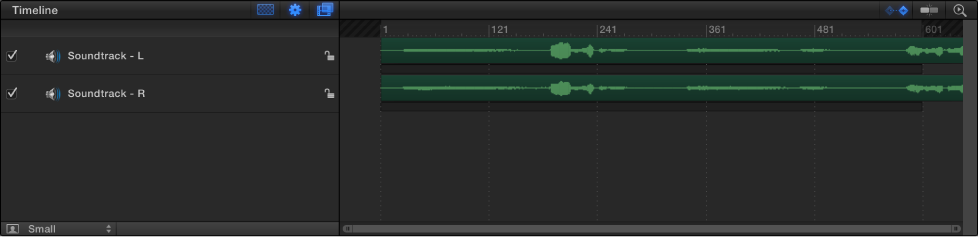
Show waveforms in the Audio Timeline

To see your audio tracks as waveforms laid out over time, open the Audio Timeline:

Show waveforms in the Keyframe Editor

You can also view an audio track in the Keyframe Editor, to compare the waveforms of the track to keyframe placement in your project.

  1. To open the Keyframe Editor, click the Show/Hide Keyframe Editor button in the lower-right corner of the Motion project window.

    Show/Hide Keyframe Editor button
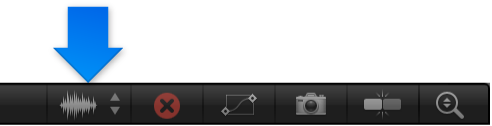
  2. Choose an audio track from the waveform pop-up menu at the top-right side of the Keyframe Editor.

    Choose waveform button in the Keyframe Editor

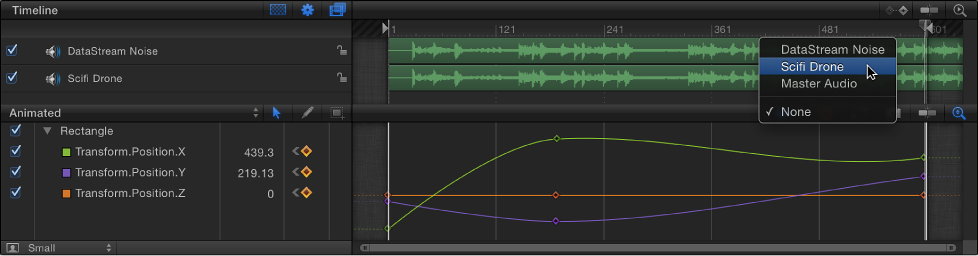
    The waveform of the track appears in the Keyframe Editor, along with keyframes.

    Audio waveform in the Keyframe Editor

View individual tracks in the Keyframe Editor in a multitrack project

If there are multiple audio tracks in the project, by default only the waveform of the master track appears in the Keyframe Editor. Use the waveform pop-up menu to select a different track.

Waveform pop-up menu in Keyframe Editor

Show additional information about your project’s audio files

Do one of the following: