Customize the Timeline

You can customize the display of the Timeline layers list and track area to suit your needs.

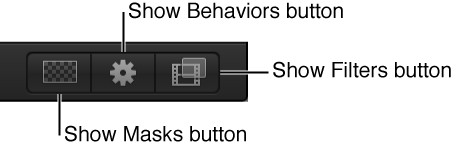
Show or hide mask, filter, or behavior objects

You can hide effects objects in the Timeline Layers list and track area to simplify your view of layers in your project.

When a button is dimmed, the effects object and its corresponding bar are hidden from view in the Timeline layers list and track area. However, the effect remains active in the Canvas.
Modify the track display

You can display your timebars in the Timeline track area in any of several different ways to suit your preferred working style.

  1. Choose Motion > Preferences (or press Command-Comma), then click Appearance.

  2. In the Timeline section of the Appearance pane, choose an item from the Timebar Display pop-up menu:

    • Name: Displays the name of the object on the timebar.

    • Name Plus Thumbnail: Displays the name of the object and a single thumbnail on the timebar.

    • Filmstrip: Displays frames of the object on the timebar.

    Regardless of the Timebar Display setting, timebars for cameras, lights, behaviors, and filters are labeled with names only. When Timebar Display is set to Filmstrip, computer processing time is increased.

Adjust Timeline track height

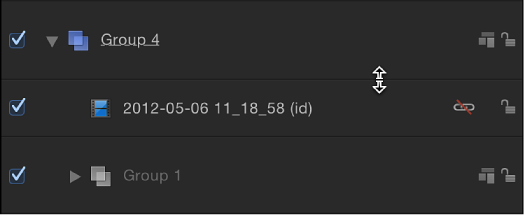
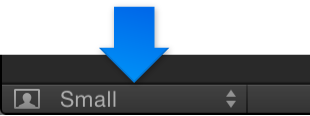
You can adjust the height of tracks displayed in the track area. Audio and object tracks can be resized separately. However, some tracks, including filters and behaviors, cannot be resized.

Do one of the following:

Scroll the track area

You can scroll horizontally in the track area to see portions of your timebars that extend beyond the immediate workspace.

Zoom slider and scroller in the Timeline

Zoom the track area

Do one of the following:

Zoom the track area to fit the entire project or play range

Do one of the following: