

The pop-up menus in the top-right side of the Canvas let you customize various view settings, including zoom level, color channels, rendering options, overlay options, and 3D view layouts.
Zoom Level pop-up menu
Choose any of several default zoom levels. Zooming the Canvas changes the current view of the window, not the size of the images in your project. For more information, see Zoom or pan the Canvas.
Channels pop-up menu
Choose which color channels are displayed in the Canvas:
Color: Shows the image as it would appear on a video monitor. Visible layers appear in natural color and transparent areas reveal the background color as set in the Properties Inspector for the project. The background color is black by default. To change it, press Command-J, then choose a color from the Background Color control in the Properties Inspector.
Note: The Background pop-up menu in the Properties Inspector must be set to Solid to export the background color with the project. This option creates a solid alpha channel on export (when exporting using a codec that supports alpha channels). When the Background pop-up menu is set to Transparent, the color is visible in the Canvas, but does not render as part of the alpha channel.
Transparent: Shows the background area of the Canvas as transparent. A checkerboard pattern appears by default where no images block the background.
Alpha Overlay: Displays the image in normal color, but adds a red highlight over transparent areas of the image.
RGB Only: Displays the normal mix of red, green, and blue channels but displays transparent areas (including semitransparent areas) as opaque.
Red: Displays only the red channel as a range of black to white.
Green: Displays only the green channel as a range of black to white.
Blue: Displays only the blue channel as a range of black to white.
Alpha: Displays the alpha (transparency) channel of the layers in the Canvas.
Inverted Alpha: Displays an inverted view of the alpha (transparency) channel.
Overexposure: Displays the overexposed areas of the composition. Luminosity values above 1.0 (out of gamut) are indicated by a red-and-white crosshatch pattern. Values above 2.0 appear solid red. You can use the Broadcast Safe filter to limit the range of luminance or chrominance in an image to the broadcast legal limit.
Render menu
Choose the render quality and resolution of the Canvas display, and enable or disable features that can impact playback performance. When an option is active, a checkmark appears beside the menu item. If a complex project is causing your computer to play at a very low frame rate, you can make changes in this menu to reduce the strain on the processor. This frees you from waiting for the image to be rendered at full resolution each time you make an adjustment, allowing you to watch complex projects at high frame rates while you work.
The Render pop-up menu displays the following items:
Dynamic: Reduces the quality of the image displayed in the Canvas during playback or scrubbing in the Timeline or mini-Timeline, allowing for faster feedback. Also reduces the quality of an image as it is modified in the Canvas. When playback or scrubbing is stopped, or the modification is completed in the Canvas, the image quality is restored (based on the Quality and Resolution settings for the project).
Full: Displays the Canvas at full resolution (Shift-Q).
Half: Displays the Canvas at half resolution.
Quarter: Displays the Canvas at one-quarter resolution.
Draft: Renders objects in the Canvas at a lower quality to allow optimal project interactivity. There’s no anti-aliasing.
Normal: Renders objects in the Canvas at a medium quality. Shapes are anti-aliased, but 3D intersections are not. Floating-point (32-bit) footage is truncated to 16-bit. This is the default setting.
Best: Renders objects in the Canvas at best quality, which includes higher-quality image resampling, anti-aliased intersections, anti-aliased particle edges, and sharper text.
Custom: Allows you to set additional controls to customize rendering quality. Choosing Custom opens the Advanced Quality Options dialog. For more information, see Advanced Quality settings.
Lighting: Turns the effect of lights in a project on or off. This setting does not turn off lights in the Layers list (or light scene icons), but it disables light shading effects in the Canvas.
Shadows: Turns the effect of shadows in a project on or off.
Reflections: Turns the effect of reflections in a project on or off.
Depth of Field: Turns the effect of depth of field in a project on or off.
Motion Blur: Enables/disables the preview of motion blur in the Canvas. Disabling motion blur may improve performance.
Note: When creating an effect, title, transition, or generator template for use in Final Cut Pro X, the Motion Blur item in the View pop-up menu controls whether motion blur is turned on when the project is applied in Final Cut Pro. For more information, see Final Cut Pro templates overview.
Field Rendering: Enables/disables field rendering. Field rendering is required for smooth motion playback on many TV monitors. Field rendering nearly doubles rendering time, so disabling this item may improve performance.
Note: When creating an effect, title, transition, or generator template for use in Final Cut Pro, the Field Rendering setting in the View pop-up menu does not control whether field rendering is applied in Final Cut Pro. Rather, field rendering is controlled in the Properties Inspector for the project. (Press Command-J to open the Properties Inspector.) When Field Order is set to anything other than None, field rendering is used in Final Cut Pro, regardless of the Field Rendering status in the View pop-up menu.
Frame Blending: Enables/disables frame blending in the Canvas. Frame blending can smooth the appearance of video frames by interpolating the pixels between adjacent frames to create a smoother transition.
View and Overlay pop-up menu
Choose layout guides and controls that can be viewed in the Canvas. When an option is active, a checkmark appears beside the menu item. (Many of these menu options are also available in the View menu in the menu bar.)
The View and Overlay pop-up menu displays the following items:
Show Overlays: Enables or disables the display of rulers, grids, guides, and other layout overlays in the Canvas. This setting must be on to view any other overlay items. To turn the camera overlays on or off, use Show 3D Overlays.
Note: You can also press Command-Slash (/).
Rulers: Turns display of the rulers along the edge of the Canvas on or off. You can specify where the rulers appear in the Canvas pane (Alignment section) of Motion Preferences. For more information, see Manage layout with rulers and guides.
Note: You can also press Shift-Command-R.
Grid: Turns a grid display on and off over the Canvas. You can set the spacing and color of the grid in the Canvas pane (Alignment section) of Motion Preferences.
Note: You can also press Command-Apostrophe (‘).
Guides: Turns display of manually created guides on and off. Guides can only be created if rulers are displayed. You can change the color of the guides in the Canvas pane (Alignment section) of Motion Preferences.
Note: You can also press Command-Semicolon (;).
Dynamic Guides: Turns display of automatic dynamic guides on and off. These guides appear when dragging a layer past edges of other layers when snapping is enabled (choose View > Snap). You can change the color of dynamic guides in the Canvas pane (Alignment section) of Motion Preferences.
Note: You can also press Shift-Command-Colon (:).
Safe Zones: Turns display of the title safe and action safe guides on and off. By default, these guides are set at 80% and 90%. You can change these settings and the color of the guides in the Canvas pane (Zones section) of Motion Preferences.
Note: You can also press the Apostrophe key (‘).
Film Zone: Turns display of film aspect ratio guides on and off. This can be helpful if you are creating a project for videotape to be transferred to film. You can change the size of the guides as well as their color in the Canvas pane (Zones section) of Motion Preferences.
Note: You can also press Shift-Quotation Mark (”).
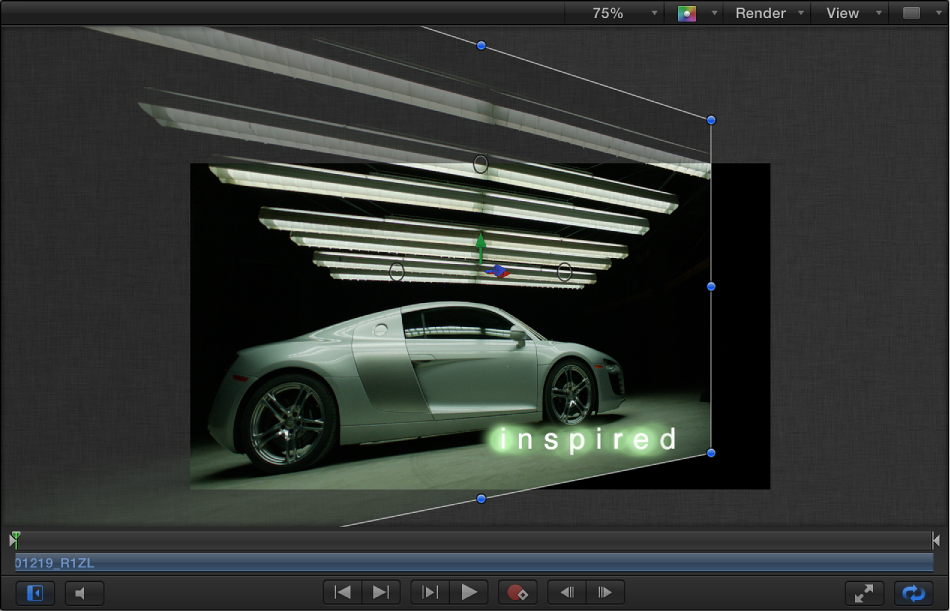
Handles: Turns display of object handles in the Canvas on and off. Some onscreen transformations, such as resizing, require visible object handles. Handles appear only on selected objects.
Lines: Turns display of lines that outline an object on and off. Lines appear only on selected objects.
Animation Path: Turns animation paths on and off. These editable paths indicate the route along which animated objects travel. If the selected object is not positionally animated, this command does not appear to have any effect. If handles are not displayed, the path curves cannot be adjusted in the Canvas. Except for the Motion Path behavior, animation paths created by behaviors are for display only and are not editable.
Show 3D Overlays: Turns 3D overlays in the Canvas on and off, including Camera overlays, 3D view tools, 3D compass, inset view, 3D grid, and 3D scene icons. (3D overlays appear in projects that contain 3D groups. See View 3D overlays.)
Note: You can also press Option-Command-Slash (/).
3D View Tools: Turns the Camera menu and 3D view tools in the Canvas on and off. See 3D view tools.
Compass: Turns the 3D compass in the Canvas on and off. Using red, green, and blue axes, the compass shows your current orientation in 3D space. The red axis is X (horizontal), the green axis is Y (vertical), and the blue axis is Z (depth). See About cameras and views.
Inset View: Turns the inset view in the Canvas on and off. When enabled, a temporary window appears in the lower-right corner of the Canvas displaying an active camera or Perspective view of the project, helping you stay oriented as you move objects in 3D space. In the 3D pane of Motion Preferences, you can change the size of the inset view, as well as control whether the inset view appears on transform changes, on all changes, or manually. See Inset view.
3D Grid: Turns the grid in the Canvas on and off. The 3D grid helps you stay oriented and can be used to guide the placement of objects in your project. The 3D grid appears when you are in a 3D workspace. See 3D grid.
3D Scene Icons: Turns the display of cameras and lights in the Canvas on or off. Scene icons appear in the Canvas as wireframe icons. Lights appear with red (X), green (Y), and blue (Z) adjust 3D handles that let you transform and rotate them. The handles are still displayed when the 3D scene icons command is turned off. See 3D scene icons.
Correct for Aspect Ratio: Applies an artificial distortion of the Canvas in projects with nonsquare pixels. When the setting is on, the computer monitor simulates what a TV monitor displays. When the setting is off, projects with nonsquare pixels appear stretched. This is because computer monitors have square pixels. This setting does not modify the output of the project.
Show Full View Area: When enabled, this setting lets you see the portion of a layer that extends beyond the edge of the Canvas. This setting is disabled by default, because it slows your project’s interactivity.
Use Drop Zones: Turns drop zones on and off. When Use Drop Zones is enabled, a checkmark appears next to the menu item, and drop zones accept objects dragged to them. When this command is turned off, drop zones ignore objects dropped onto them. For more information, see Drop zones overview.
Save View Defaults: Saves the current state of all settings in this menu as the default state for new projects.
View Layouts pop-up menu
Choose a preferred view your project in the Canvas. You can view the Canvas as a single workspace or choose from available window arrangements in the menu. (Although the workspace views are available for 2D projects, they are most useful when working in 3D space.)
The View Layouts pop-up menu displays the following items:
Single: The default value, displays a single window in the Canvas.
Two-up, side by side: Displays two windows in the Canvas, one next to the other.
Two-up, top and bottom: Displays two windows in the Canvas, one on top of the other.
Three-up, large window below: Displays three windows, two next to each other on top and a larger window below.
Three-up, large window right: Displays three windows, two stacked on the left side and a larger window spanning the right side.
Four-up, large window right: Displays four windows, three stacked on the left side and one larger window on the right side.
Four-up: Displays four windows, all the same size.