Zoom or pan the Canvas

You can zoom in on the Canvas to allow precision alignment and placement of objects, and you can zoom out to get a sense of the big picture or to see the path of a moving object. You can also pan the Canvas to modify your view of a composition. Zooming and panning does not change the size or layout of the images in your project. It only changes your working view of the entire composition.

Zoom using the Zoom tool

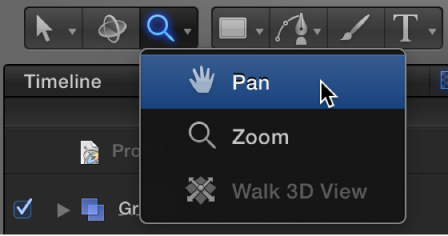
  1. In the toolbar, click the view tools pop-up menu, then choose the Zoom tool.
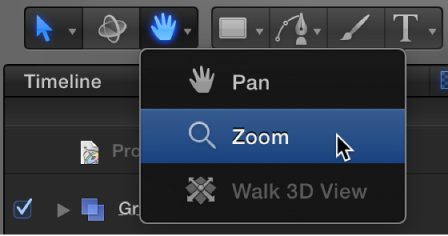
    Selecting the Zoom tool from the View tools pop-up menu

    Zoom mode is activated in the Canvas.

  2. Do one of the following:

    • Click in the Canvas to zoom in.

    • Press Option and click in the Canvas to zoom out.

    • Drag right or left in the Canvas to smoothly zoom in or out.
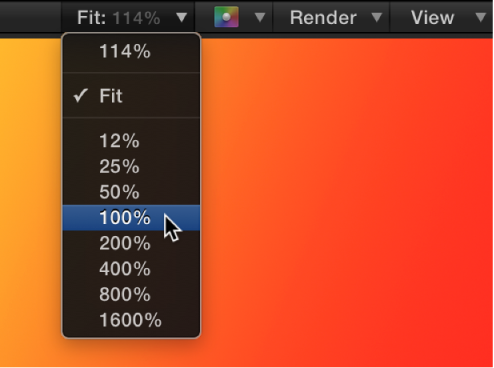
Zoom using other methods

Do any of the following:

Zoom a specific area of the Canvas

Note: To pan the Canvas without selecting the Pan tool, hold down the Space bar and drag in the Canvas.

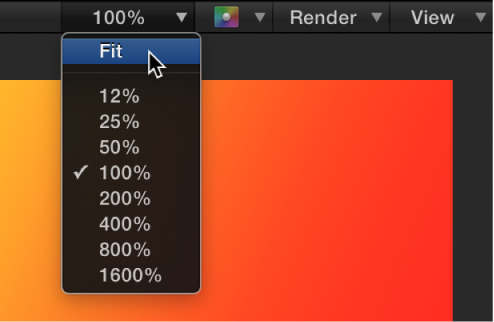
Zoom to make the project fill the Canvas

Pan using the Pan tool

  1. In the toolbar, click the view tools pop-up menu, then choose the Pan tool.

    Selecting Pan from the View Tools pop-up menu

    Pan mode is activated in the Canvas.

  2. Drag in the Canvas to move your composition in different directions.

Pan using a keyboard shortcut

Reset the Canvas Zoom level or Pan

Do one of the following: