Reorganize layers and groups

The order in which layers and groups appear in the Layers list determines which layers appear in front of other layers in the Canvas. You can change the ordering of layers in the Layers list or in the Canvas. However, it’s easiest to select layers and change their stacking order in the Layers list.

Additionally, you can change layer order using commands in the Object menu. These commands can be used with layers, effects objects, groups, or groups nested in another group. Reordering a group reorders all objects nested in that group.

Note: When using 3D groups, you can rearrange the depth order in 3D space to override the layer order in the Layers list. For more information about depth and layer hierarchy in 3D groups, see Create 3D intersection.

Move a layer or group forward or backward in your composition

Do one of the following:

Note: Using the Bring and Send commands in the Object menu to move layers up and down in the nested hierarchy in any group is especially useful when working with selected objects in the Canvas. For more information, see Object menu.

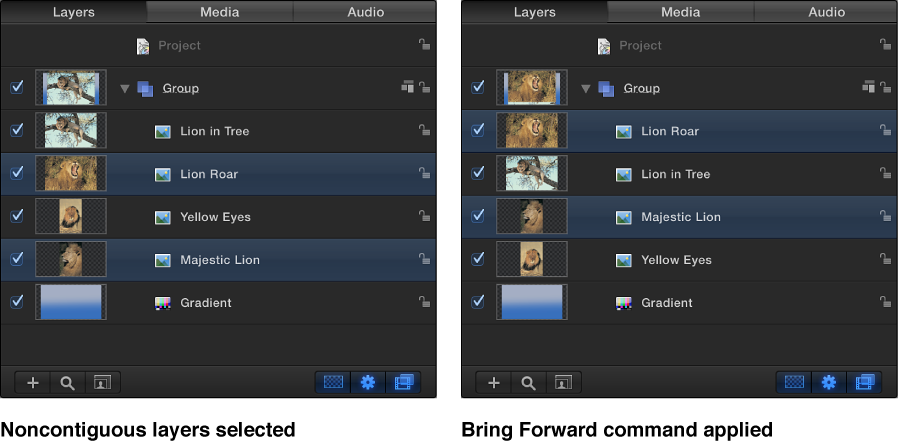
Move multiple layers or groups forward or backward in the composition

Do one of the following

Move a layer from one group to another

When you have more than one group, you can move layers back and forth between groups, changing their nested relationship in your project.

  1. Select one or more layers.

  2. Do one of the following:

    • Drag the selected layers to a position underneath another group. A position indicator appears, showing where the layer is placed when you release the mouse button.

    • Choose Edit > Cut (or press Command-X), then select the group to paste into, and choose Edit > Paste (or press Command-V).

Copy a layer from one group to another

Do one of the following:

Copy a layer or group from one project to another

When you have more than one project open, you can copy layers or groups back and forth between projects.

  1. Select one or more layers in the active project window.

  2. Do one of the following:

    • Drag the selected object to a position in the target project’s Layers list. A position indicator appears to show where the object is placed when you release the mouse button.

    • Choose Edit > Copy (or press Command-C), select a group in the target project, then choose Edit > Paste (or press Command-V).

    • Option-drag a layer in the Canvas to the Canvas or Layers list of the target project.

Rename a layer or group

Renaming groups and layers in the Layers list helps organize your project. When you rename a layer, the original name of the source media file on disk remains unchanged. Likewise, renaming a layer in the Layers list does not change the name of the layer’s corresponding source media in the Media list. For more information, see Source media overview or Display, sort, and search the Media list.

  1. In the Layers list, double-click the name of a group or layer, then enter a new name.

  2. To confirm the name, press Return, or click in another layer or group.