Scale, position, and animate cameras

Motion gives you various ways to scale, position, “walk,” and animate cameras. After you position cameras in a project, you can select a single camera view using the Isolate command. For more information, see Isolate an object in the Canvas.

Scale a camera

Use the Scale parameter in the Properties pane of the Inspector to scale what a scene camera sees. For example, when the camera “shrinks,” the scene it views seems to become larger.

  1. Select a camera in the Canvas, Layers list, or Timeline.

  2. In the Properties Inspector, drag the Scale slider.

    Note: Changing the Scale value does not affect a camera’s Angle of View parameter. Additionally, changing the Scale value only affects framing cameras. For more information about framing cameras, see About cameras and views and Controls in the Camera Inspector.

Position a camera in the Canvas

Do one of the following:

Position a camera using the Walk 3D View tool

The Walk 3D View tool lets you position a camera in 3D space as you would in a computer game, using a keyboard-and-mouse navigation method.

  1. Select a camera, then click the view tools control in the toolbar and, holding down the mouse button, choose the Walk 3D View tool.
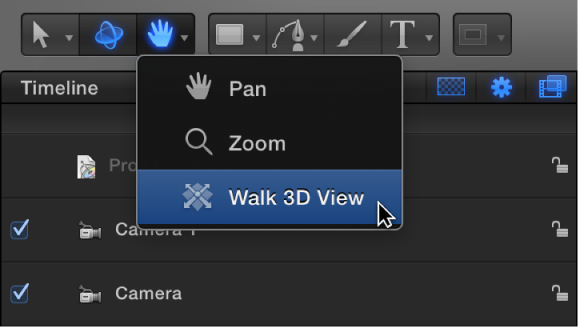
    Selecting the Walk 3D View tool from the toolbar

    The pointer changes to indicate that the Walk 3D View tool is active.

  2. Use the Up Arrow, Down Arrow, Right Arrow, and Left Arrow keys to move the camera in 3D space; hold down the Option key while using the arrow keys to move the camera more slowly.

    You can also drag in the Canvas to orient the camera.

    If you’re using a scene camera, you can also record the movement you create using the Walk 3D View tool, by creating keyframes. For more information on keyframing, see Add keyframes.

    Note: The Walk 3D View tool is available only when Active Camera, Camera, or Perspective is selected from the Camera pop-up menu. For more information on the Camera pop-up menu, see Camera pop-up menu.

Animate a camera

Do one of the following: