
Add a transition between slides
Select a slide in the slide navigator.
Click the Add an Effect button near the top of the sidebar on the right.
If you don’t see a sidebar, or the sidebar doesn’t have an Add an Effect button, click
 in the toolbar.
Choose a transition.
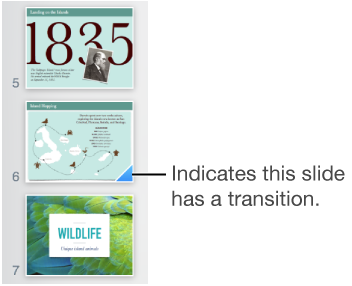
A preview of the transition plays, and the slide navigator displays a blue marker in the corner of the slide to indicate that a transition has been added.
Specify transition options, such as duration and direction, using the controls in the sidebar.
If you choose to have a transition start automatically, it begins playing immediately after you advance the slide.