To make your presentation more dynamic, you can animate the objects on a slide. For example, you can make text appear on the slide one bullet point at a time, or make an image of a ball bounce onto the slide.
Object animations are called build effects. Different build effects can be applied depending on whether the object is a text box, chart, table, shape, or media (photo, audio, or video).
Moving an object onto a slide is building in. Moving an object off a slide is building out. Moving an object around on a slide is an action build.
You can make an object move onto a slide, off a slide, or both.
Select the object or text box you want to animate.
Do any of the following:
Animate the object onto the slide: Click the Build In tab at the top of the sidebar on the right, click Add an Effect, then choose an animation.
If you don’t see a sidebar, or the sidebar doesn’t have a Build In tab, click
in the toolbar.
Animate the object off the slide: Click the Build Out tab at the top of the sidebar on the right, click Add an Effect, then choose an animation.
Use the controls to change the duration of the animation, and more.
You can also make several objects build as one object by grouping them, then adding an animation to the group.
You can use action builds to move objects along a path or change how an object looks without moving the object onto or off the slide. For example, you can change an object’s size, make it transparent, and more.
There are two types of action builds:
Basic action builds change how the object appears by adjusting its position or size on the slide. You can combine basic action builds into a single animation.
Emphasis action builds start and end in the same position and are used to call attention to an object on the slide.
You can apply multiple action builds to an object and specify their build order to create interesting effects.
Select the object you want to animate.
Click the Action tab at the top of the sidebar on the right.
If you don’t see a sidebar, or the sidebar doesn’t have an Action tab, click
in the toolbar.
Click Add an Effect, choose an animation, then use the controls that appear to customize the animation (its duration, for example).
To apply another action build to the object, click the red diamond (if you see one) below the object on the slide, or click Add Action in the sidebar, then choose another build.
You can change the order and timing of builds after you add them. For an object that changes position as a result of an action build, a “ghost” object appears on the slide while you edit it to indicate the resulting position of the object after the animation plays.
You can combine Basic action builds to create an interesting animation. For example, you could apply a Move build that plays at the same time as a Rotate build so the object appears to rotate while it moves across your slide.
Select an object with at least two Basic action builds.
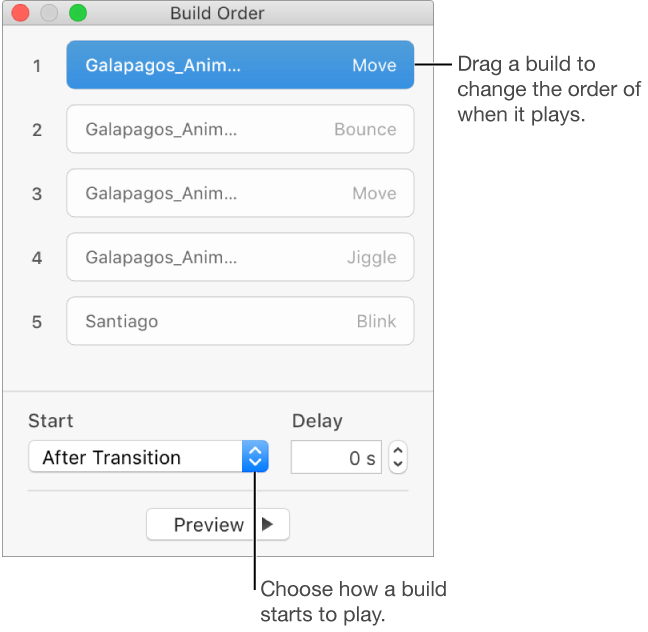
Click Build Order near the bottom of the sidebar (under the Action tab).
If you don’t see a sidebar, or the sidebar doesn’t have an Action tab, click
in the toolbar.
Ensure that the basic action builds you want to combine are listed consecutively in the Build Order window. (Drag items in the Build Order window as necessary to reorder them.)
Select a Basic action build to combine with the Basic action build above it.
The selected action appears blue in the Build Order window.
Click the Start pop-up menu, then choose With Build [number].
You can build tables, charts, lists, or blocks of text all at once or piece-by-piece. For example, you can have a pie chart appear on a slide one wedge at a time or a list appear one point at a time.
Select a table, chart, or block of text that has an animation.
Click the Build In tab at the top of the sidebar on the right.
If you don’t see a sidebar, or the sidebar doesn’t have a Build In tab, click
in the toolbar.
Click the Delivery pop-up menu, then choose how you want the object to build.
Delivery options depend on the type of object you choose. For example, a pie chart can be built in wedge-by-wedge, and a bar chart can be built in set-by-set.
Some effects, like Move In, have additional text delivery options, which you can use to animate words or characters. For example, you can build in several paragraphs, but the words inside the paragraphs can be animated to come in randomly during each paragraph delivery.
You can change the order in which objects animate on a slide. You can also adjust the timing of builds, setting some effects to build automatically after others, or setting builds to run simultaneously. You can also specify when a build starts.

In the slide navigator, select the slide with the effects you want to reorder, then on the slide, select the object with the builds you want to modify.
Click the Build In, Build Out, or Action tab at the top of the sidebar on the right.
If you don’t see a sidebar, or the sidebar doesn’t have these tabs, click
in the toolbar.
Click Build Order at the bottom of the tab.
All the effects on the slide are listed. The effects for the selected object are blue.
To change the build order for an effect, drag the effect to a new position in the Build Order window; Command-click to select multiple effects.
If you drag one effect on top of another (so they become merged in the window), the second effect plays automatically after the effect it’s paired with.
To modify the timing for an effect, select the effect, click the Start pop-up menu, then choose an option:
On Click: The effect plays when you click.
With Build [number]: The effect plays at the same time as the effect before it.
After Build [number]: The effect plays after the previous effect finishes. Set the amount of time that passes before the effect plays by using the arrows next to the Delay field.
The options available in the Start menu depend on the number and types of effects. For example, if you're using effects that can start together, like Jiggle and Blink, then the With Build option is available. If you're using effects that can't start together, like Build In and Build Out, then there's no With Build option.
Select the object you want to modify.
Click the Build In, Build Out, or Action tab at the top of the sidebar on the right.
If you don’t see a sidebar, or the sidebar doesn’t have these tabs, click
in the toolbar.
Click Change, then choose None.