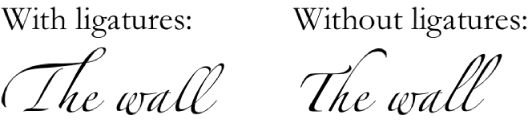

Some fonts include ligatures, a decorative joining of two characters to form a single typographic character. You can use ligatures if the font you’re using supports them.
In addition to adding ligatures, you can make other adjustments to the spacing between characters, and change the spacing of text in relation to other text.
Select the text you want to change.
Click the Text tab at the top of the sidebar on the right, then click the Style button near the top of the sidebar.
If you don’t see a sidebar, or the sidebar doesn’t have a Text tab, click  in the toolbar.
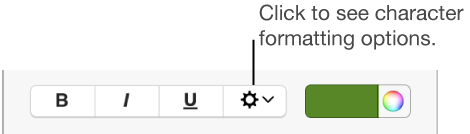
In the Font section, click  , click the Ligatures pop-up menu, then choose an item.
Use Default: Uses the ligature settings specified in the Typography window for the font you’re using.
To open the Typography window, choose Format > Font > Show Fonts (from the Format window at the top of your screen).
Use None: Uses regular spacing with no ligatures for the font.
Use All: Uses all available ligatures for the font.
To remove ligatures from selected text, click the Ligatures pop-up menu, then choose Use None.
Select a text box or just the text you want to change.
For a text box: The character spacing applies to any text you type in the box after you apply the change.
For just specific text: The character spacing applies only to that text. New text you enter isn’t spaced the same way.
Click the Text tab at the top of the sidebar on the right.
If you don’t see a sidebar, or the sidebar doesn’t have a Text tab, click in the toolbar.
Click the Style button near the top of the sidebar.
In the Font section, click , then use the arrows to change the Character Spacing value.
The default spacing is zero. Increasing the value widens the spacing, and decreasing the value tightens it.
If you want other text in the presentation to use the same spacing and other settings, define a new paragraph style from the selected text, then apply that style to other text in your presentation.
Keynote also includes built-in character styles that specify text attributes such as italic, underline, or strikethrough. These styles are similar to paragraph styles—you can create a style, assign a shortcut to it, rename it, and more. For more information about styles, see Create and use character styles.