
Enter special characters and symbols
You can use the Character Viewer to add special characters and symbols to text, such as math symbols, Latin characters, and pictographs.
Click in the text where you want to place the character, then choose Edit > Emoji & Symbols (or press Control-Command-Space bar).
The Character Viewer appears where you clicked. You can drag it to the desktop if you want to keep it open as you work.
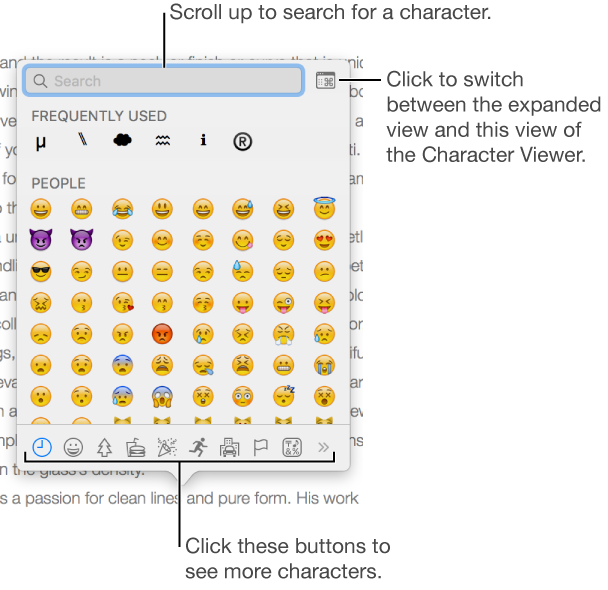
To locate a character, do any of the following:
Scroll to see more characters, or click the buttons at the bottom to jump to a category.
Scroll up, then type in the search field at the top (for example, type “fractions” to see available fractions, or type the Unicode name or code).
Scroll up, then click the button in the top-right corner to open the full Character Viewer.
When you find the character, click it to insert it in the text.
If the Character Viewer is open on the desktop, double-click the character instead.
The Character Viewer always opens in the state it was in when it was last closed. If it’s expanded and you want it to be in pop-up view the next time you open it, click the button in the top-right corner to close the expanded view.
For more information about using the Character Viewer, click the desktop to switch to the Finder, choose Help > Mac Help (from the Help menu at the top of your screen), then search for “character viewer.”