You can add video or audio—a music file or a sound clip—to a slide. When you show the slide during a presentation, the video or audio starts playing when you click, or you can set the playback to start automatically when the slide appears. You can also add a soundtrack that plays for the entire presentation.
Note: Video and audio files must be in a format that QuickTime supports on your Mac. If you can’t add or play an audio or video file, try using iMovie, QuickTime Player, or Compressor to convert the file to a QuickTime file, in MPEG-4 audio or H.264 (720 p) video format.
When you add a video or audio file to a slide, the video or audio plays only when that slide is showing in your presentation.
Do either of the following:
Drag a media file from your computer to anywhere on the slide, or to a media placeholder.
Click
in the toolbar, select Photos, Music, or Movies, then drag the file to a media placeholder, or to anywhere else on the slide.
You can choose the frame that is displayed on a slide before the video starts playing.
Select the video on the slide.
Click the Movie tab at the top of the sidebar on the right.
If you don’t see a sidebar, or the sidebar doesn’t have a Movie tab, click
in the toolbar.
Click the disclosure triangle next to Edit Movie.
Drag the Poster Frame slider to choose the frame.
Select the audio or video object on the slide.
Click the Audio or Movie tab at the top of the sidebar on the right.
If you don’t see a sidebar, or the sidebar doesn’t have an Audio or Movie tab, click
in the toolbar
Click Replace.
Select an audio or video file (you may have to open a folder first), then click Open.
You can trim media, set playback volume, and set video and audio to repeat in a loop.
Select the audio or video file on the slide.
Click the Audio or Movie tab at the top of the sidebar on the right.
If you don’t see a sidebar, or the sidebar doesn’t have an Audio or Movie tab, click
in the toolbar
Do any of the following:
Trim the audio or video: Click the disclosure triangle next to Edit Audio or Edit Movie, then drag the Trim slider.
Adjust playback volume: Drag the volume slider.
Loop the audio or video: Click the Repeat pop-up menu, then choose an option. Choose Loop to have the media play until you advance the slide. Choose Loop Back and Forth to have it continually play forward then backward until you advance the slide.
Set when the media begins playing: Select the “Start media on click” checkbox to start playback when you click. If you want the media to play automatically when the slide appears, deselect the checkbox.
You can set a preference in Keynote to automatically convert movies in your presentation to H.264 (720 p) so they play on iOS devices.
Choose Keynote > Preferences (from the Keynote menu at the top of your screen).
Click General at the top of the preferences window, then select the checkbox next to “Optimize movies for iOS.”
When you add a soundtrack to your presentation, the audio begins playing when the presentation starts. If there are slides that already have audio or video, the soundtrack also plays on those slides.
A file added as a soundtrack always plays from its beginning.
Click the Audio tab at the top of the sidebar on the right.
If you don’t see a sidebar, or the sidebar doesn’t have an Audio tab, click
in the toolbar.
Click
(to the right of the volume slider in the middle of the sidebar), then select a song.
Click the soundtrack pop-up menu, then choose an option:
Off: The soundtrack doesn’t play.
Play Once: The soundtrack plays through the presentation and doesn’t repeat if the presentation is longer than the soundtrack.
Loop: The soundtrack repeats until the presentation ends.
If you want to play your presentation on a different computer or device from the one you used to create the presentation, choose Keynote > Preferences (from the Keynote menu at the top of your screen), click General at the top of the preferences window, then select “Copy audio and movies into document.” Doing so ensures the soundtrack is available whenever you play the presentation.
Some media files are protected under copyright law. Some downloaded media may be played only on the device where the download occurred. DRM (digital rights management) protected music can’t be added to the presentation soundtrack. Make sure the computer you’re using has permission to play all the media files included in your presentation.
A voiceover narration is a synchronized recording of yourself talking about each slide. To record a voiceover narration, you advance through the presentation at your natural speed as you talk. As you advance through each slide or build, your voice and timing are recorded and preserved when the presentation is played back for viewers.

Select the slide on which you want the recording to start.
Click the Audio tab at the top of the sidebar on the right.
If you don’t see a sidebar, or the sidebar doesn’t have an Audio tab, click
in the toolbar.
Click Record.
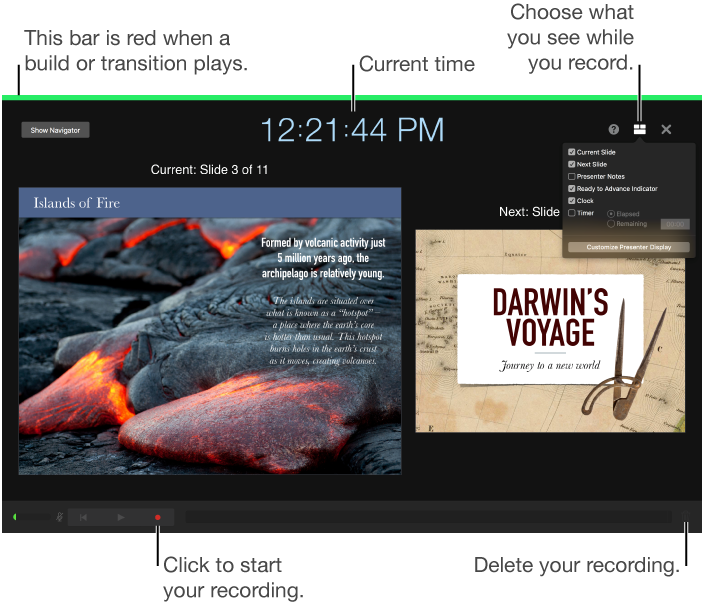
The recording mode shows you the current time, current slide, and next slide. To change the layout and see your presenter notes, a timer, and more, click
, then select features.
To start recording your presentation, click
at the bottom of the window.
The timer counts down from 3 before recording begins.
Speak clearly into the microphone to record your narration.
To advance to the next slide, click the slide or press the Right Arrow key.
You can pause the recording at any time by clicking the Pause button. Click
to resume recording.
To stop recording, click
.
Press Esc (Escape) to save the recording and exit the presentation.