Use object styles

A quick way to change how an object looks is to apply an object style to it. Every theme includes object styles—combinations of colors, borders, shadows, and other attributes—that are designed to look good with the theme.

You can create your own object style by customizing the look of an object—applying your own color, border, fill, and so on—then saving the look. The new style is saved so you can apply it to other objects.

Apply a style to an object

  1. Select an image, shape, text box, line, arrow, or video.

    To apply an object style to a table, see Use table styles. To apply an object style to a chart, see Change the look of a chart.

  2. Click the Style tab at the top of the sidebar on the right.

    If you don’t see a sidebar, or the sidebar doesn’t have a Style tab, click Format button in the toolbar.

  3. Select a style at the top of the sidebar (click the left or right arrows to see more styles).

    If the object includes text but you want to apply just the shape style to it (the color and border, for example), Control-click the style thumbnail, then choose Apply Shape Style Only.

Create a new object style

  1. Select the image, shape, text box, line, arrow, or video with the changes you want to save as a new style.

    To create a new object style for a table, see Use table styles. To create a new object style for a chart, see Create and organize chart styles.

  2. Click the Style tab at the top of the sidebar on the right.

    If you don’t see a sidebar, or the sidebar doesn’t have a Style tab, click Format button in the toolbar.

  3. Click the arrow to the right of the style thumbnails to go to the last group of styles.

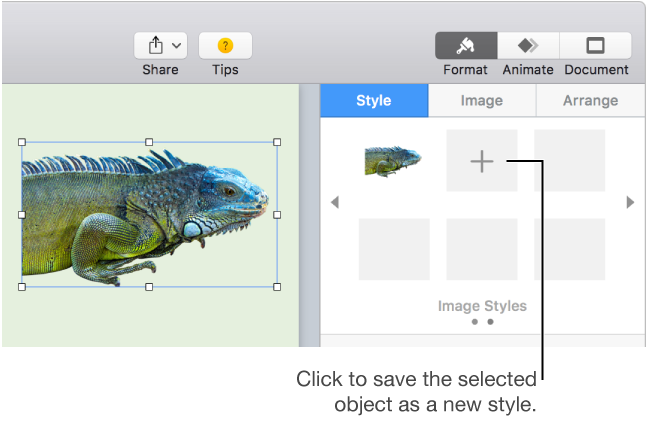
  4. Click New style button to add your style.

    The menu of image styles with the Add button, and an image selected

The style appears as the last thumbnail, but you can drag it to another location.

Organize or delete object styles

You can change the order of the object styles shown at the top of the sidebar and delete any you don’t want.

Redefine object styles

To quickly change the look of all objects that have the same style applied, redefine the style, then reapply it to all the objects.

  1. Select one of the objects whose style you want to change, then modify the object to look the way you want.

    To redefine object styles for tables, see Use table styles. To redefine object styles for charts, see Create and organize chart styles.

  2. Select the object you just modified (if it’s no longer selected), then click the Style tab at the top of the sidebar on the right.

    If you don’t see a sidebar, or the sidebar doesn’t have a Style tab, click Format button in the toolbar.

  3. Control-click the style, then choose “Redefine Style from Selection.”

  4. Click OK.

    All objects that use the style are updated.