
Resize an object
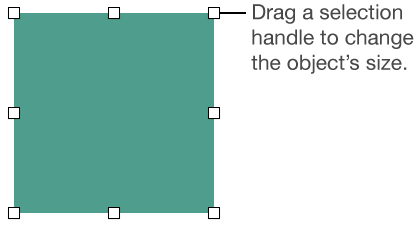
Select an object, than do one of the following:
Resize an object: Drag any selection handle.
Resize an object and maintain its proportions: Hold down the Shift key as you drag any selection handle.
Resize an object to specific dimensions: Click the Arrange tab at the top of the sidebar on the right. In the Size section, enter values in the Width and Height fields, or click the arrows next to the fields. If you don’t see a sidebar, or the sidebar doesn’t have an Arrange tab, click
 in the toolbar.
If you want to always constrain proportions while resizing a selected object, select the “Constrain proportions” checkbox in the Arrange tab of the sidebar.