
Create a text box
Click
 in the toolbar.
A text box is added to your slide (you can change how the text looks later).
Drag the text box to where you want it.
If you can’t move the box, click outside the box to deselect the text, then click the text once to select its text box.
Type to replace the placeholder text.
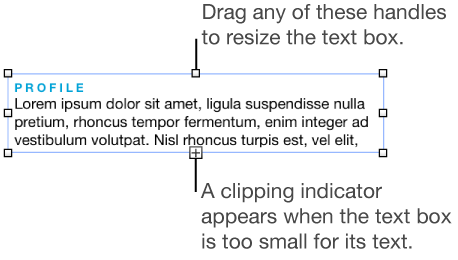
To resize the text box, do one of the following:
If the box is too small for the text: Select the text box, then drag the clipping indicator (+) until all text is showing. You can also drag a selection handle.
If the box is too large for the text: Select the text box, then drag a selection handle to resize the text box.
To delete a text box, click the text in the box (a gray outline appears around it), then press Delete on your keyboard.
The text box itself is an object that can be modified like most other objects; you can rotate the text box, change its border, fill it with a color, layer it with other objects, and more.