
Create a presentation
Open Keynote, then click New Document at the bottom of the Open dialog.
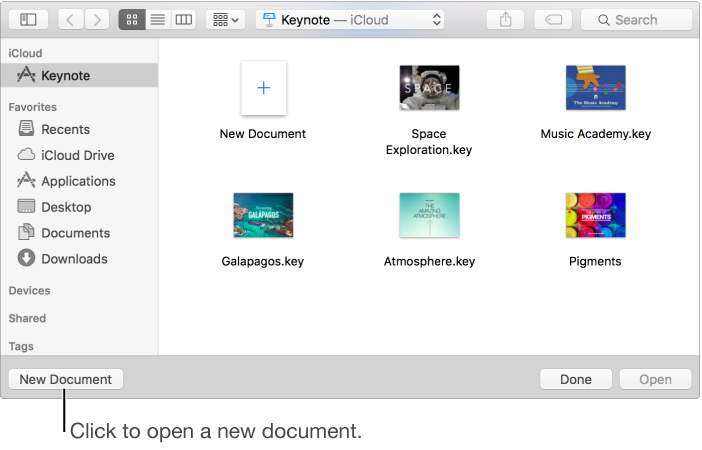
If you don’t see a dialog with a New Document button, choose File > New (from the File menu at the top of your screen).
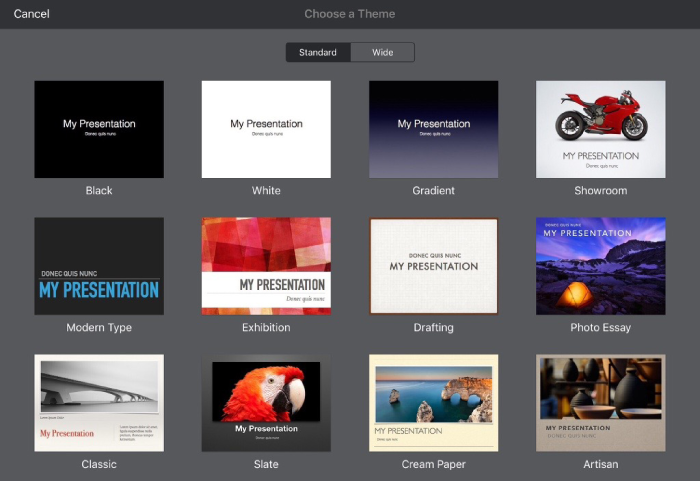
Double-click a theme.
Tip: You can set a preference in Keynote to always open a new presentation in a particular theme.
When the new presentation opens, do any of the following:
To add a slide, click
 in the toolbar.
To add text, double-click placeholder text and type your own.
To add an image, drag one from your Mac or a webpage to a placeholder image or anywhere else on the slide.
Click
 in the lower-right corner of a placeholder image to replace it with your own.
Choose File > Save, enter a name, choose a location, then click Save.
If iCloud Drive is set up on your Mac, Keynote saves the presentation to iCloud Drive by default. You can change the name of the presentation or change where it's saved at any time.
To play the presentation, click
 in the toolbar, then press the arrow keys to advance through the slides.
To end the presentation, press Esc (Escape). For more ways to show a presentation, see Play a presentation on your Mac.