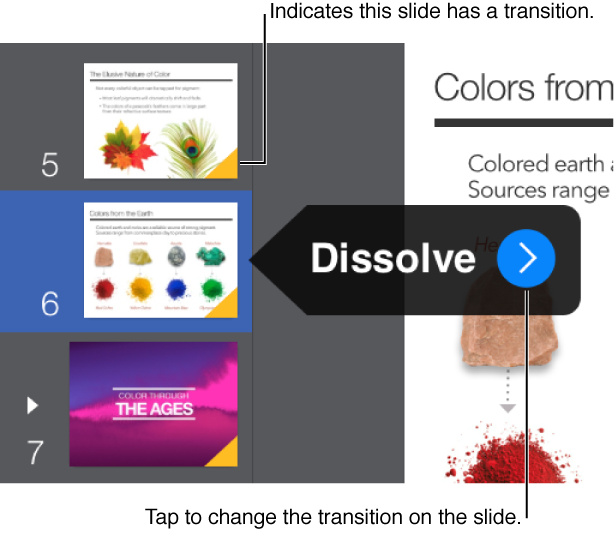

Transitions are visual effects that play as you move from one slide to the next. For example, the Push transition makes a slide appear to push the previous slide off the screen.
In the slide navigator, tap the slide you want to add a transition to.
Do one of the following:
Tap the slide again, tap Transition, then tap a transition.
Tap  , tap Transitions and Builds, tap the transition badge next to the slide, then tap a transition; scroll to see all options.
When you add a transition, the badge is labeled None. When you change a transition, the badge is labeled with the name of the current transition.
To preview a transition, tap Play above the Transitions list.
Tap Options below the Transitions list to set the duration, direction, and other settings for the transition.
Tap other slides in the slide navigator to add transitions, then tap Done when you’re finished.
To change a transition, tap the slide in the slide navigator, tap the transition badge, then tap a different transition. To remove the slide transition, tap None.
Tip: If you want to apply the same transition to multiple slides, apply the transition to a slide, then duplicate that slide multiple times. When you add content to the duplicated slides, the transition is already in place.