
Animate objects

To make your presentation more dynamic, you can animate the objects on a slide. For example, you can make text appear on the slide one bullet point at a time, or make an image of a ball bounce onto the slide.

Object animations are called build effects. Different build effects are available depending on whether the object is a text box, chart, table, shape, or media (photo, audio, or video).

Moving an object onto a slide is building in. Moving an object off a slide is building out.

Animate an object

  1. Do one of the following:

    • Tap an object, then tap Animate.

    • Tap Tools button, tap Transitions and Builds, then tap an object.

    Buttons appear next to the object.

  2. Tap Build In to move the object onto the slide, or tap Build Out to move the object off the slide.
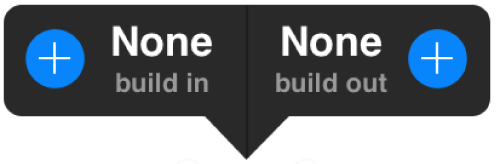
    Build indicator pop-up
  3. Tap the build effect you want.

    You may need to scroll to see all the build effects.

  4. Do any of the following:

    • Change how long the build plays: Tap Options, then drag the Duration slider.

    • Set when the build starts playing: Tap Options, then choose an option below Start Build. Builds play on tap by default.

    • Build charts, tables, or bulleted text blocks by their parts: Tap Delivery, then choose an option.

    • Change the order of the builds on the slide: Tap Order, touch and hold the effect, then drag it to a new position.
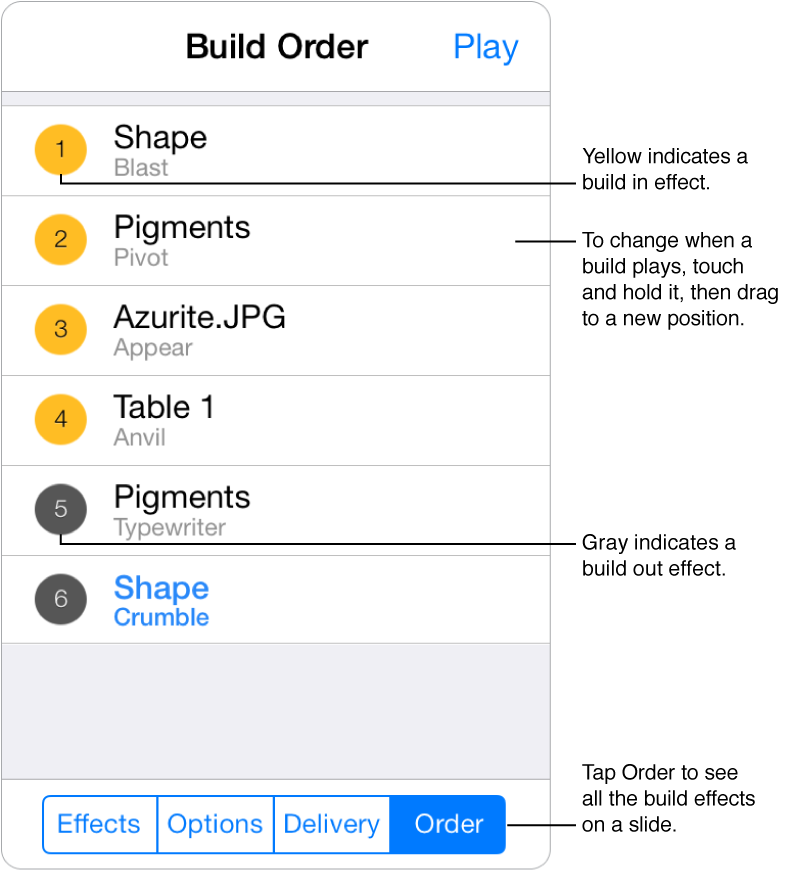
Build objects by their parts

You can build tables, charts, lists, or blocks of text all at once or piece by piece. For example, you can have a pie chart appear on a slide one wedge at a time or a list appear one point at a time.

  1. Tap a table or chart, or a block of text, then tap Animate.

  2. Tap the Build In or Build Out button, then tap the effect you want.

  3. Tap Delivery below the list of effects, then tap a delivery option.

  4. Tap Done.

Change the build order and timing

You can change the order in which objects animate on a slide. You can also adjust the timing of builds, setting some effects to build automatically after others, or setting builds to run simultaneously. You can also specify when a build starts.

  1. Tap Tools button, then tap Transitions and Builds.

  2. Tap an object to which a build has been applied.

  3. Tap a build effect, then tap Order below the list of effects.

  4. Touch and hold an effect, then drag it to a new position.

    Build badges
  5. To change when a build plays, swipe right over the build you want to change until you see the setting you want.

    • After Transition: The build plays after the slide transition.

    • On Tap: The build plays when you tap.

    • With Previous: The build plays at the same time as the build before it.

    • After Previous: The build plays after the previous build finishes.

    You can also adjust these settings by tapping Options below the list of effects.

Remove an animation

To remove a build effect, change the build effect to None.

  1. Tap an object with a build effect, then tap Animate.

  2. Tap the build you want to change, then choose None.

If you imported your presentation from a desktop version of Keynote, your build order may also contain action builds (denoted by blue order numbers). You can reorder, delete, or adjust the start settings of action builds from within the build order.

See also
Add a Magic Move transition
Add a transition between slides