Edit a photo or Live Photo. View the photo full screen, tap  , then tap a tool.
You can edit still photos and Live Photos right on iPod touch. If your photos are stored in iCloud, your edits are updated across all your devices set up with iCloud, and both your original and edited versions are saved. If you delete a photo, it’s deleted from all your devices and iCloud. Photo app extensions can provide special editing options. See App extensions.
Edit a photo or Live Photo. View the photo full screen, tap , then tap a tool.
Auto-enhance  improves a photo’s exposure, contrast, saturation, and other qualities.
With the Remove Red-eye tool  , tap each eye that needs correcting.
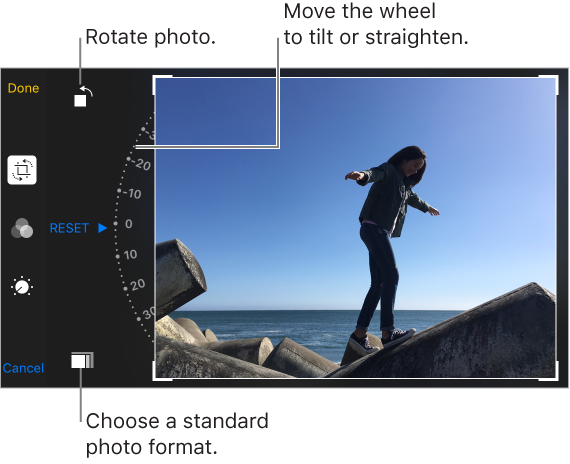
To crop the photo, tap  . Photos suggests an optimal crop, but you can drag the corners of the grid tool to set your own crop. Move the wheel to tilt or straighten the photo; tap Reset to undo these changes. Tap
  to rotate the photo 90 degrees. Tap
  to choose a standard crop ratio, such as 2:3 or Square.
With photo filters  you can apply different color effects, such as Mono or Chrome.
Tap Adjustments  to set Light, Color, and B&W (black & white) options. Tap the down arrow, then tap
  next to Light, Color, or B&W to choose the element you want to adjust. Move the slider to the desired effect.
Compare the edited version to the original. Touch and hold the photo to view the original. Release to see your edits.
Don’t like the results? Tap Cancel, then tap Discard Changes. Tap Done to save changes.
Revert to original. After you edit a photo and save your edits, you can revert to the original image. Tap the image, tap , then tap Revert.
Mark up a photo. View the photo full screen, tap , tap  , then tap Markup. Annotate the photo with the Markup tools.
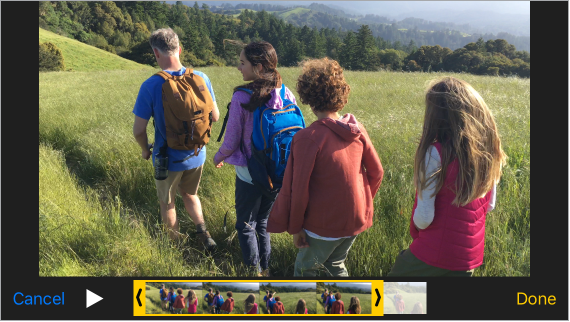
Trim a video. Tap to display the controls, drag either end of the frame viewer, then tap Done. Tap Save as New Clip to save the new video clip in your Videos album (the original video remains unchanged).
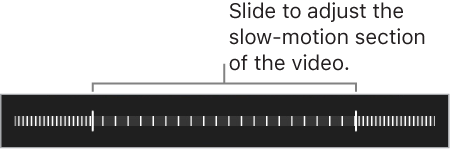
Set the slow-motion section of a video shot in Slo-mo. Tap , then use the vertical bars beneath the frame viewer. (See Shoot video for information about Slo-mo.)