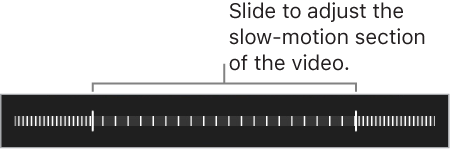
Set the slow-motion section of a video. Tap the thumbnail, then tap  . Slide the vertical bars beneath the frame viewer to define the section you want to play back in slow motion.
With Camera you can shoot video, including slow-motion and time-lapse videos.
Record a video. Choose Video, then tap the Record button, or press either volume button, to start and stop recording. To choose between 720p and 1080p 30 fps (frames per second) video, go to Settings > Photos & Camera > Record Video.
Take it slow. Choose Slo-mo to capture slow-motion video. Later, when you edit the video, you can set just a portion of it to play back in slow-motion, and the rest plays back regular speed.
Set the slow-motion section of a video. Tap the thumbnail, then tap . Slide the vertical bars beneath the frame viewer to define the section you want to play back in slow motion.
Zoom in or out when shooting video. (Rear-facing camera) Pinch the image on the screen open to zoom in, and pinch closed to zoom out.
Capture an experience with time-lapse. (Rear-facing camera) Choose Time-Lapse, set up iPod touch where you want, then tap the Record button to start capturing a sunset, a flower opening, or other experiences over a period of time. Tap the Record button again to stop recording. The time-lapse photos are compiled into a short video.
With iOS 9 and later, time-lapse videos have video stabilization, which minimizes the effect of camera movement during capture.