When Instruments launches, you’re presented with a list of profiling templates—files containing sets of preconfigured instruments—from which to choose. This list includes a set of standard templates as well as any custom templates you may have created.
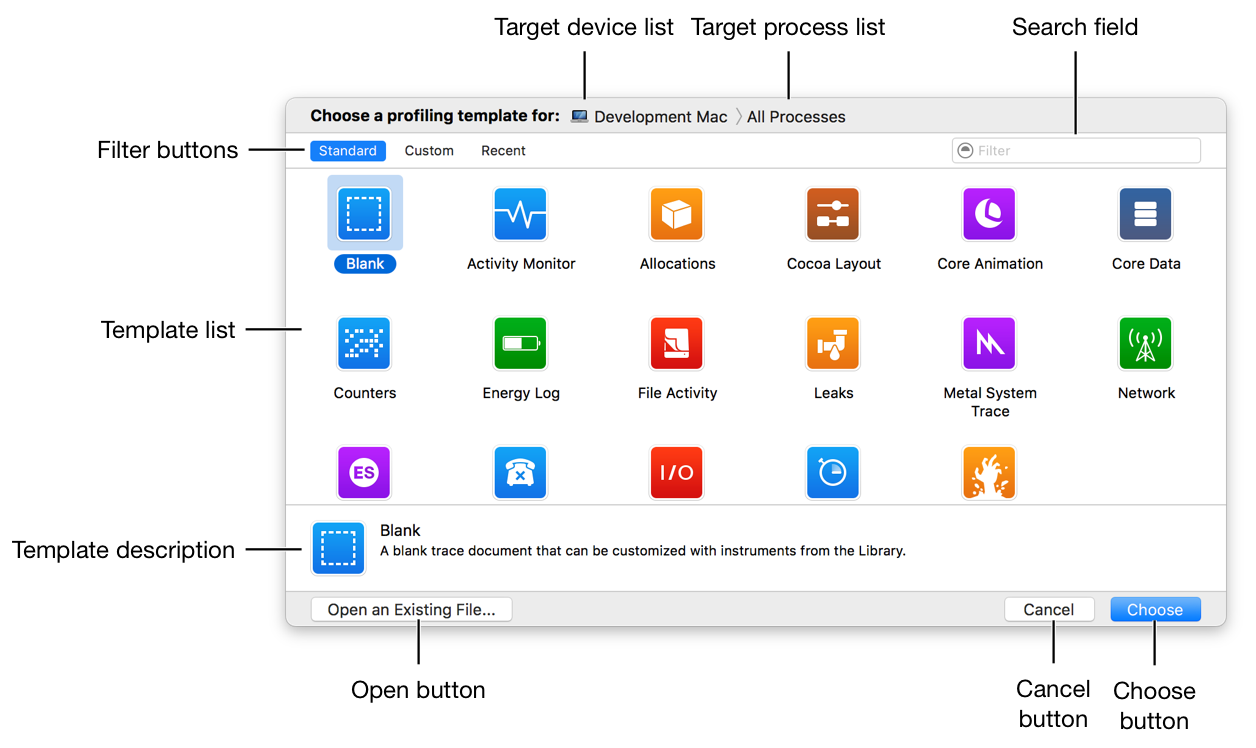
The profiling template selection dialog consists of the following primary elements.
Target device list: Click this to select the device on which you wish to profile.
Target process list: Click this to select the process or processes to profile.
Filter buttons: Click these to filter down the list of templates to display just the standard templates, custom templates, or recently used templates.
Search field: Enter some text to quickly find the template you need. This searches template titles and descriptions.
Template list: The list of profiling templates, which may be filtered if you clicked a filter button or entered search criteria.
Template description: A short description of the currently selected profiling template, which can be helpful for determining whether the selected template meets your needs.
Choose button: Click this to create a new profile document, based on the currently selected template.
This button changes to Profile when you press the Option key. Click the Profile button to create a new document based on the currently selected template and immediately begin profiling the target process.
Open button: Click this to open a previously saved profile document, rather than starting with a fresh template.
Cancel button: Click this to close the template selection dialog.
Note: You can display profiling template selection dialog at any time by choosing File > New (or pressing Command-N).