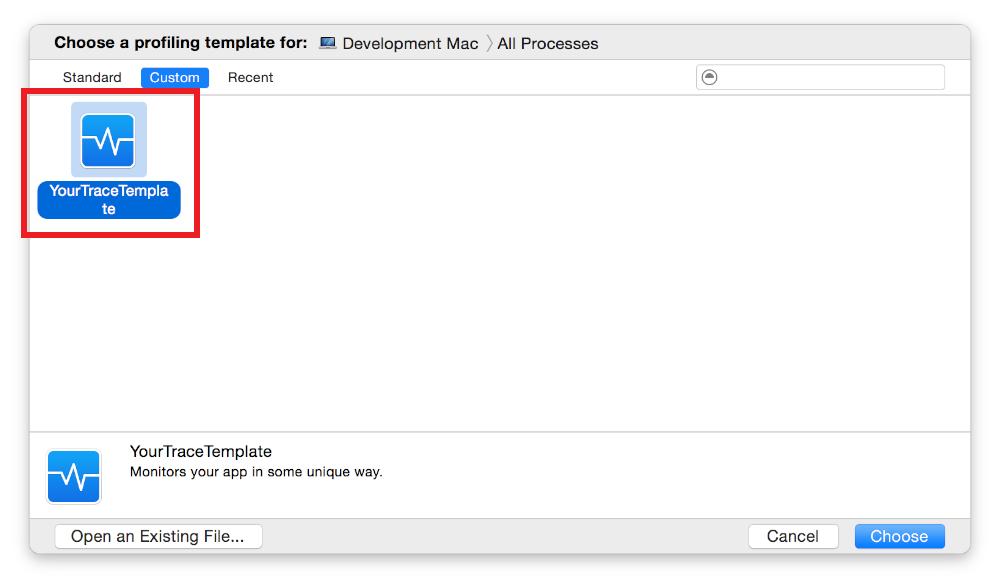
If you create a trace document you think you might need again for profiling other apps, you can save it as a custom template so you don’t have to recreate it each time you run Instruments.
Create or open a trace document. See Create a trace document.
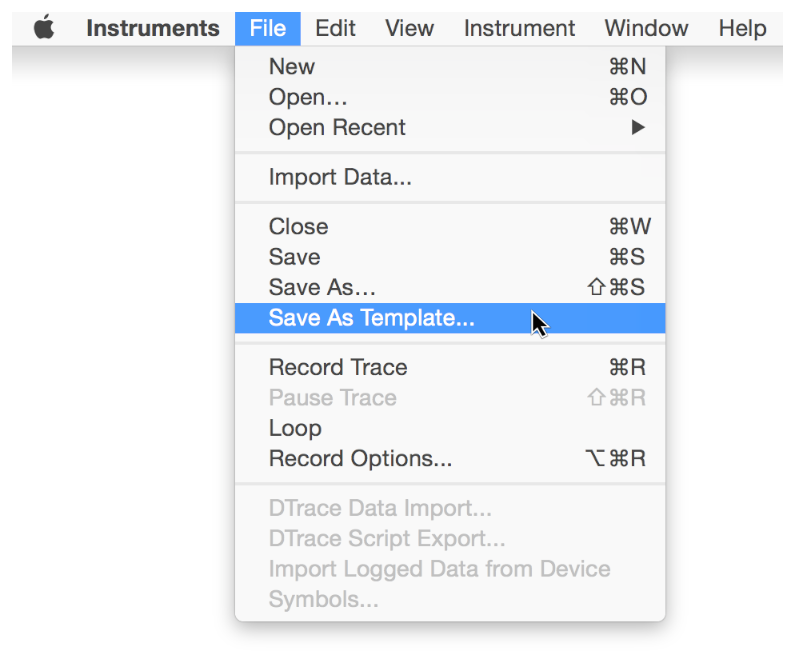
Choose File > Save As Template.
Enter a name for the template.
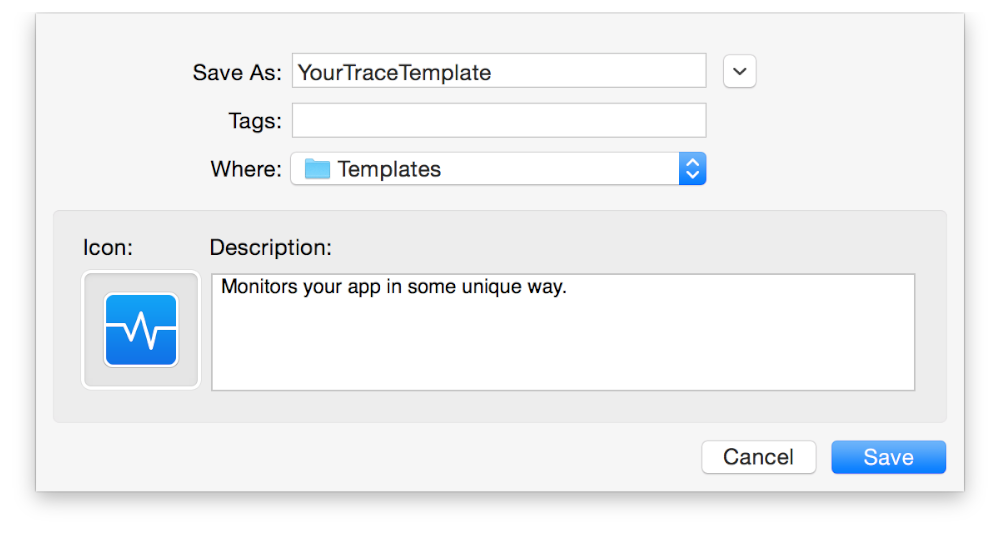
Choose a destination for the template.
Save your template in the /Users/<username>/Library/Application Support/Instruments/Templates directory to make it available in the custom section of the Instruments template window. This is the default directory in the Save As Template dialog.
Select an icon for the template.
Enter a description for the template.
Click Save.
Once you save a template, it automatically appears in the profiling template selection dialog, grouped with the Custom templates. Next time you create a trace document, you can select it as your starting point.