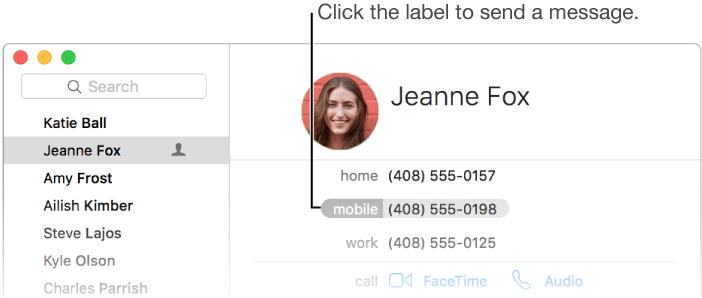

You can start a Messages conversation directly from Contacts.
Select a contact.
Click the contact’s email address or phone number label, then choose Send Message.
You can set a custom texttone to help you identify who’s sending you a message.
Select a contact, then click Edit.
Click the Texttone field to choose a sound.
If your contact doesn’t use Messages, you can also send an SMS message if you have an iPhone with iOS 8 or later nearby.
Note: To send an SMS message, you must have an iCloud account, and your iPhone and Mac need to be on the same Wi-Fi network and signed in with the same Apple ID. For more information, see Set up iCloud.
For more information about the Messages app, see Send text messages.