
You can manage your team’s signing certificates without needing to sign in to your developer account using Accounts preferences.
You can view all the signing certificates for a team in Xcode, and if necessary, create a signing certificate of a specific type. If you use automatic signing (recommended), Xcode creates signing certificates for you as needed.
If a development certificate is missing a private key, you can revoke the signing certificate in your developer account and delete the signing certificate in Xcode.
For organizations, if a distribution certificate is missing a private key or not in your keychain, you can email the creator of the signing certificate. Ask the creator to export the signing certificate on their Mac so you can install it on your Mac. (To install a certificate in your keychain, double-click the exported certificate file.)
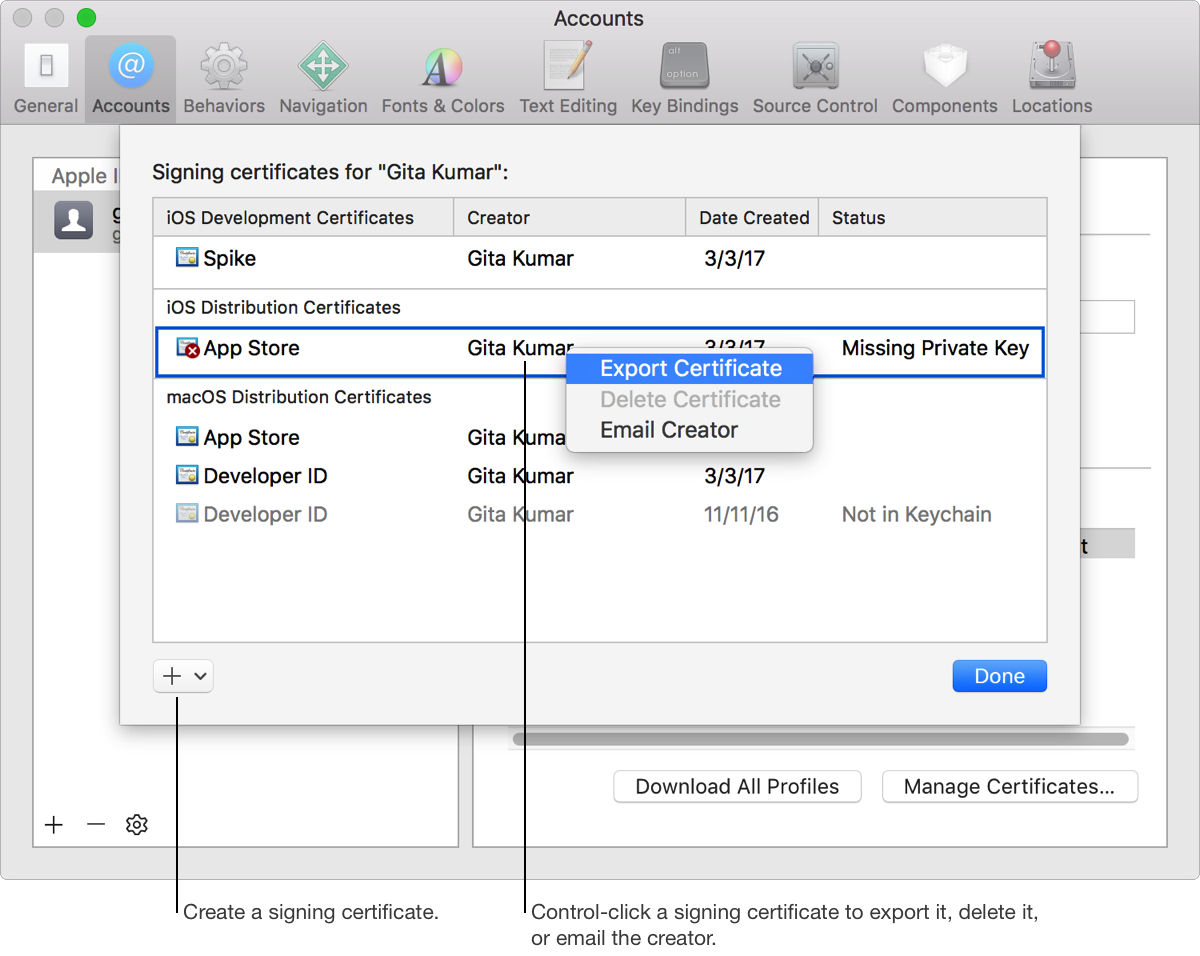
In Accounts preferences, select a team and click Manage Certificates.
A sheet appears displaying the team signing certificates.
Click Done.
In the lower-left corner of the signing certificates sheet, click the Add button (+) , and choose a certificate type from the pop-up menu.
You create different certificate types for use in different provisioning profiles.
In the signing certificates sheet, Control-click the signing certificate and choose Export Certificate from the pop-up menu.
Enter a filename in the Save As field and a password in both the Password and Verify fields.
Click Save.
The file is saved to the location you specified with a .p12 filename extension. Alternatively, you can export certificates using the security(1) command-line tool.
In the signing certificates sheet, Control-click the signing certificate and choose Delete Certificate from the pop-up menu.
Note: The Delete Certificate menu item is enabled when the status of the certificate is Revoked.
In the dialog, click Delete.
In the signing certificates sheet, Control-click the signing certificate and choose Email Creator from the pop-up menu.
Mail opens and displays a New Message window.