
You can export your iOS, tvOS, or watchOS app to distribute it outside of the App Store.
In the Archives organizer, select the archive you want to export, then click Export.
Note: If the Export button is disabled, verify that the archive contains a single top-level app.
In the sheet that appears, select the type of export, then click Next.
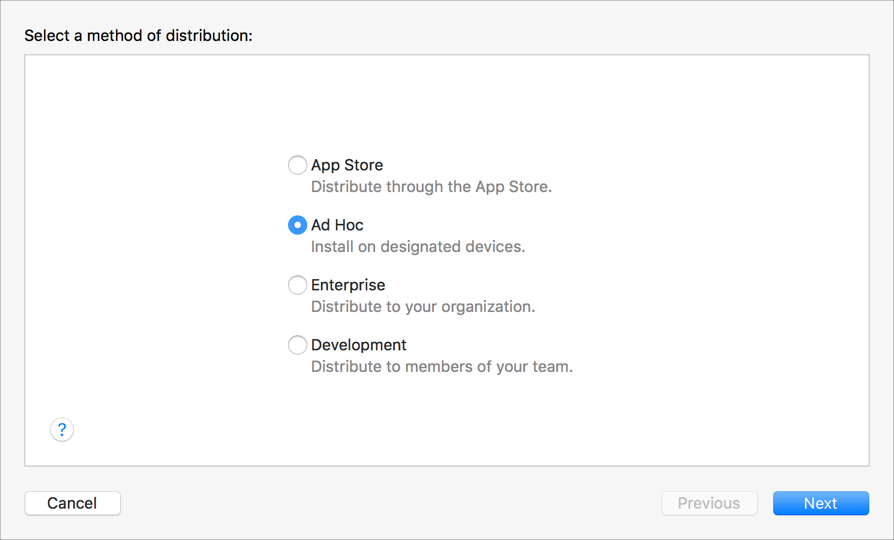
To learn about the distribution methods, go to Distribution methods.
In the sheet that appears, choose distribution options, then click Next.
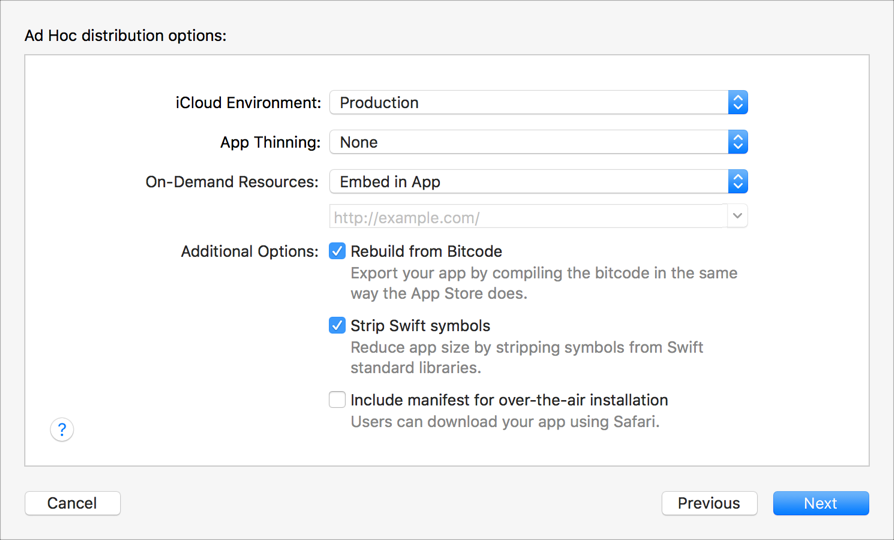
To learn about the distribution options, go to Distribution options.
If you checked “Include manifest for over-the-air installation”, enter details about your web server in the “Distribution manifest information” sheet that appears, then click Next.
Name: The name of the app displayed during download and installation.
App URL: A fully qualified HTTPS URL for the iOS App (IPA) file.
Display Image URL: A fully qualified HTTPS URL for an app icon that is displayed during download and installation. The image file must be 57 x 57 pixels and in PNG format.
Full Size Image URL: A fully qualified HTTPS URL for a larger image that is displayed in iTunes. The image file must be 512 x 512 pixels and in PNG format.
In the sheet that appears, choose a signing option, then click Next.
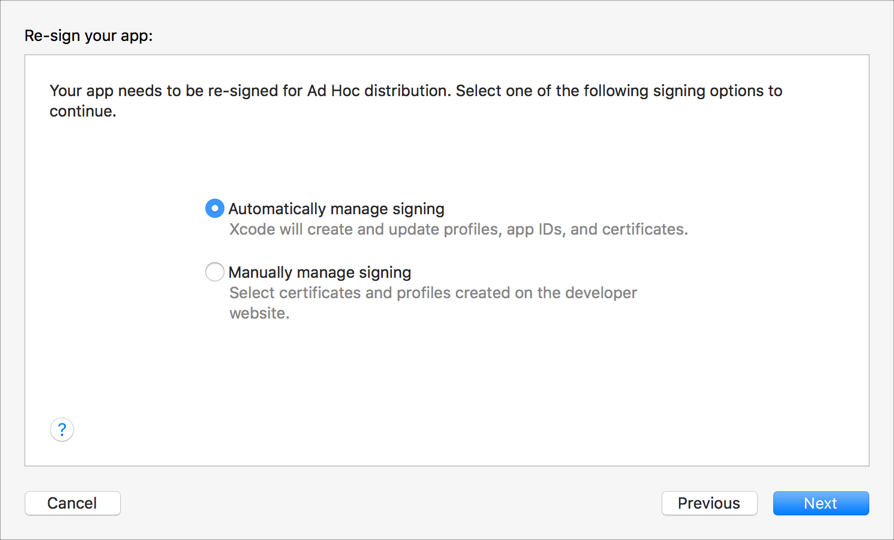
To learn about the signing options, go to Distribution signing options. If you select “Manually manage signing”, go to Manually manage distribution signing for alternate steps.
If you are missing a required distribution certificate, follow the instructions in the next sheet to create it.
Review the signing certificate, provisioning profile, and entitlements, then click Export.
In the sheet that appears, choose a folder location, then click Export.
A folder containing the archive export files appears in Finder. If you requested a manifest file, a manifest.plist file appears in the same location as the iOS App (IPA) file file. If you requested variants, an app-thinning.plist file is included that contains app thinning metrics, and the iOS App files appear in an Apps subfolder.
Note: You need the ExportOptions.plist file contained in this folder to configure a bot to create iOS App (IPA) files. You can also pass the ExportOptions.plist to the xcodebuild command.