Configure build settings in the Build Settings pane of the project editor to change the behavior of the build system.
Xcode assigns default build setting values based on your project configuration, so you should only need to change build settings if you require customization.
Locate and select the desired build setting in the Build Settings pane of the project editor. See Find a build setting and Filter build settings.
If you want to configure the build setting for a particular build configuration, click the disclosure triangle to the left of the build setting to display all available build configurations.
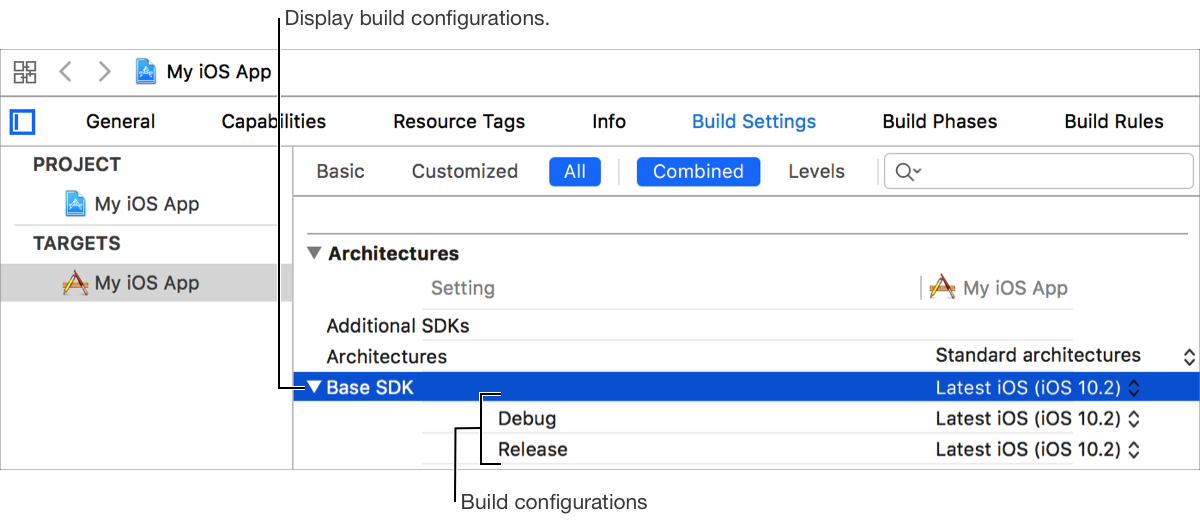
You can also conditionalize build settings based on architecture and SDK. See Conditionalize build settings for different platforms.
Choose or enter a value for the build setting or for a particular build configuration of the build setting.
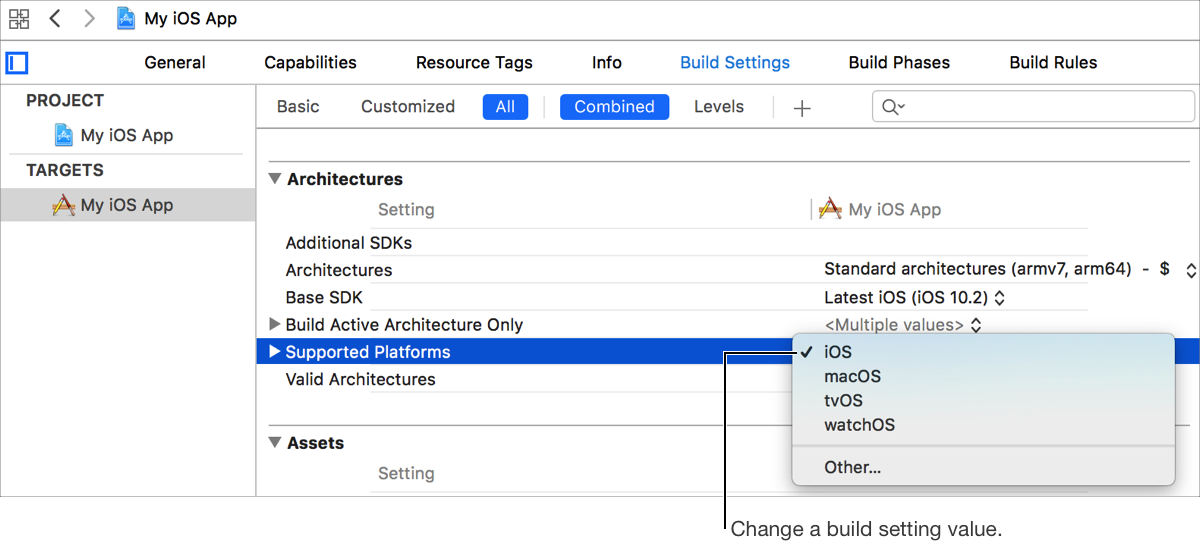
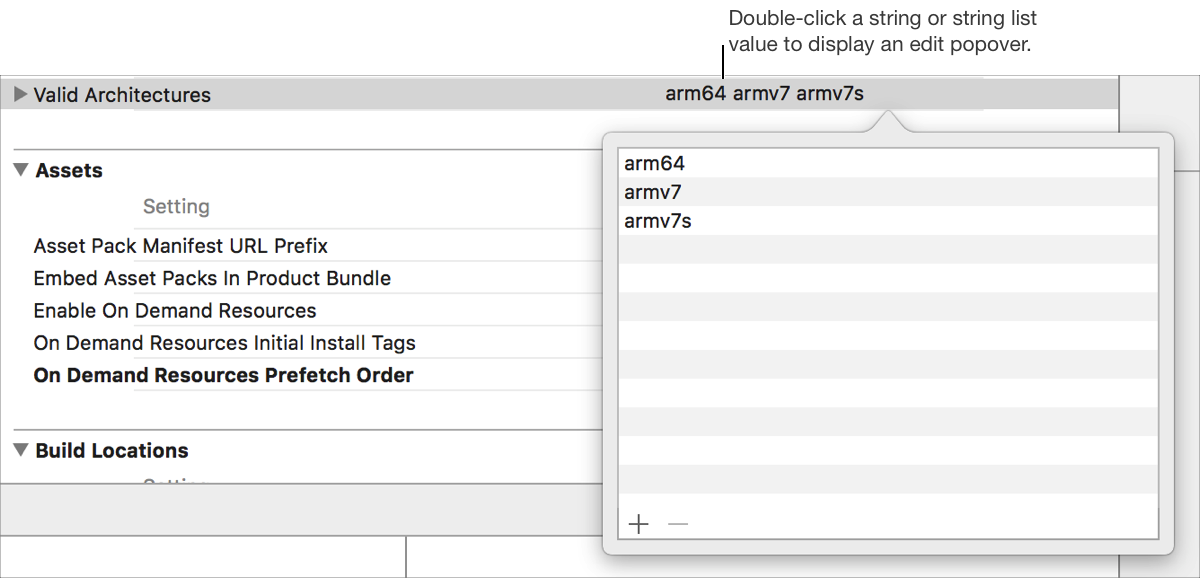
For values of type string or string list (see About build settings to learn about value types), click the value to begin editing.

Double-click a value of type string or string list to display a popover editor.
Enter a search term such as a human-readable build setting name, a build setting declaration name, or other keyword, into the search field in the filter bar the top of the Build Settings pane in the project editor.
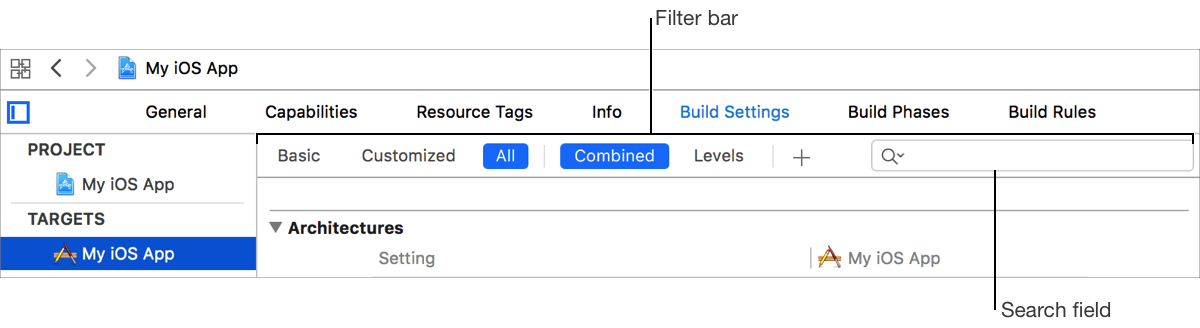
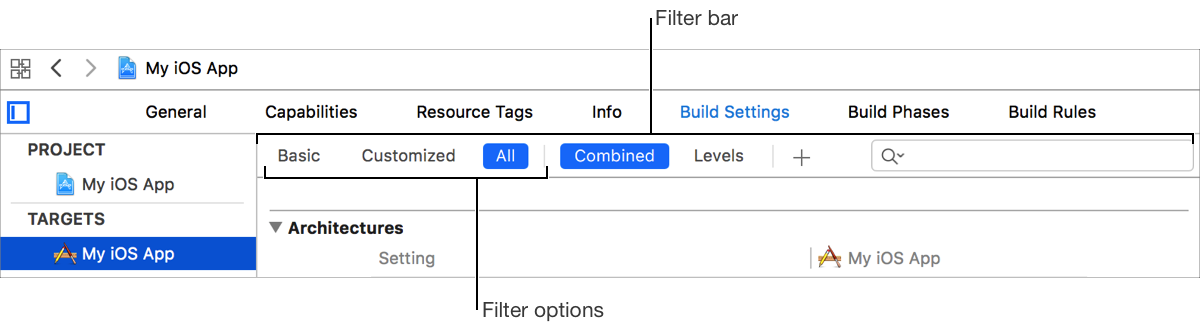
Click a filter option in the filter bar at the top of the Build Settings pane in the project editor. Options include:
Basic: Shows the most common build settings.
Customized: Shows only build settings that have been customized for the selected project or target.
All: Shows all build settings.
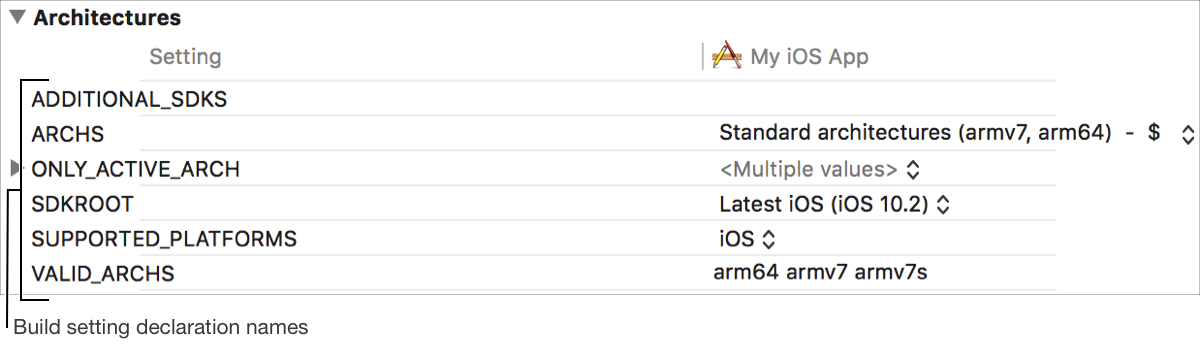
Choose Editor > Show Setting Names. Note that this menu item only exists when build settings are displayed by human-readable name. See View build settings by human-readable title.
The declaration name of each build setting, instead of its human-readable name, is displayed in the Build Settings pane of the project editor. For example, instead of seeing Base SDK listed for the Base SDK (SDKROOT) build setting, you see SDKROOT.
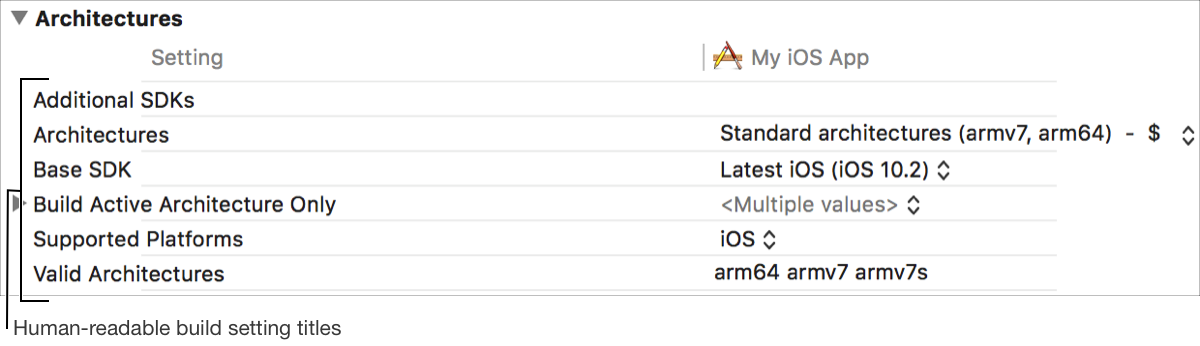
Choose Editor > Show Setting Titles. Note that this menu item only exists when build settings are displayed by declaration name. See View build settings by declaration name.
The human-readable name of each build setting, instead of its declaration name, is displayed in the Build Settings pane of the project editor. For example, instead of seeing SDKROOT listed for the Base SDK (SDKROOT) build setting, you see Base SDK.
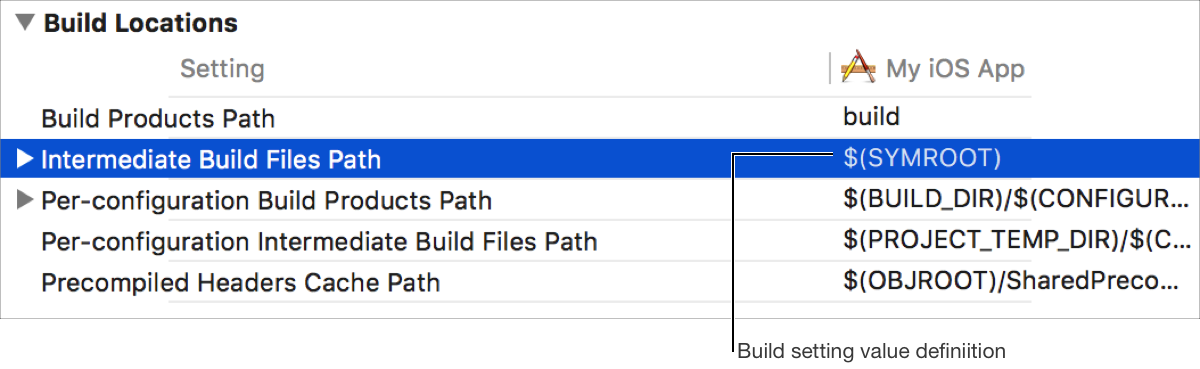
Choose Editor > Show Values. Note that this menu item only exists when build setting value definitions are displayed. See View build setting value definitions.
The calculated value of each build setting is displayed in the Build Settings pane of the project editor. For example, if the Intermediate Build Files Path (OBJROOT) build setting references the Build Products Path (SYMROOT) build setting, whose value is set to build, then the value of Intermediate Build Files Path (OBJROOT) also appears as build.
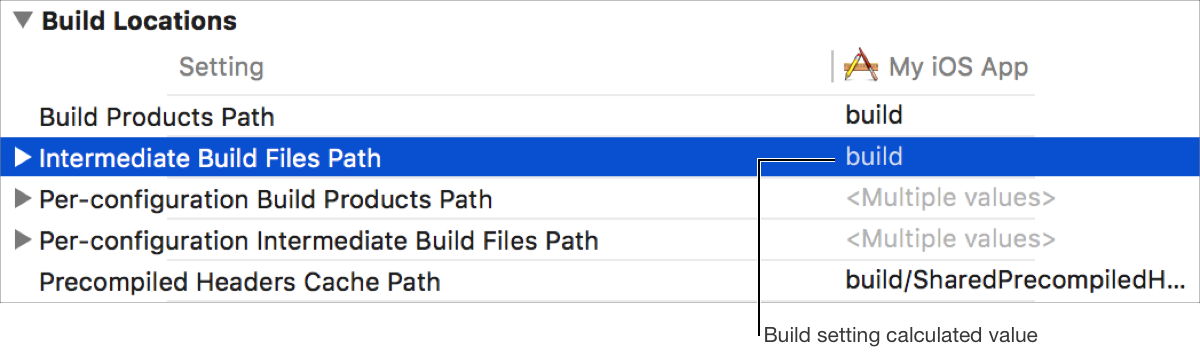
Choose Editor > Show Definitions. Note that this menu item only exists when build setting calculated values are displayed. See View build setting calculated values.
The value definition of each build setting is displayed in the Build Settings pane of the project editor. For example, if the Intermediate Build Files Path (OBJROOT) build setting references the Build Products Path (SYMROOT) build setting, then the value of Intermediate Build Files Path (OBJROOT) also appears as $(SYMROOT).