
If you need to test multiple Apple Watches paired with a single iPhone, you can add multiple Apple Watch simulators to an iPhone simulator using the Devices and Simulators window. You can also switch between the active Apple Watch simulator.
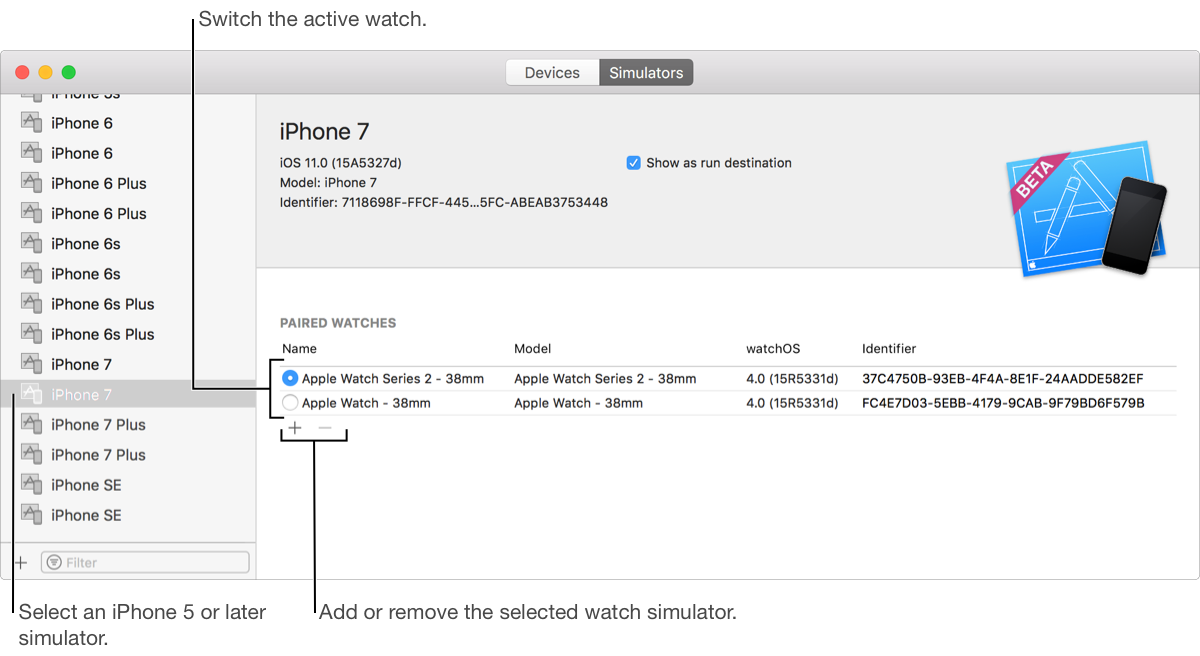
Open the Devices and Simulators window (choose Window > Devices and Simulators), then click Simulators.
In the left column, select an iPhone 5 or later simulator.
Pairing multiple Apple Watches to an iPhone is available on iOS 9.3 and later, and watchOS 2.2 and later.
Under the Paired Watches table, click the Add button (+).
In the sheet that appears, enter a watch simulator name (optional), choose a device type, and choose a watchOS version.
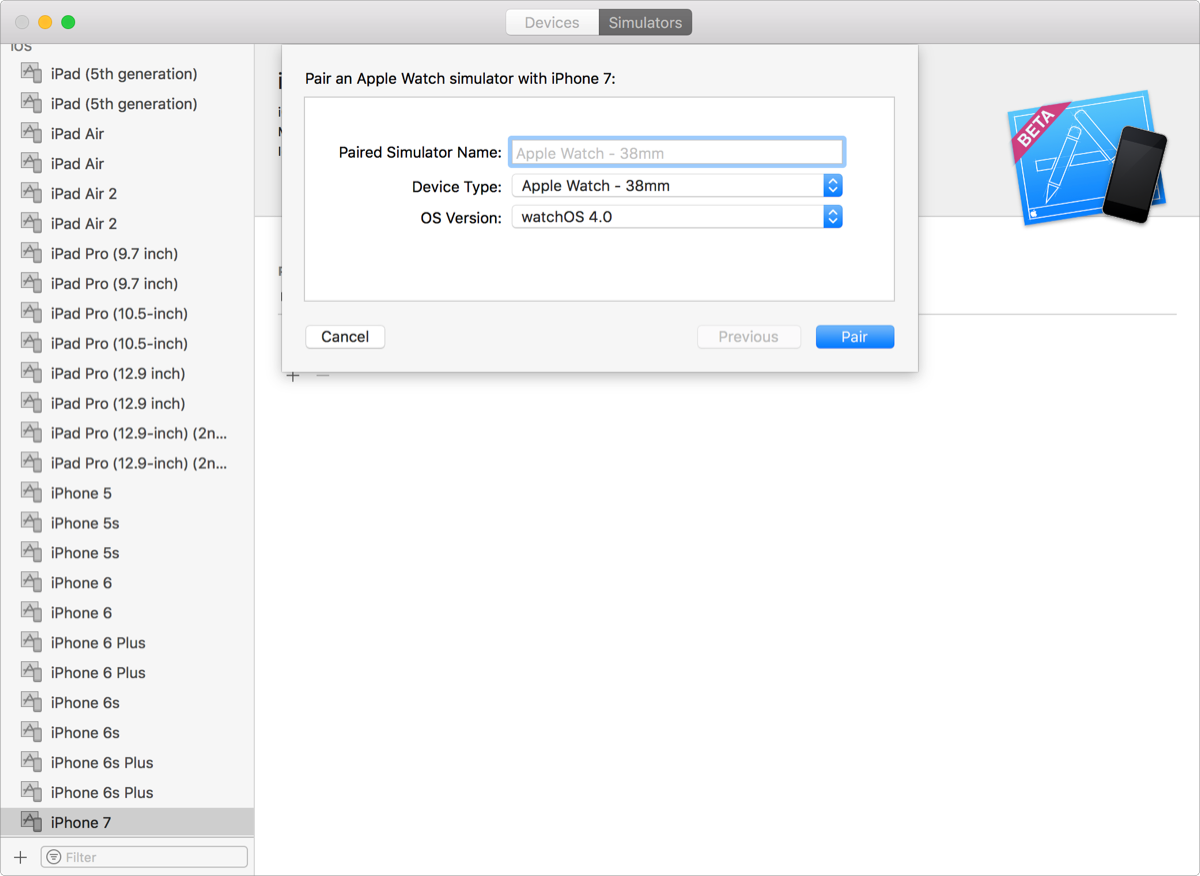
If you don’t see the operating system version you want to use, choose “Download more simulator runtimes.”
The Components preferences opens where you can download and install simulator runtimes.
Click Pair.
If multiple Apple Watch simulators are paired with the same iPhone simulator, radio buttons appear in the first column of the Paired Watches table and the active watch is selected.
To change the active watch, click the radio button in the row of the watch.
Select the watch in the table.
Click the Delete button (–) below the table.