
You can view reports of your UI test and unit test runs directly in the main window. You control the structure of the reports and add attachments to the reports using the XCTest framework.
In the Project navigator, select a test source code file to open it in the source editor.
In the source editor, Control-Click a test status icon in the gutter, then choose Jump to Report from the pop-up menu.
The test report appears in the editor area on the right.
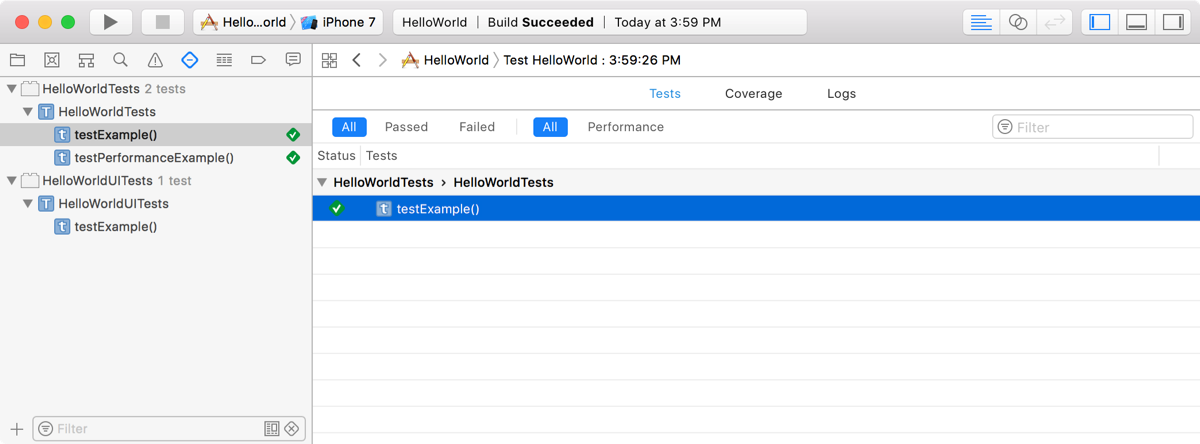
To reveal a test or activity, click the disclosure triangle.
Use the XCTest activities APIs to logically group subtasks.
To view a screenshot, open the assistant editor and select the screenshot attachment in the report.
Use the XCTest screenshot APIs to attach screenshots to the report.
Alternatively, Control-click a test in the Test navigator, then choose Jump to Report.